Block time slots for big groups or closing of the center
Go to settings - product availability - rules. Click 'new rule'.
Fill in the rule like shown in the screenshot below:
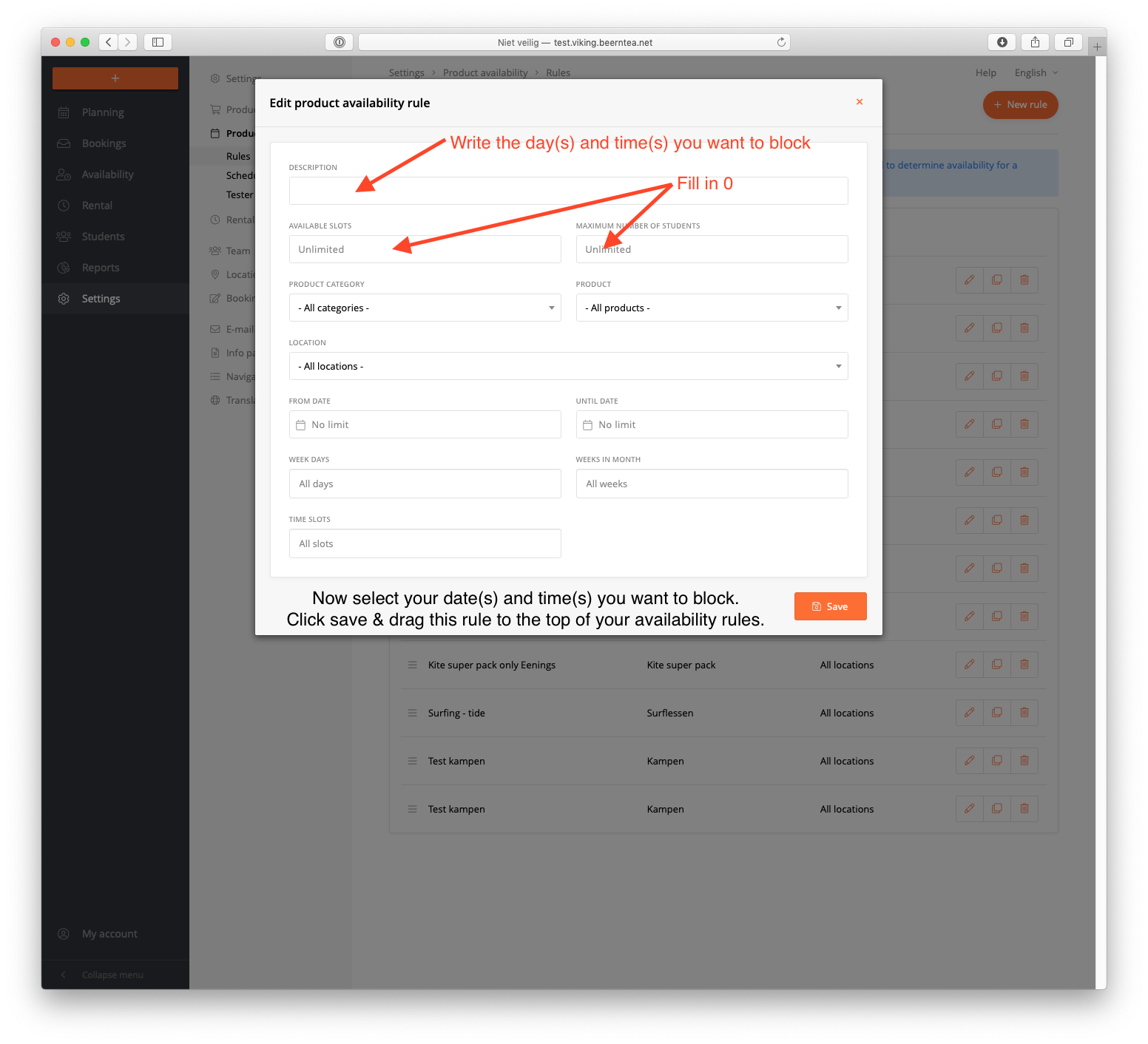
- Give a description of the rule (mention 'block' in the title)
- Set 'available slots' and 'maximum number of students' both to 0
- Choose the products or categories that you want to block
- Select a date range (for instance; winter period)
IMPORTANT
Once the rule is saved, make sure to drag it to the top of the list (with the 'hamburger' icon). Rules are processed in order from top to bottom and blocking rules should be at the top.
- You can create as many 'blocking' rules as needed.
- For advanced schedules: it is possible to put a 'blocking' rule somewhere in the middle of the list. This allows you to leave open availability for certain products (the rules that are above the blocking rule will not be blocked) and only block availability for other products.