Default expiration for new bookings
You have the option to set the length of time that a new booking will remain valid in this section. After this time has passed, the student will no longer be able to schedule their lesson.
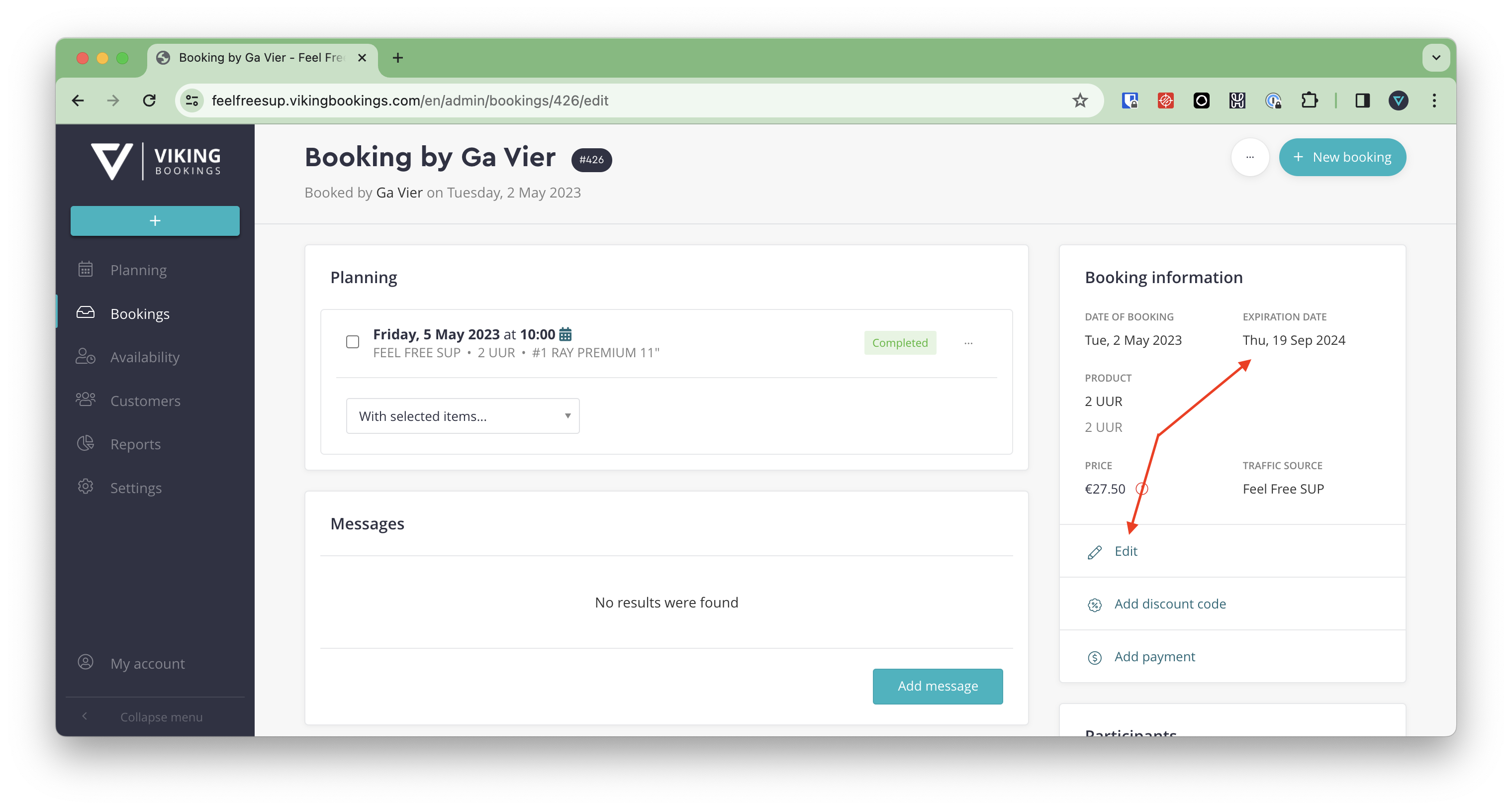
In order to modify the expiration time of an individual booking, navigate to bookings in the main menu, select the desired booking, access the edit feature, adjust the expiration date, and save the updated information. A screenshot has been given below:
Info page about use of personal details
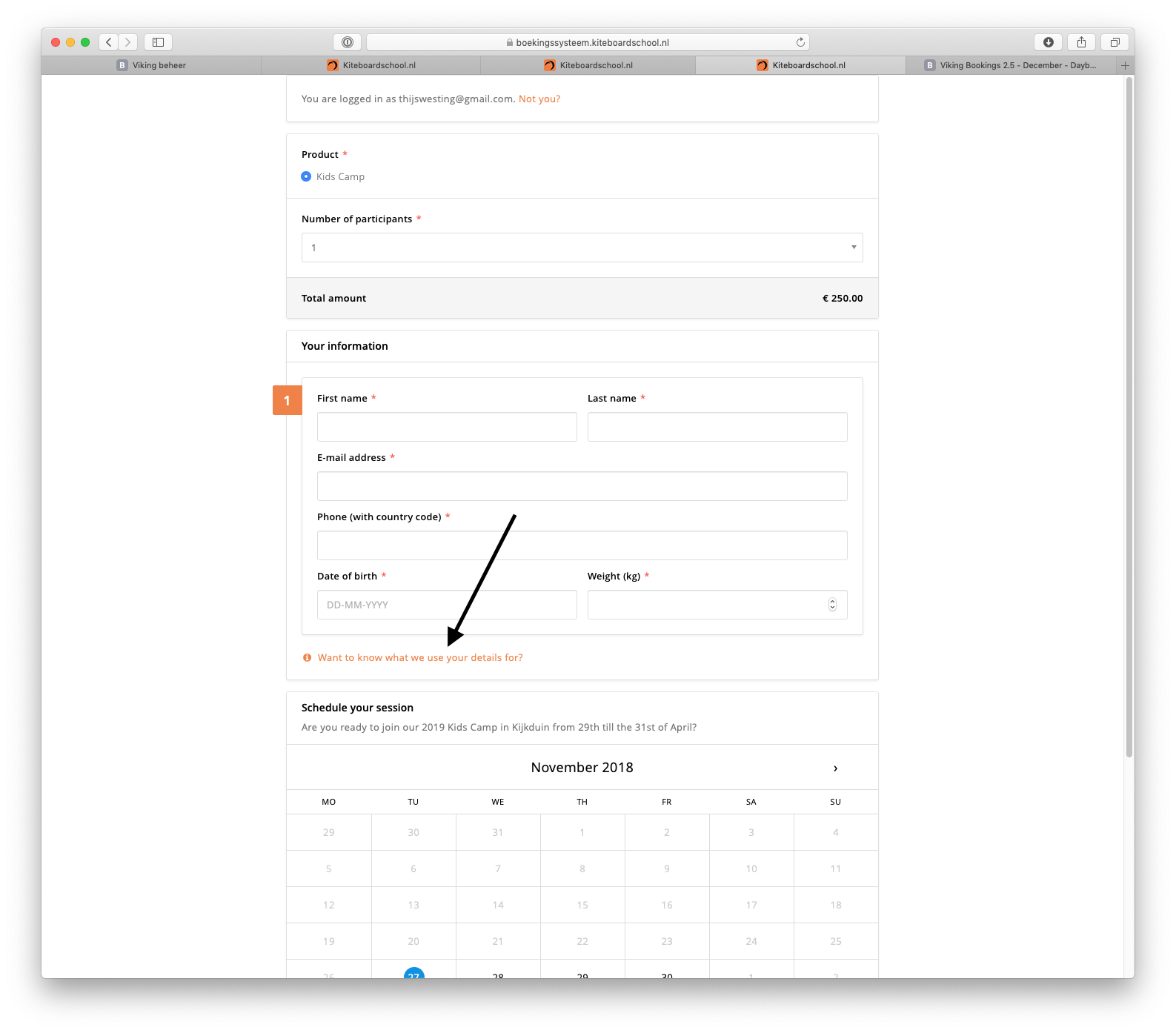
You can choose to add an extra explanation in the booking form to inform your customers about the purpose of requesting certain information.
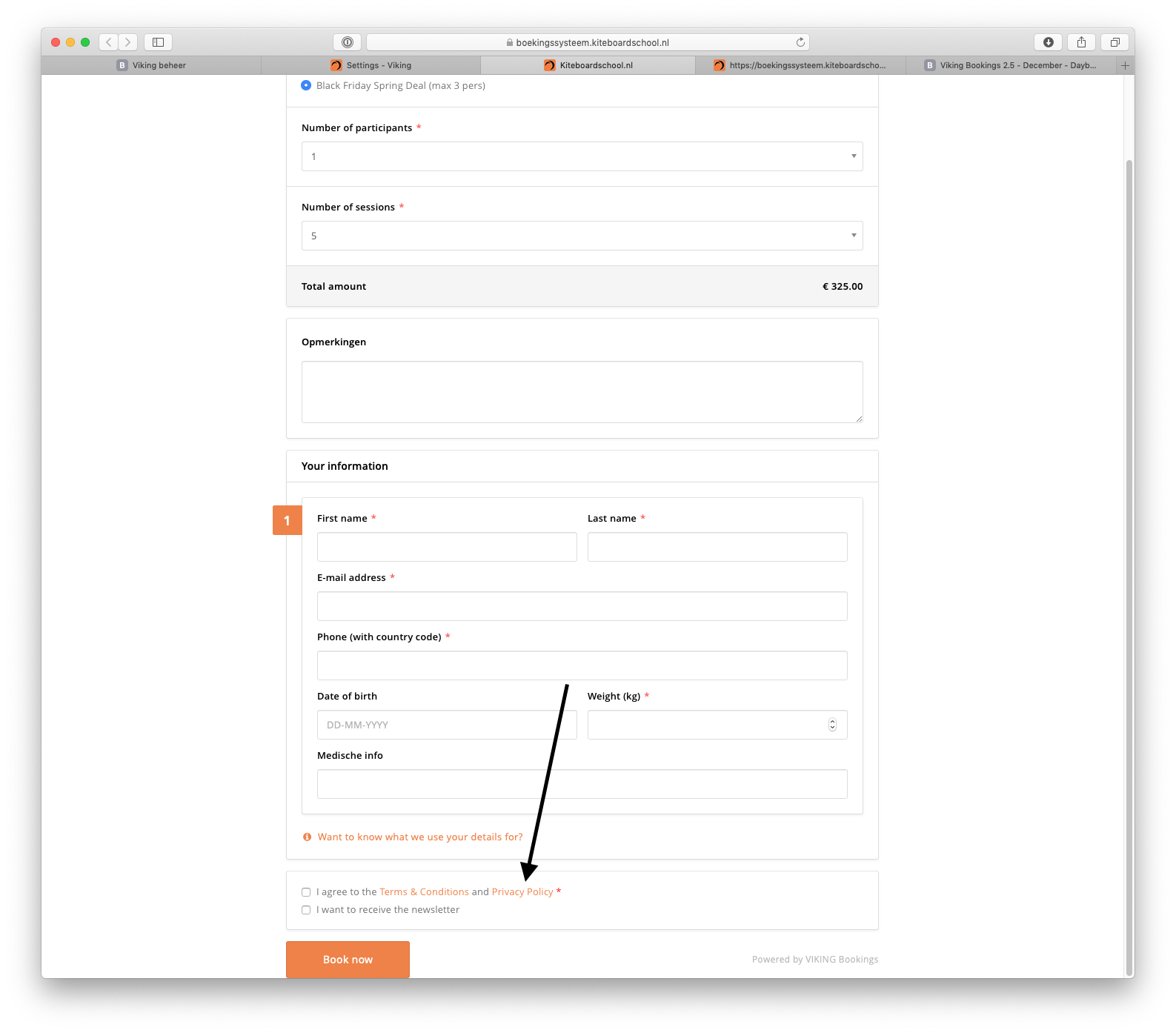
To provide an explanation for collecting personal data, create a new information page in the settings menu under "info pages".
Navigate to the settings menu, then select "general" and "booking". Choose the newly created page as the information page regarding the use of personal details. This page will be displayed as an additional link in the booking form, and clicking on the link will direct users to the page:
Terms & conditions
Navigate to settings - general - booking. You can submit your terms and conditions as a PDF.
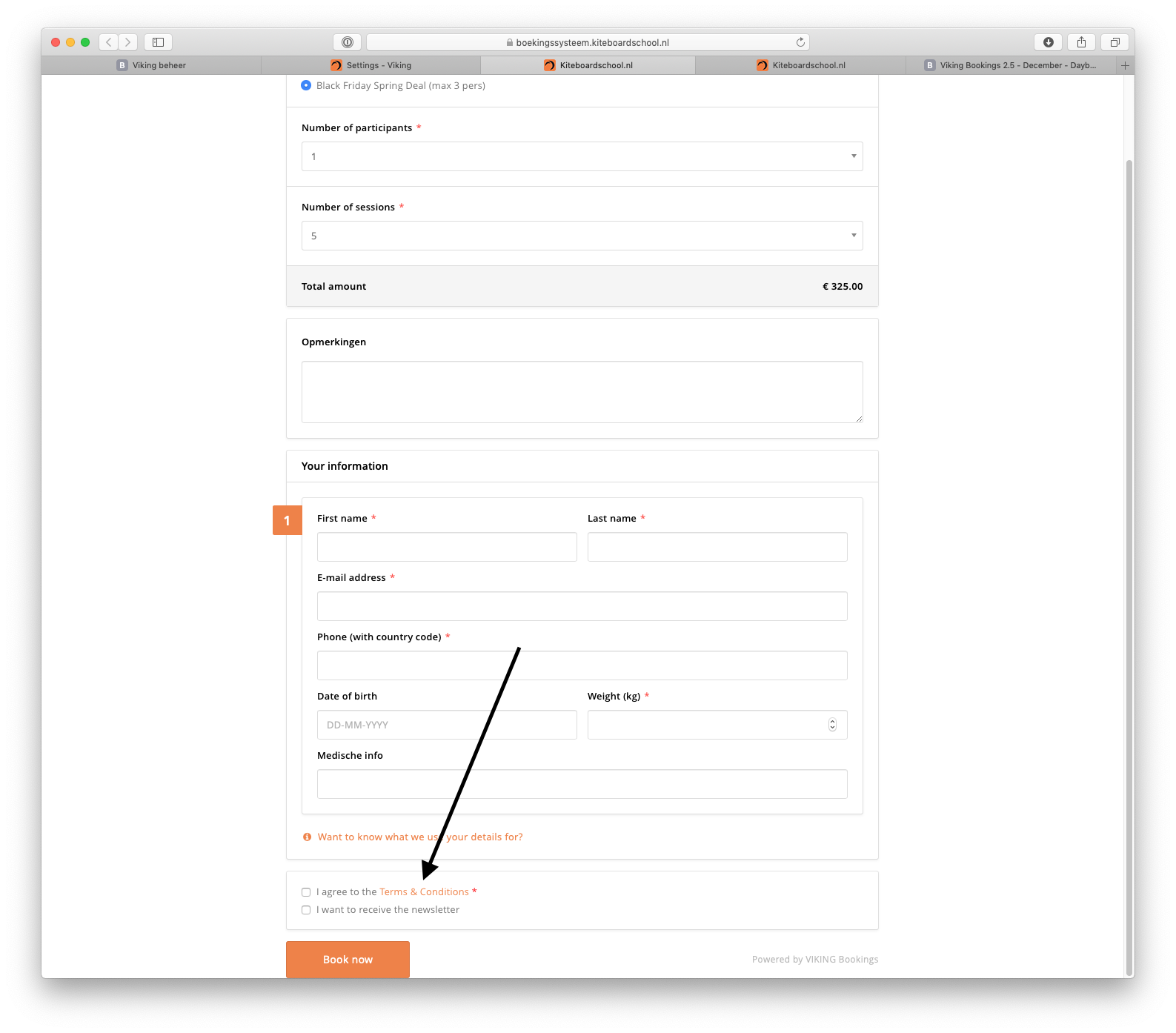
If customers book through a booking form themselves, they are required to accept the terms and conditions in order to finalize the booking.
Privacy policy
Navigate to settings - general - booking. You can submit your terms and conditions as a PDF.
If customers book through a booking form themselves, they are required to accept the privacy policy in order to finalize the booking.
Booking confirmation image
To configure the booking confirmation image, navigate to the settings menu, then select general, and finally choose booking.
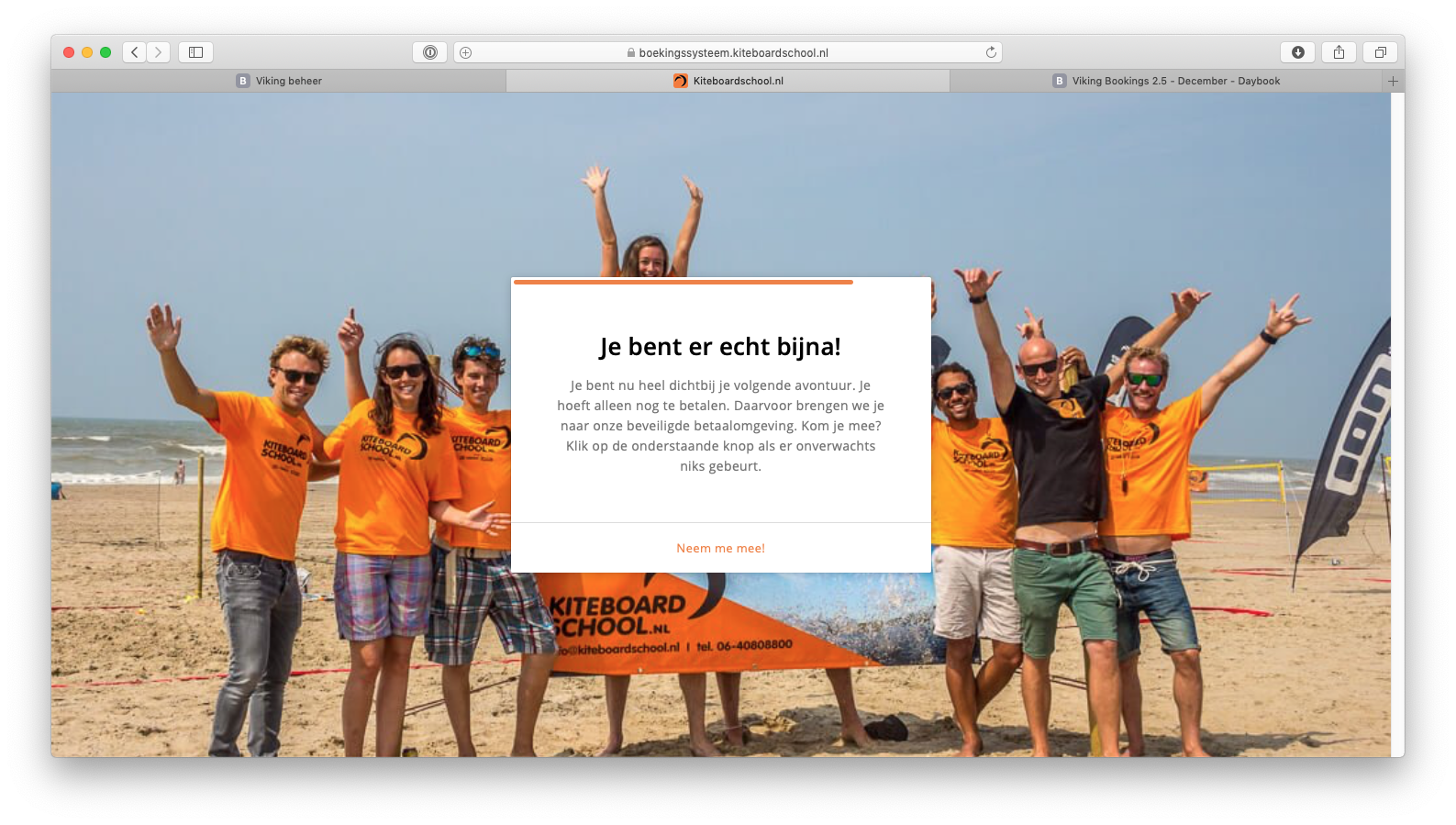
Once students make a reservation on your website, they will be presented with this image as a backdrop while the subsequent screen is loading.