We have optimised the default milestone settings so they easily fit most schools. However there can be situations in which a different configuration is preferred. Please read this article carefully. Only make changes if you know what you're doing.
Once you've made changes to a default plan, you won't receive (potential) future updates of the default content. We can only 'reset a plan back to default', this will overwrite any changes you might have made.
Editing a plan
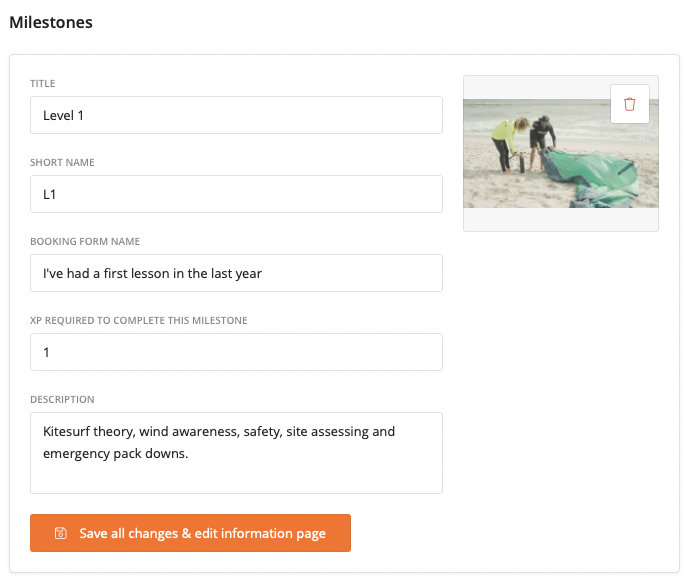
Go to Settings > My Progress and select one of the pre-loaded plans. You will be able to edit every milestone:
Screenshot
Shows up in the student portal as main image.
Shows up in the student portal as main image.
Title
Shows up in the student portal as main title. It is also used in the email templates as a variable.
Shows up in the student portal as main title. It is also used in the email templates as a variable.
Short name
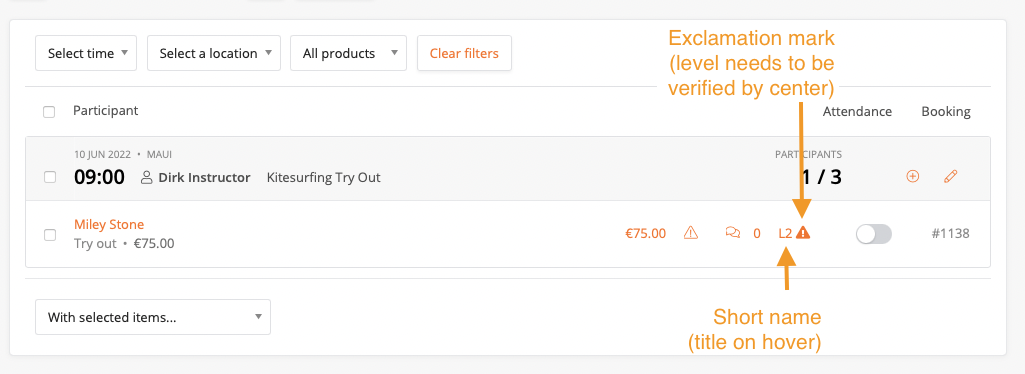
This is the name that appears in the planner instead of 'XP1'.
Booking form name
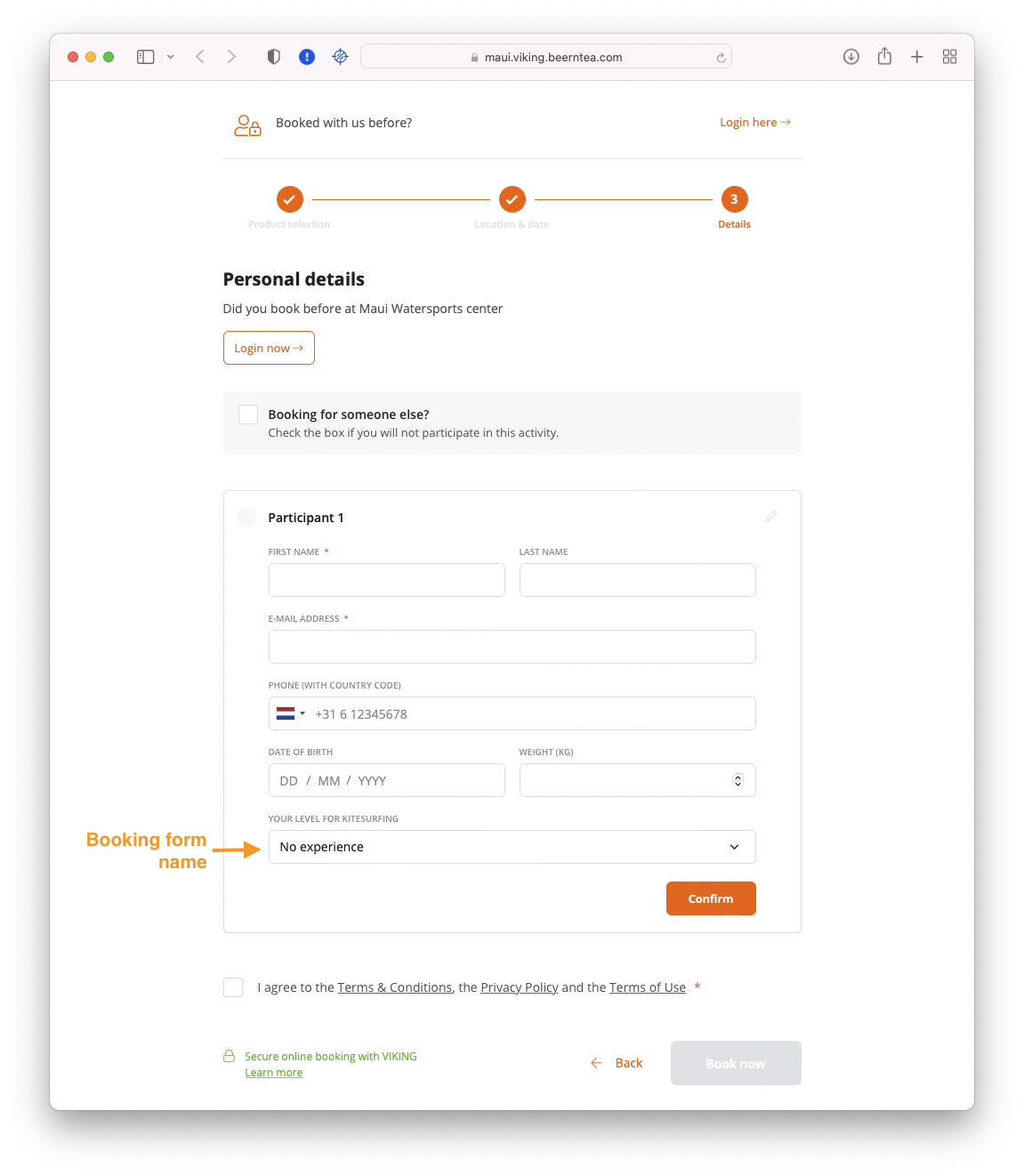
The student can select at what level he/she is. The booking form name will show up in the booking form of the students. When filled out by the student, an exclamation mark will show up in the daily overview so the center knows the level was added by the student.
This is the name that appears in the planner instead of 'XP1'.
Booking form name
The student can select at what level he/she is. The booking form name will show up in the booking form of the students. When filled out by the student, an exclamation mark will show up in the daily overview so the center knows the level was added by the student.
XP required to complete this milestone
Determines after how many finished lessons, this next level opens up automatically in the student portal. By default, one XP equals one level, so after finishing a lesson the student can view the next theory page.
Determines after how many finished lessons, this next level opens up automatically in the student portal. By default, one XP equals one level, so after finishing a lesson the student can view the next theory page.
Description
Shows up in the student portal as an explanation below the title.
Shows up in the student portal as an explanation below the title.
Student portal: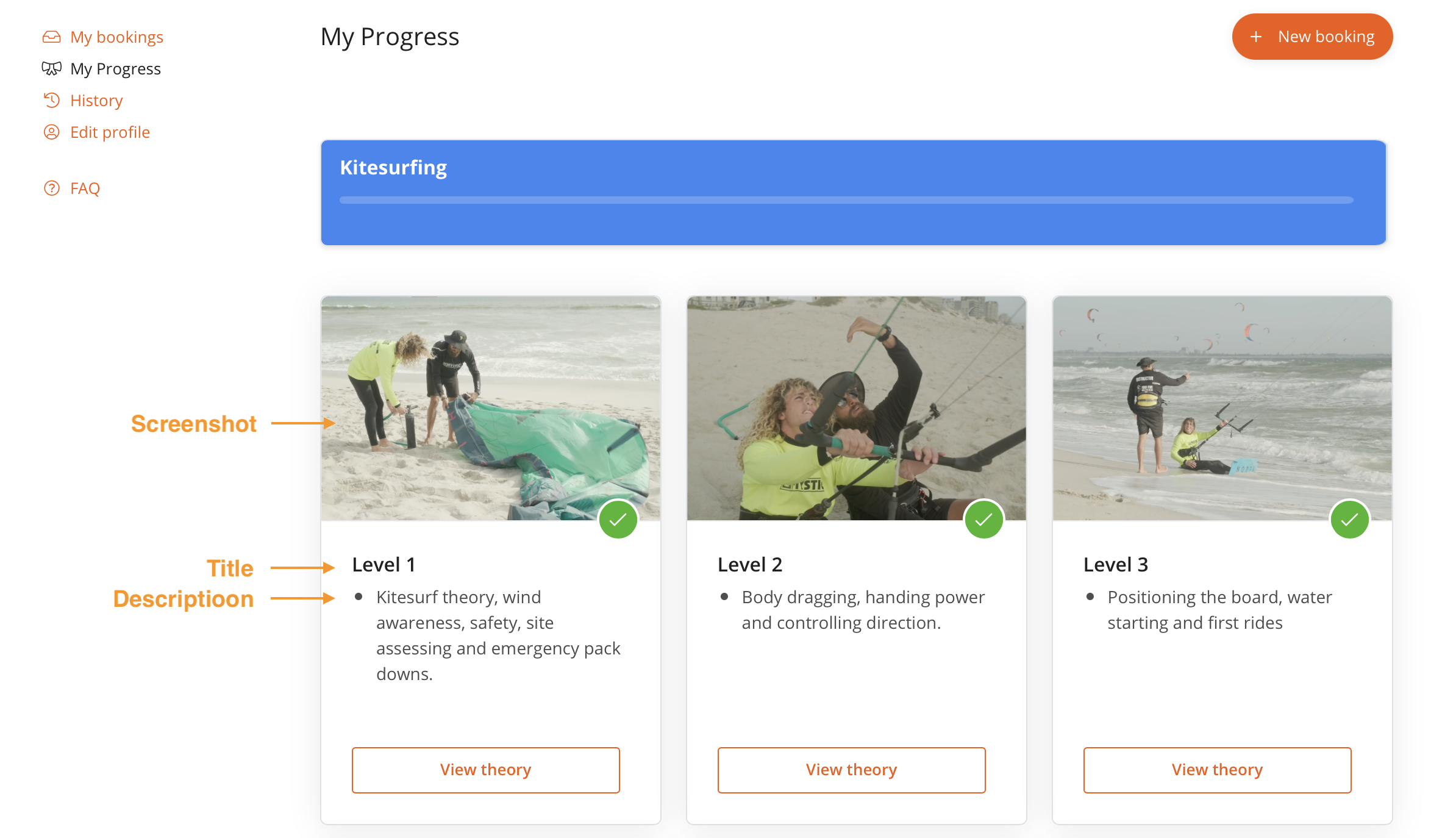
Booking form name:
Daily overview:
Translations
If you are using multiple languages, make sure to expand the 'Translations' tab and make the same changes here.
If you are using multiple languages, make sure to expand the 'Translations' tab and make the same changes here.
Don't forget to save your changes.
There is one more button that will be getting to in the next article: 'Save all changes & edit information page'.
Read more:
Customising the info pages (link to article)
Disclaimer
- Your center is responsible for the contents of the milestone pages. Viking has only put down a general concept, which still needs to be reviewed and amended by your center.
- The (instruction) videos are compiled with the greatest possible care by a team of experts. Nevertheless, Viking does not accept any liability for the content.
- If you don't agree with the contents of the milestones pages, either change the content or in case of non-changeable content (videos), don't use the milestones update at all.
- If you want to disconnect the milestones from your system on the date of launch: go to your product settings - click on the product - disconnect the milestone from the product.
- The milestones are translated by Translation Kings. They know all about translations and nothing about water sports, so you might need to rewrite some stuff they translated.