We have optimised the default content so it's relevant for all teaching styles. However you might want to add or change content. Please read this article carefully. Only make changes if you know what you're doing.
Once you've made changes to an info page, you won't receive (potential) future updates of the default content. We can only 'reset a plan back to default', this will overwrite any changes you might have made.
1. Opening an info page
Go to Settings > My Progress and select a milestone plan. To edit the info page of a milestone, click the 'Save all changes & edit information page'.
2. Using the 'block editor'
You will now see the default content in a 'what you see is what you get' editor, so this page looks the same as in the student portal. It's made up of 'blocks' that can be stacked below each other. This makes it easy to create good looking info pages without having to worry about the styling.
There are five different block types, for different types of content:
Adds a section with a centred title and (optional) description.
A versatile section with different options:
• Image on 1 side and title with text on the other side.
• Use a video URL (instead of image) to render a video player over the image placeholder.
You have options to style the text and determine the position of the image.
Adds a full-width image to the page, mainly used for styling purposes.
A content block that has small numbered images on the left, with a text explanation on the right. Ideal for explaining a sequence of events or a list of options.
An 'accordion' section with questions that can be expanded to reveil the answer, as often used in 'frequently asked questions'.
2.1 Edit an existing block
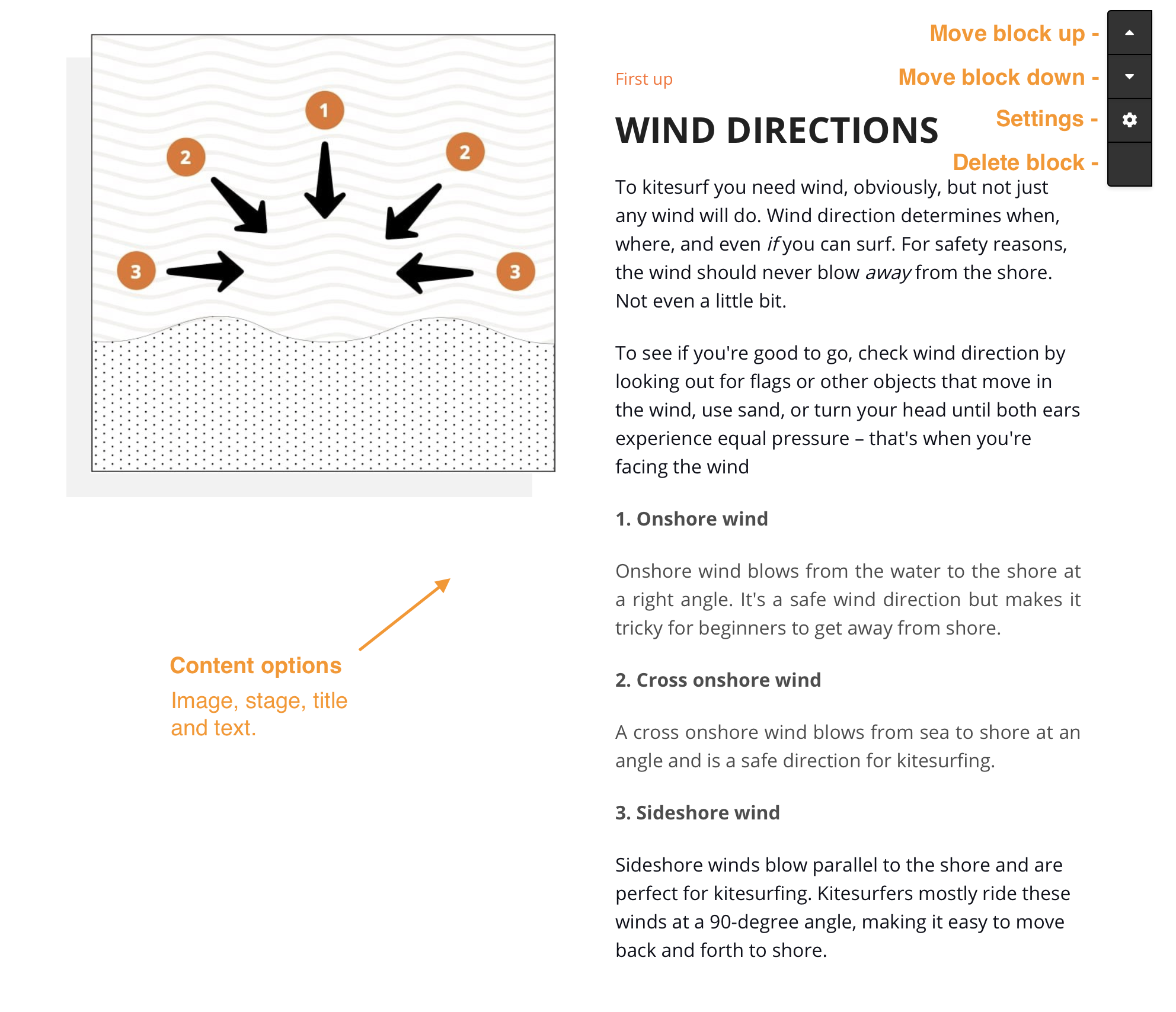
Once you hoover over an existing block, a settings bar appears in the top right corner of the block. Click the 'settings' icon to change the contents. Depending on the type of block, you will see the available options for content and styling.
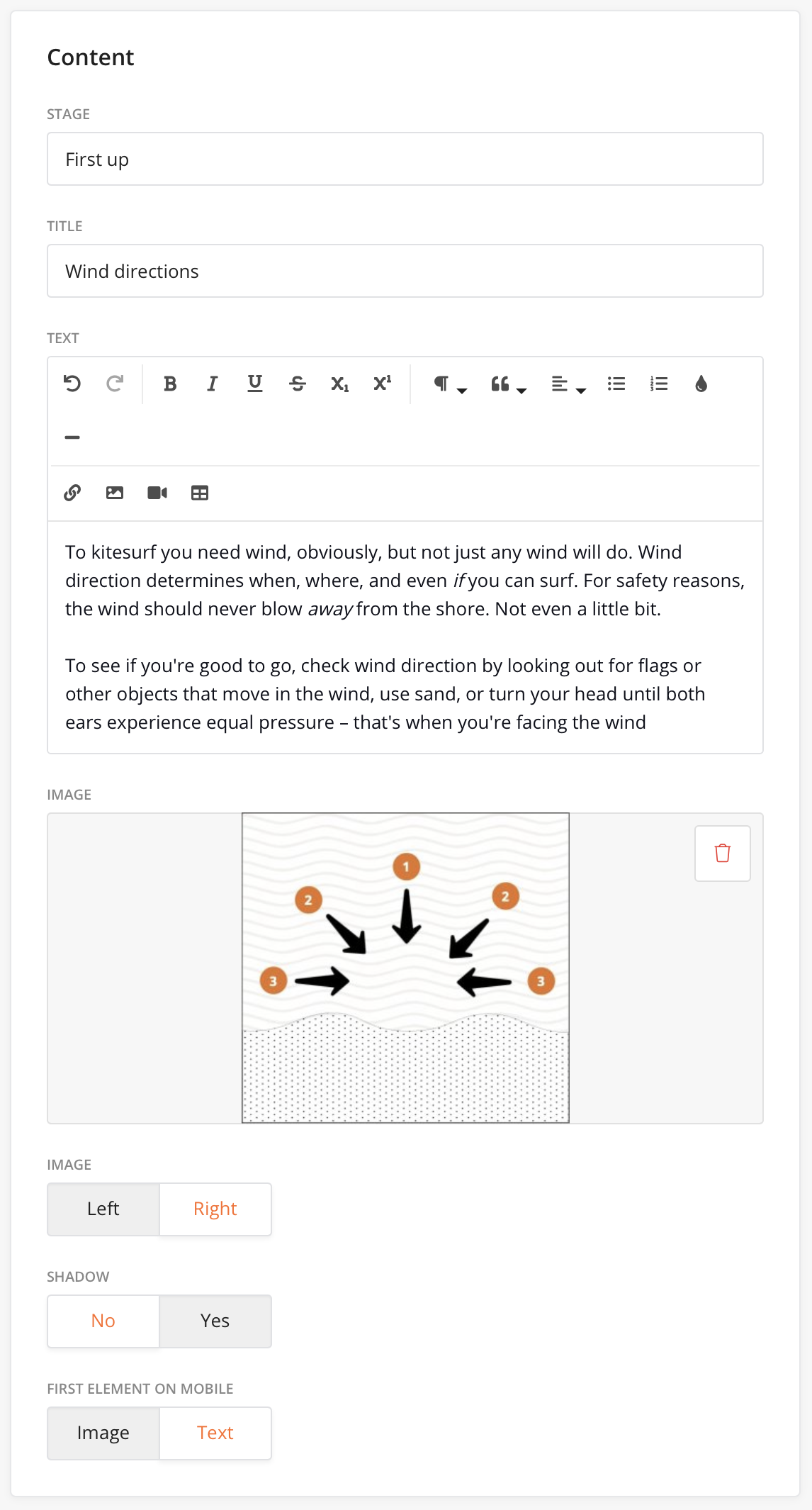
Making changes is quite straightforward and most of the options in the editor speak for themselves. Compare the screenshots below.
The editor for this particular block:
2.2 Creating new blocks
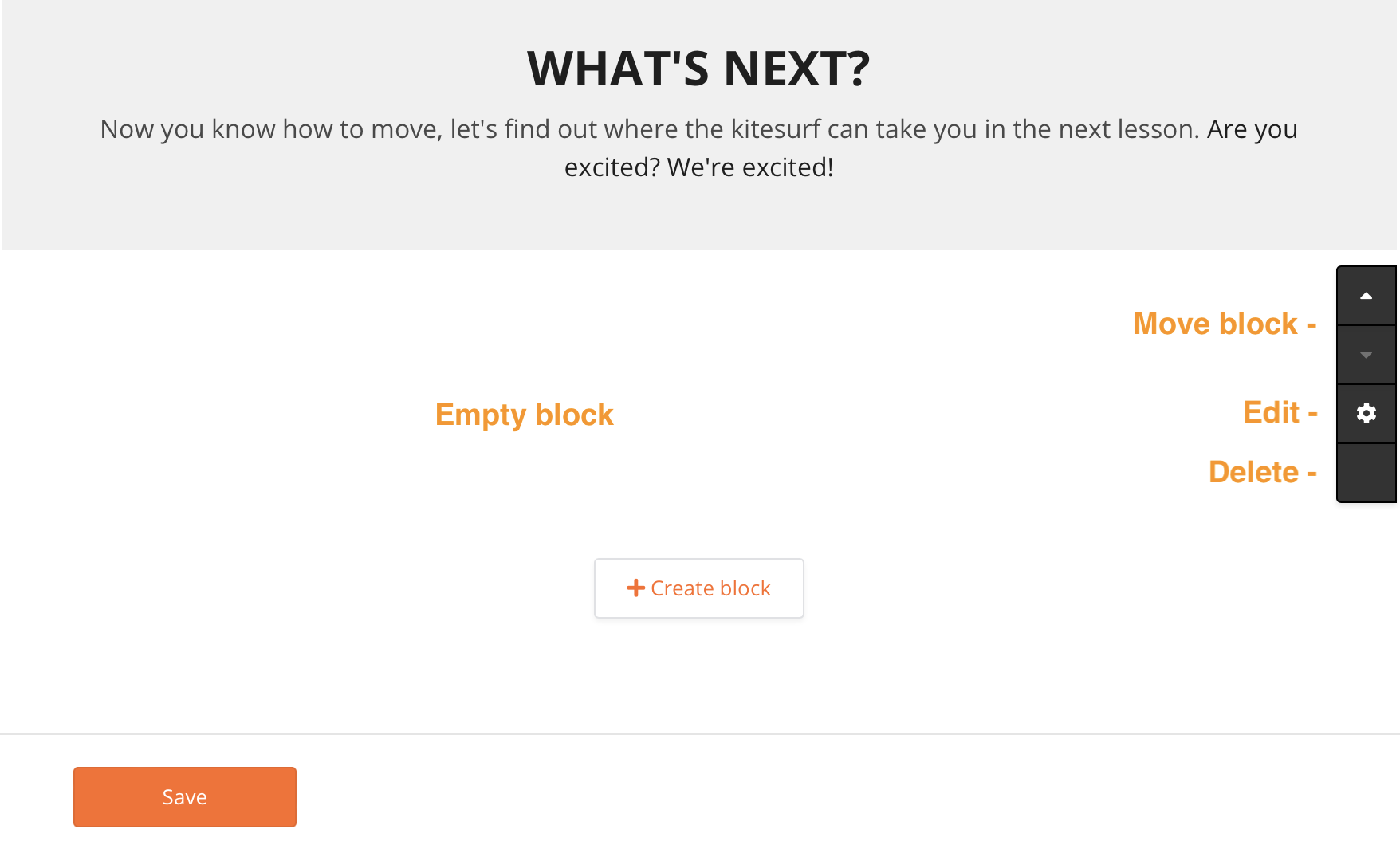
At the bottom of each info page, you will find a '+ Create block' button, where you can choose which block type you want to add.
Add as many blocks as you need and don't forget to save when finished.
3. Translations & multiple languages
Our pre-filled content is multi-language by default. The customer gets to see the info page in the language of his profile (if available, otherwise English).
If you make changes to the content, make sure to update any other language that you customers might use as well!
To access the translations: on the info page editor, simply change the language in the top-right corner and edit the page in that language.
4. Other questions
The editor already shows the page as it will look in the student portal, but to preview exactly what it looks like for the student, you will have to login as a student. It's always a good idea to have a test booking for this.
Can I change the layout of the blocks?
You can only change the contents of the blocks, all the styling is handled by the system. This is done so that it is very easy for anyone to create good-looking info pages, without any knowledge of website styling.
Can I change the video at the top of the page?
No, it's not possible to change or remove the video at the top of the page.
I have messed up the page, can I reset the content?
If you're not satisfied with your edits, it is possible for us to 'push' the default content to your system again (overwriting any changes you might have made). Please contact your account manager to help you with this.
Disclaimer
- Your center is responsible for the contents of the milestone pages. Viking has only put down a general concept, which still needs to be reviewed and amended by your center.
- The (instruction) videos are compiled with the greatest possible care by a team of experts. Nevertheless, Viking does not accept any liability for the content.
- If you don't agree with the contents of the milestones pages, either change the content or in case of non-changeable content (videos), don't use the milestones update at all.
- If you want to disconnect the milestones from your system on the date of launch: go to your product settings - click on the product - disconnect the milestone from the product.
- The milestones are translated by Translation Kings. They know all about translations and nothing about water sports, so you might need to rewrite some stuff they translated.