No more hassle with paper on the beach, right before you are about to go on the water! Now your customers can sign your waiver on their smartphone or computer, digitally and in advance. Want to get excited? More general info on the website.
The basic workflow of the waivers:
- Create your own waiver.
- Customers get informed through the email templates. So adjust your email templates to integrate the new waivers.
- By clicking on the link in the email, customers get to sign waivers in advance.
- In the customer dashboard, a message will appear that a waiver has to be signed before participating. Click on the message and the customer can sign the waiver directly (not for bookings with 1 head booker - all participants sign on location).
- In your daily planner, it's visible who hasn't signed yet. There are multiple options for having customers sign waivers on location.
SETUP
Create your waiver.
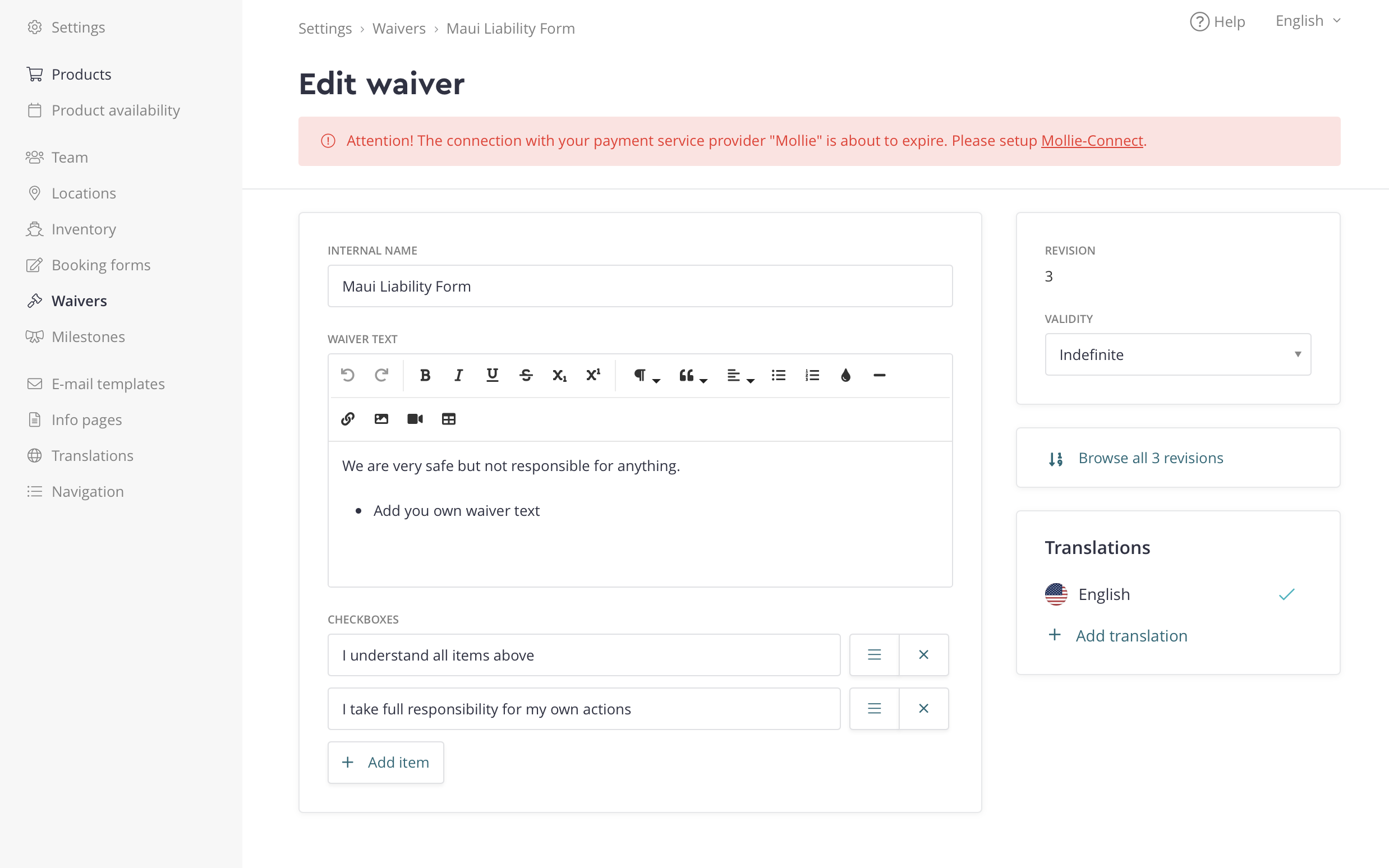
Go to 'Settings > Waivers' and click '+ Add waiver'. Choose a title and add the text with styling in the textbox. Now you can add one or multiple checkboxes that customers have to click to accept the waiver. Save everything and voila!
This is what the waiver looks like when you edit it:
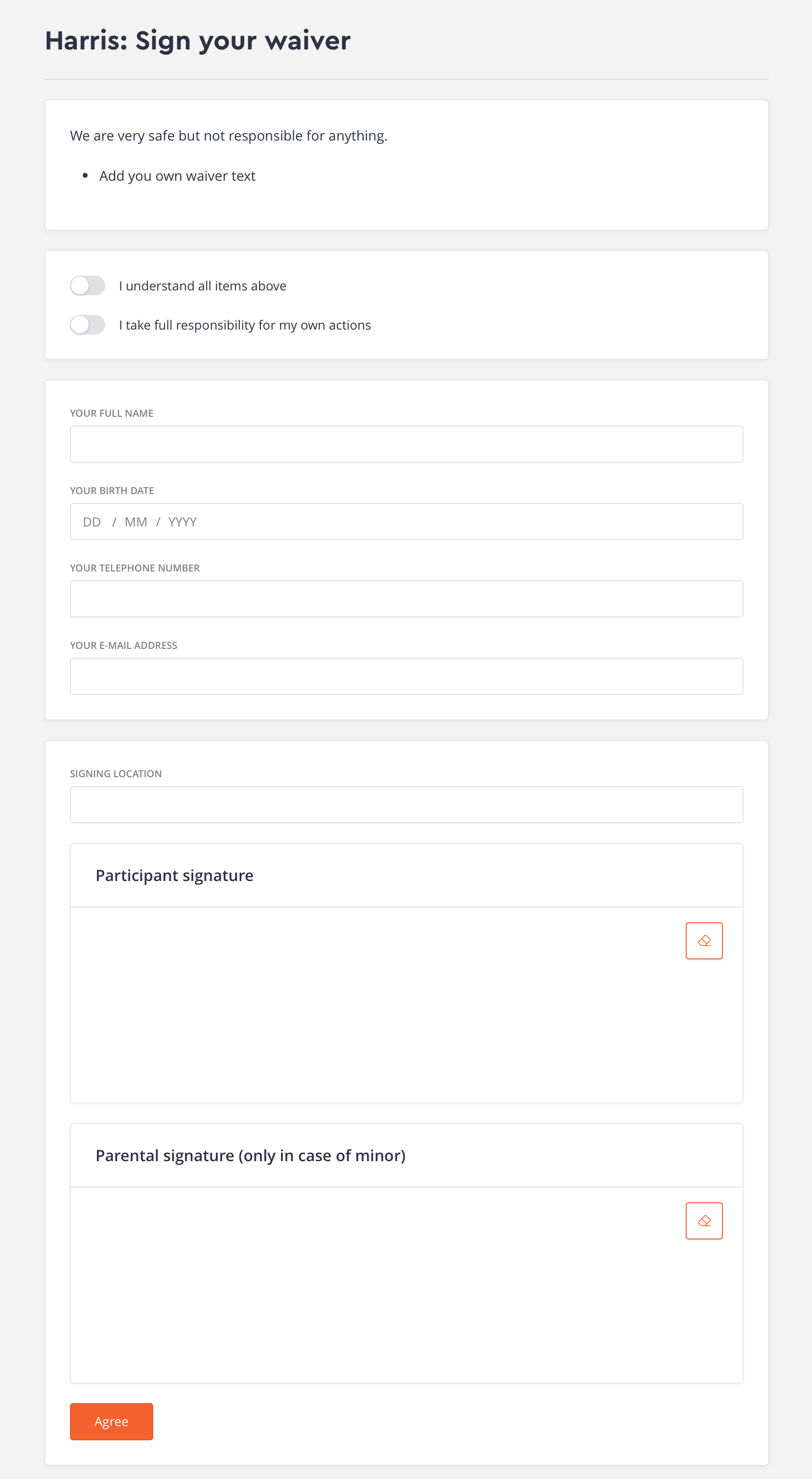
This is what the waiver looks like for the customer:
Connecting a waiver to your products
If you only have 1 default waiver, go to 'Settings .> Booking' and find the dropdown 'Default Waiver'. Make sure that your waiver is selected here, this way it will be added to all your products. It is possible to make different waivers for different products, in this case you have to set the waiver in the product settings (Settings > Products > select product).
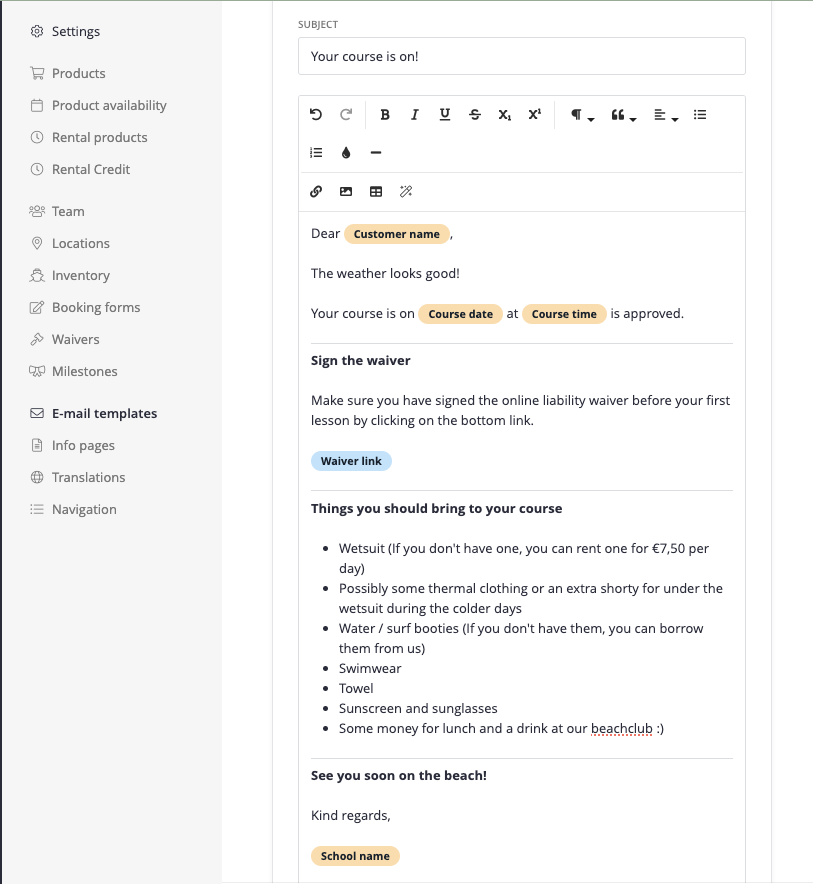
Adding waivers to email templates.
Go to 'Settings > Email templates'. You now have to click an email template, which ones are up to you. But for sure, start with the 'Course approval notification to student' email. This one is sent when you approve a course.
Edit the template so that it says something like: "To make sure we can be on the water as quickly as possible, already sign our digital waiver form in advance". Now insert the variable 'Waiver link'.
- Repeat this for every other email template that you want to inform customers of a waiver. All the 'new booking confirmation' templates are good options as well.
- It's also possible to remind customers that they can sign the waiver directly from their customer dashboard.
DAILY USE
Signing waivers on location
We know how it works, there's always someone who doesn't follow the very clear instructions in your transactional emails... so what if someone hasn't signed the waiver when they arrive at your school?
- In the day planner, an exclamation mark will appear for customers who haven't signed the waiver.
- Click the exclamation mark and you get to see the info.
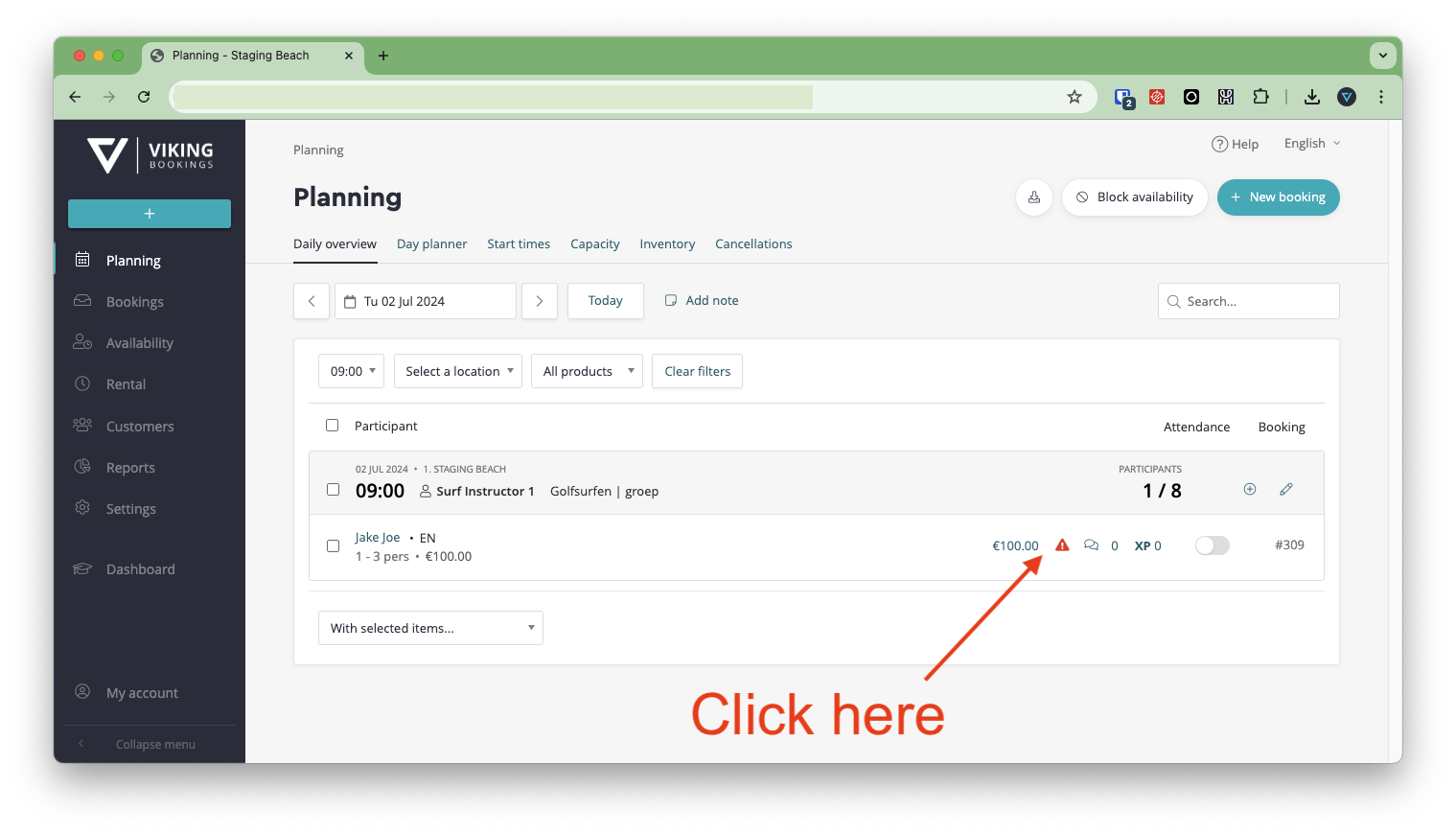
You will now be presented with an additional screen containing additional information. On this screen, there is a QR code that your customer can scan to immediately access the waiver.
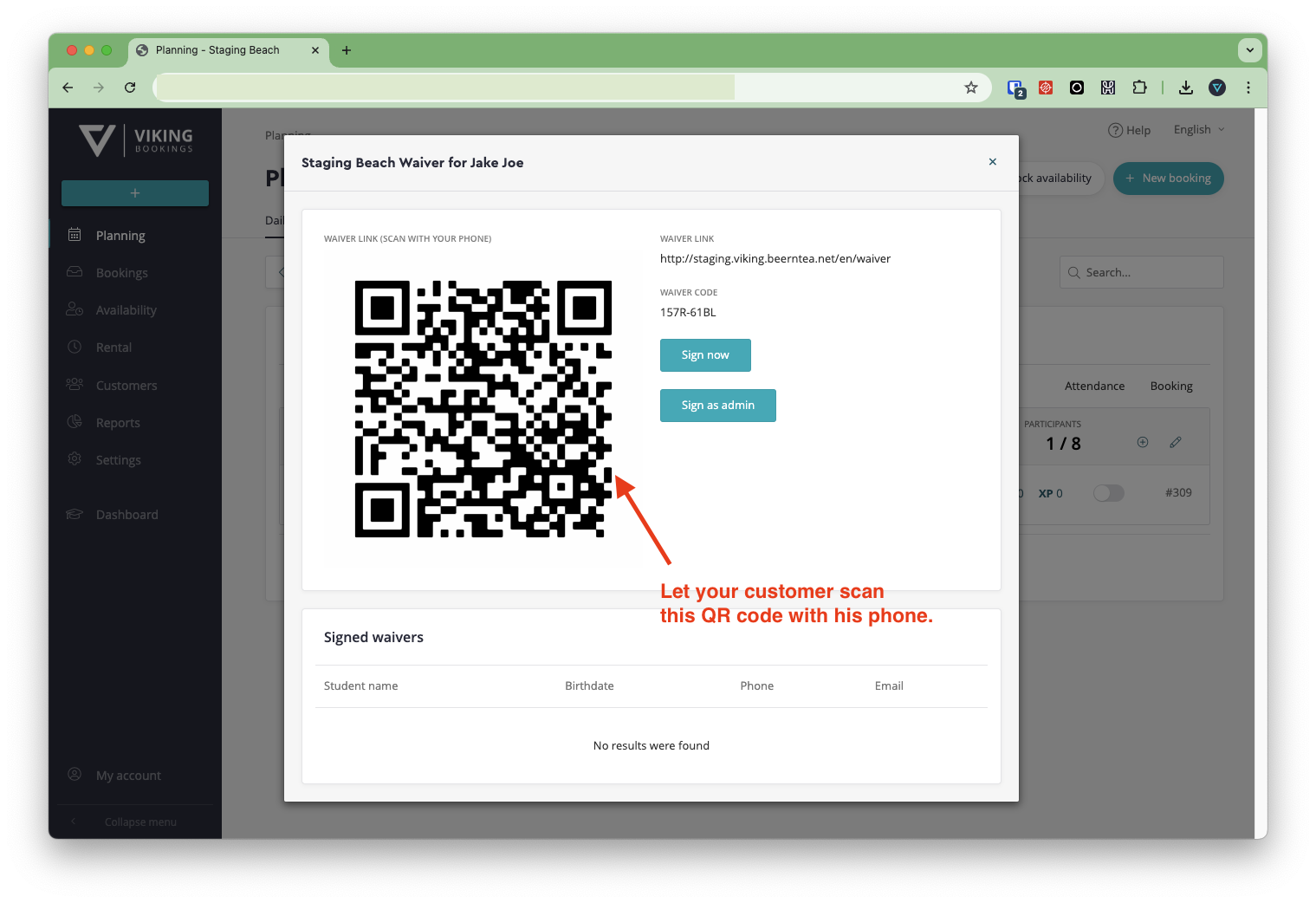
After they signed, reload your daily overview and check the status of the waiver of the customer.
Waiver signed by admin
In the daily overview, waivers can now also be 'signed by an admin'. You first need to enable this feature in Settings > Booking. A few remarks:
- In the Signed Waivers list (on the user and booking detail page), the name of the admin appears in the "Checked by" column if it has been signed by an admin.
- On the Signed Waiver detail page, available collected information (IP address and browser details) is shown, along with a notification of which admin signed the waiver.
- The validity/expiration date is based on that in setting in Settings > Waiver Forms.
How to check if a customer has signed a waiver?
You can always view which waivers have been signed by a customer in their profile (Customers > Select customer). One customer can have signed multiple waivers (for different activities). Also, parents can sign multiple waivers for their children.
You can also check if the waiver has been signed by clicking on the ✓ symbol in the daily overview, and than click on the customer name in the signed waiver list.
Additional information
- If this all sounds a little complex, we do provide a Waiver setup service for a one time fee of €100. For this we will: check your waiver, put it in all the right email templates and translations, double check all the correct settings and take you through the workflow in a 30 minute Skype call. Contact us for more information.
- Pay attention, for a while there will be 2 'waiver' functionalities in the system. The 'old one' which is just a reminder for yourself. And the new one as explained above, which actually allows customer to sign digital waivers. To disable the old way (and not have 2 different exclamation marks in your day planner), go to 'Settings > Booking' and disable the toggle for 'Use old version of waiver tracking' under 'Legacy settings'.
It is the responsibility of the center to verify the legality and adequacy of the waiver. If there is any uncertainty regarding the legal sufficiency of the waiver, we strongly recommend that the center consult with a legal professional to ensure compliance with applicable laws and adequate protection.
Waiver Notification for Group Bookings
Additionally, please be advised that for group bookings made under a single head booker, only one waiver will signed by the booker. It is essential to understand that this single waiver may not provide comprehensive coverage for all legal concerns or claims that could arise from each individual group member.