With the ability to generate discount codes, it's easy to increase your revenue and amount of customers with promotional offers! We have created 3 slightly different discount codes for use in different situations:
- Generic These are the well known promotional codes, such as "HOLIDAY-PROMO20" which can be used by multiple people for general promotions.
- Batch Used for promotions where you need to have a big batch of unique codes with the same discount properties, think of Groupon-style promotions.
- Personal Codes that can be used only by a specific user that is registered already in Viking. This can be used for 1-on-1 offers you make to clients on the beach, and is also a perfect way to 'refund' clients for a partially given lesson.
Discount code options
Navigate to 'Settings > Products > Discount codes' and select the tab of the code you want to create (Generic, Batch or Personal). Then click "+ create discount code". The main settings are same for every type of code so we will discuss those first:
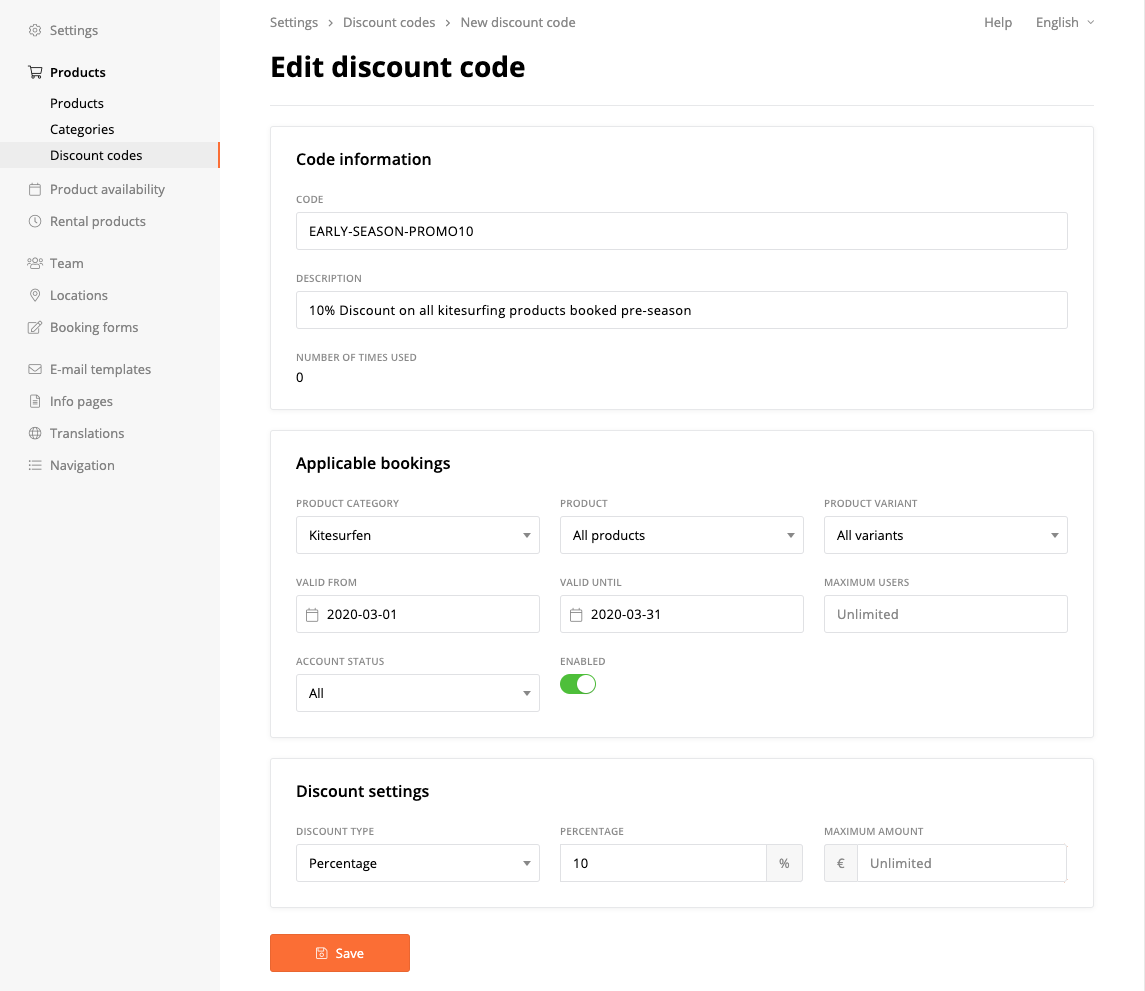
Code
This is the actual code that customers will have to use in the booking form. Be creative ;)
Description
Will be visible in the (internal) overview of all your discount codes, so you can keep track of all your creative promotional ideas from the past.
Product + Category + Variant
This gives you the ability to limit the code to a sub selection of your lessons. If you want to apply the code to all kitesurfing products, but nog SUP or windsurf, then select the product category 'Kitesurfing'. But if you want to use a code only for an introduction lesson, set the product to 'Intro lesson'.
Limiting even further, to a variant, gives you the option for instance to create a variant of the 'intro lesson' that has forced payment enabled (if the regular intro lesson variant does not have to be payed first). This way you can make sure that your promotional customers pay in advance. Note that if you want to limit to code to 2 specific products (and not a whole category), you have have to create the code twice, one time for each product (or variant).
Valid from/until
This limits the validity of the discount code, so it can be used only during a certain period. Note that the product that is booked using this code, can be scheduled outside of this range of course.
Maximum users
Limits the amount of times a code can be used, so you can create a code that can only be used 10 times for instance.
Account status
Can be used to make a code available for a certain account status. This can create powerful promotional offers, such as a discount for new users. Or if you want to reward existing clients, set this to 'accounts with previous bookings/payments'.
Discount type
You have the option to set a discount amount (i.e. 20 Euro) or a percentage of the product price. In the case of a percentage there also is the option to limit the max amount this percentage can reach. By default this is set to unlimited, but it could be used as a 20% discount up to a maximum of 80 Euro.
Creating Generic Codes
Simply follow the instructions above.
- It's always a good idea to test the code in the booking form yourself, and see if it behaves as you want, before mass-mailing it to your customers!
Creating Batch Codes
First, start by creating a Batch code using the discount code options explained above. After you have saved the settings, you will get the ability to generate a new batch of codes, or, to import an existing batch of codes (useful for groupon or other promotional sites).
1. Generating a new batch of codes
This option is most useful for your own digital marketing, or if you need a bunch of (unique) codes to print on promotional flyers.
Set how many codes you want to generate (50 in the example screenshot below). Think of a 'prefix', this part would usually be something like 'KITEDEAL-', after which the system generates a six digit random number. So the code may look like KITEDEAL-772853.
Click 'save and create codes' to generate a list.
- Usually you would set 'maximum users' to 1 in the case of batch codes! Otherwise a code can still be used multiple times.
- You can download the codes to a TXT file.
- It is possible to generate additional batches of codes later, for the same entry! So don't worry that you will run out of codes.
- For every code you will see if it has been used or not.
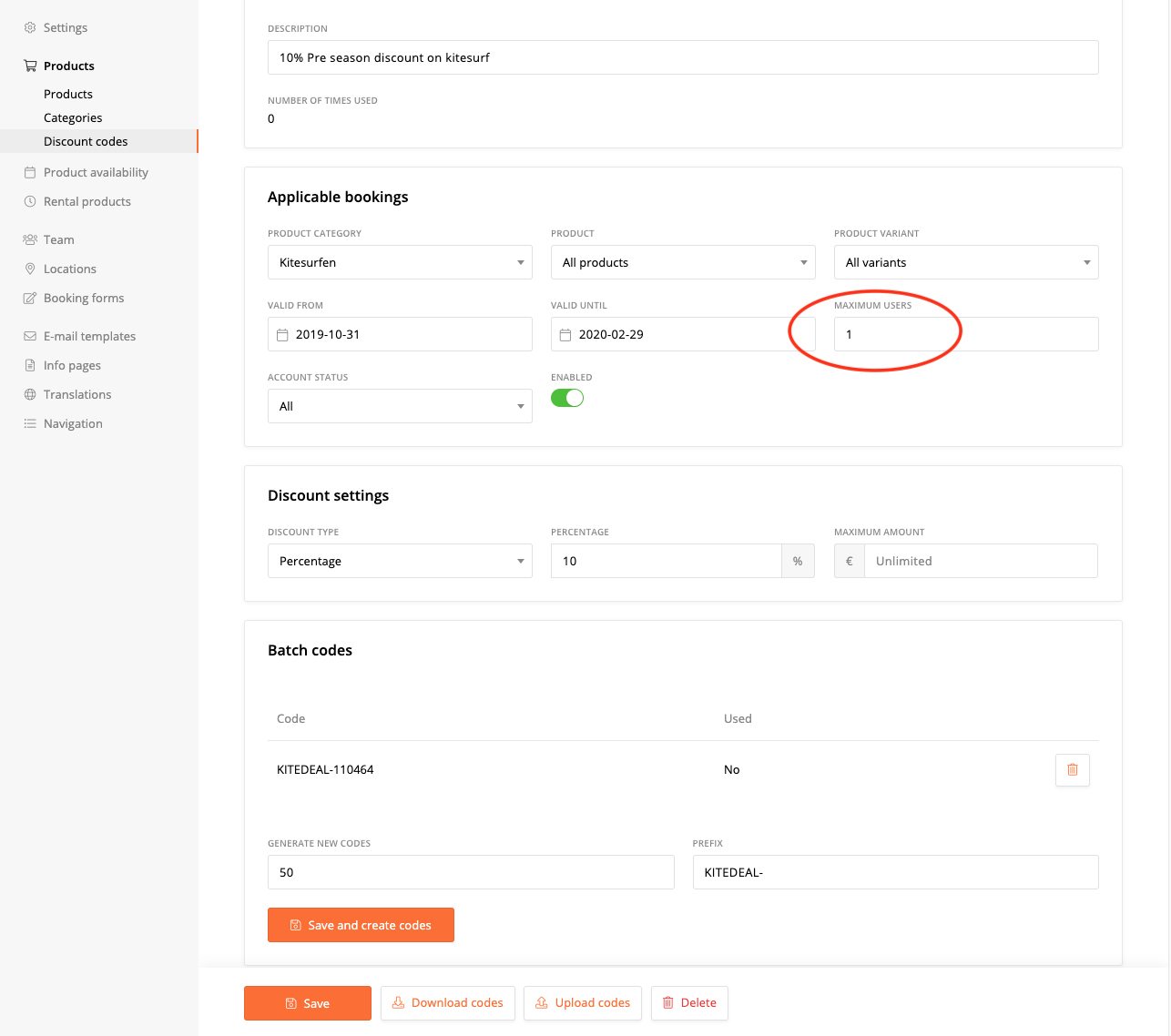
2. Uploading your own batch of codes
Sometimes if you work with promotional sites like Groupon, they will supply you with a bunch of codes that customers are going to use. In this case simply use the 'Upload codes' button.
- You can upload codes from a TXT/CSV file. In case of TXT, all codes should be entered on a new line
- An example .txt file can be downloaded here: Viking-Import-Discount-Codes.txt
- You can always upload additional codes in a second batch.
- Also here, pay attention to set the 'maximum users' to 1 in most cases.
Personal discount codes / refund vouchers
To create a personal code, navigate to 'Settings > Products > Discount codes', select the tab 'personal codes' and click '+ create new code'. You will be presented with the exact same discount code options, with the only difference that you can now select a 'user' that is in your Viking system, for which the code will work!
Refund vouchers
However, there is a quicker way to make a refund now, effectively creating a 'personal discount code' for your customer. You have to go to 'Customers' in the main menu and find your customer. The customer page can also directly by accessed from the 'Planning' and 'Booking' views, by clicking on the customer name! Here you will find a button 'Create personal voucher'. Click it and the following popup will show.
- A discount code is already pre-generated, but you can change it if you like.
- Add a description with the reason for this voucher.
- You can make some limitiations on product types and validity.
- This voucher can only be used once and only by this specific user.
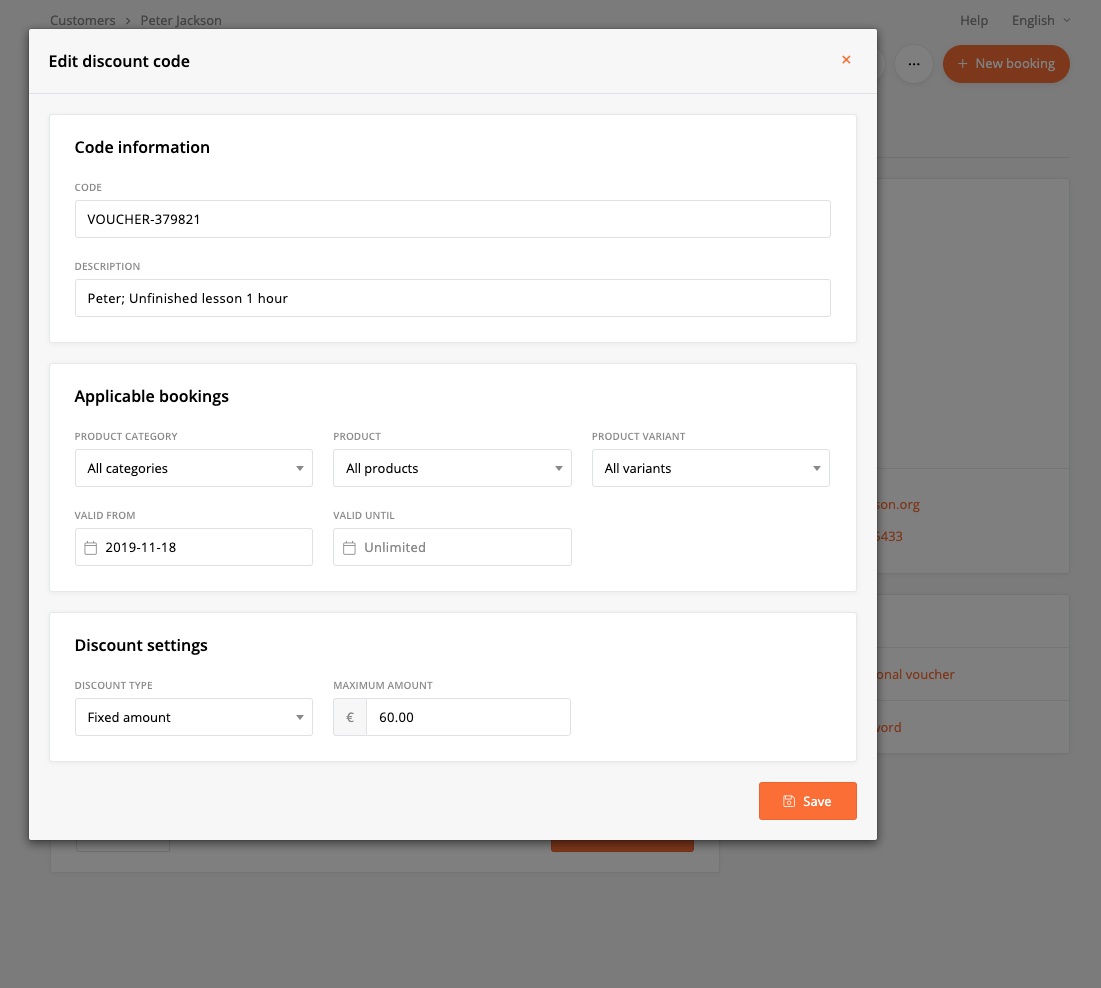
Once you click 'save', you get the option to email this code to the customer directly and add a personal message. Awesome! This voucher will also appear in the list of 'personal discount codes', where you can always edit it and see if it has been used.