Email templates are the workhorse of Viking bookings. They will take care of most of your standard communication with customers, so it really pays off to put some effort into optimising them for your school's needs! Once you've set them up correctly and beautifully, they will keep working 'till the end of time.
The most important email templates
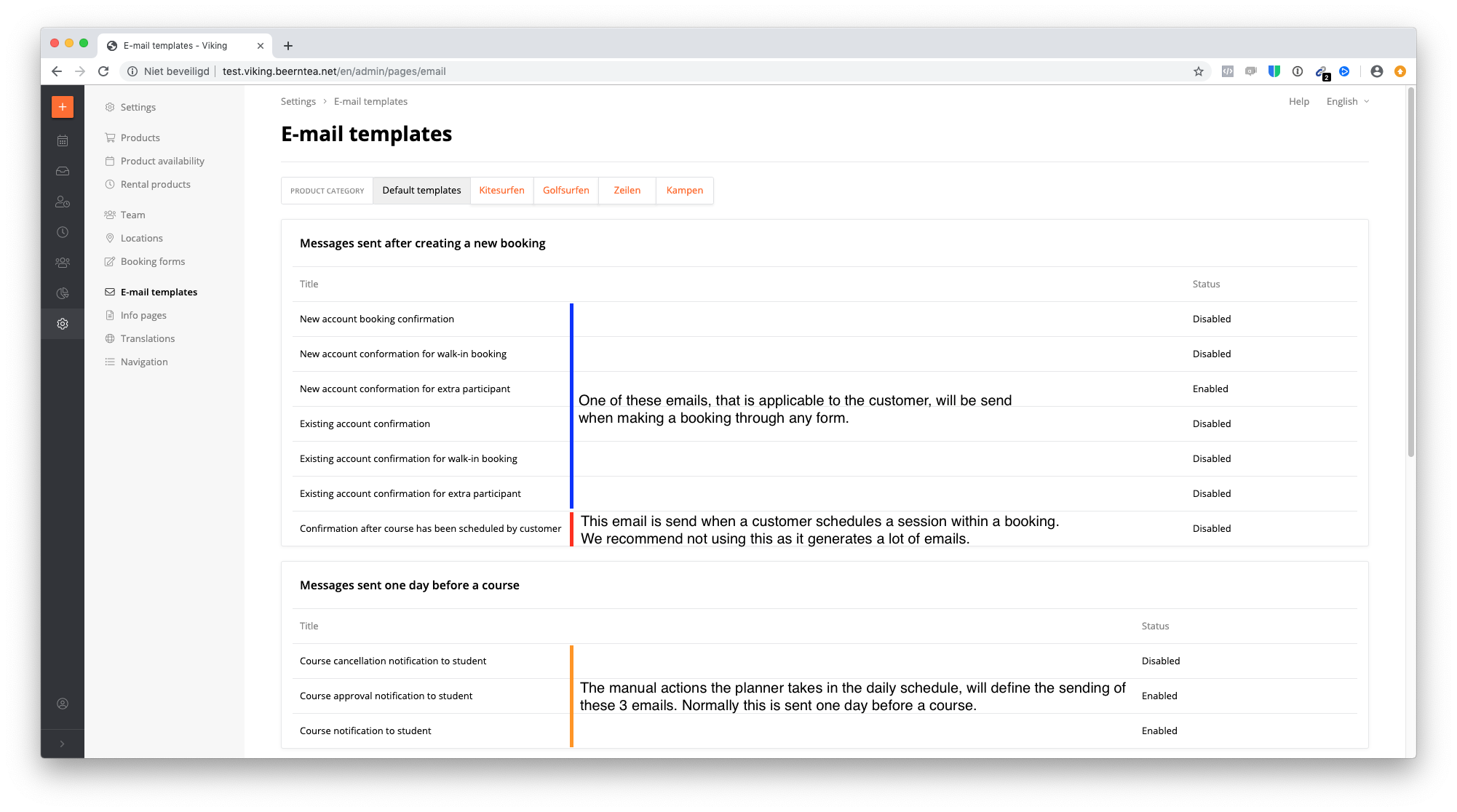
In the end you want to have checked and edited every email template, but to get started quickly, you can start with the most important templates, also highlighted in the screenshot below:
- All New booking confirmation mails
- Approval Notification
- Cancellation Notification
- Stand-by Notification
Tips for editing the templates
- We have created example templates that are already pre-loaded into your system. You can use these as a basis and adjust them to your own needs and information. If there are 'variables' (blue buttons), these are there usually for good reason, think twice before removing these.
- In the Booking Confirmation email(s), we strongly advise that the subject contains the word 'password'. This is also the case in our example emails. Many customers will later want to find their password if they want to login to manage their lessons.
- Feel free to use the 'variables' (the magic wand button), these put dynamic information about your school, lesson or customer wherever you want it.
- Be aware that all the emails that are set as 'enabled' will be sent from now on, for every booking. So make sure that every enabled email is ok and there is no test stuff left in there.
- Don't forget to save your changes ;).
When are email templates sent?
Click on the name of the e-mail template and the first sentence describes exactly when this template will be sent.
Translation & multi-language
Viking supports multiple languages, and every customer has a 'language' assigned to him. Normally, this is determined by the language of the booking form that a customer uses to book. So anyone booking through a German form, will by default be set to German as main language.
If you want to use multiple languages, you will once need to translate all your email templates. We strongly advise that you FIRST create all the email templates for 1 language, test them, and only then start translating.
To add a translation:
- Open a template and copy the default language text.
- In the top right corner, switch to the language that you want to add.
- Paste the test from the original language and start translating.
Different activity types
It's possible to have different email templates for every different product category. For instance, kitesurfing and SUP can have different emails. Normally, the default templates are used for every category.
Create email per category
If you want to make changes for a specific sport, select the product category you want to edit and select a template. Now 'enable' this template and adjust the text to your liking.
Disable emails
Go to the product category in emailtemplates, click on the email you want to disable & disable the email in the right top.