Check minimum availability of instructors?
You have the option to define the 'instructor quota' for the instructor (settings - team - select instructor - edit).
In case the instructor does not fulfill this quota, the system will send two emails every month as a reminder to enter availability, and another email as a reminder when there is not enough availability entered.
Enabling this setting will result in the system sending these emails, while disabling it will prevent the emails from being sent.
Automatically approve courses after
Once a time is chosen, the system will automatically send the 'course approval notification to student' (located in the E-mail templates) at the selected time. Additionally, scheduling from student accounts will be blocked during that time.
If 'never' is selected, the planner/administrator must approve or release the lessons/rentals on a daily basis. Furthermore, students can make bookings until the lesson/rental begins. Therefore, in the daily schedule, you can click the 'block all slots for tomorrow' button after approving the lessons.
Planning visible to instructor
Instructors have the ability to view planned lessons in their account. This setting allows the school to determine how far in advance the instructors can see the lessons that are scheduled for them.
Allow bookings regardless of instructor availability
For the chosen time, instead of considering instructor availability, availability will be directly determined based on the "product availability".
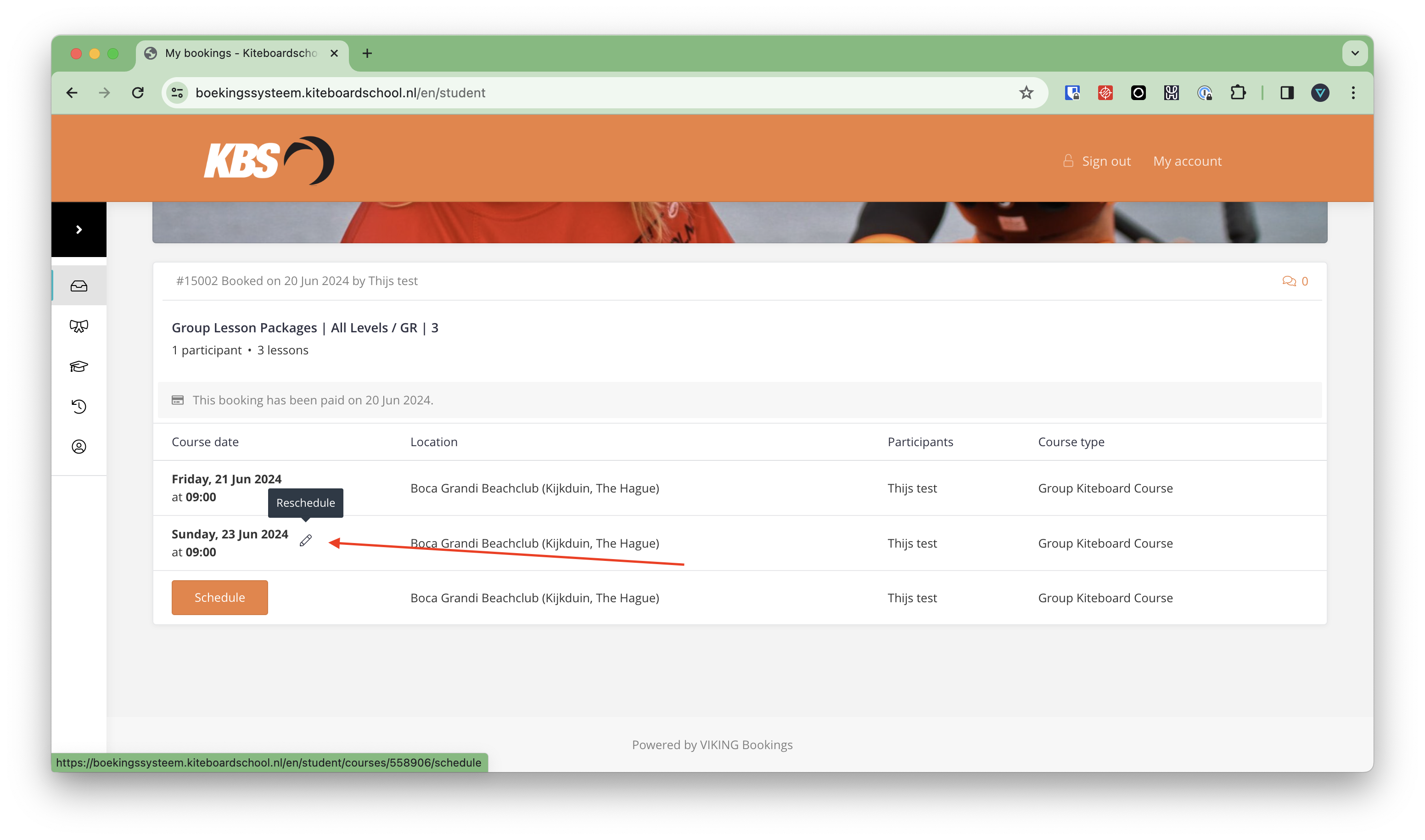
Allow rescheduling
Enable your students to change their course schedule in their account, with a maximum time limit of X before the course begins. This will reduce the number of phone calls you receive from students requesting to reschedule.
Block overlapping slots
You have the option to specify a time limit for each product. If you want to avoid double booking an instructor, such as having them teach sailing for 2 hours at 9 am and windsurfing for 1 hour at 9:30 am, you should enable this setting. By doing so, the system will ensure that the instructor is only scheduled once when a product is booked.
If you use this setting, we recommend a few things:
- Set as little as possible time slots per day.
- For the instructors we recommend to only add availability on the time slots he is allowed to teach.
- For the instructors we recommend to only add availability for 1.5 month in advance. You can use the setting 'allow bookings regardless of availability' for the period after this 1.5 month.
Time slots
Add only your start times. We recommend to have the smallest amount of starting times possible, as you will be very flexible changing times afterwards.
Planning overview
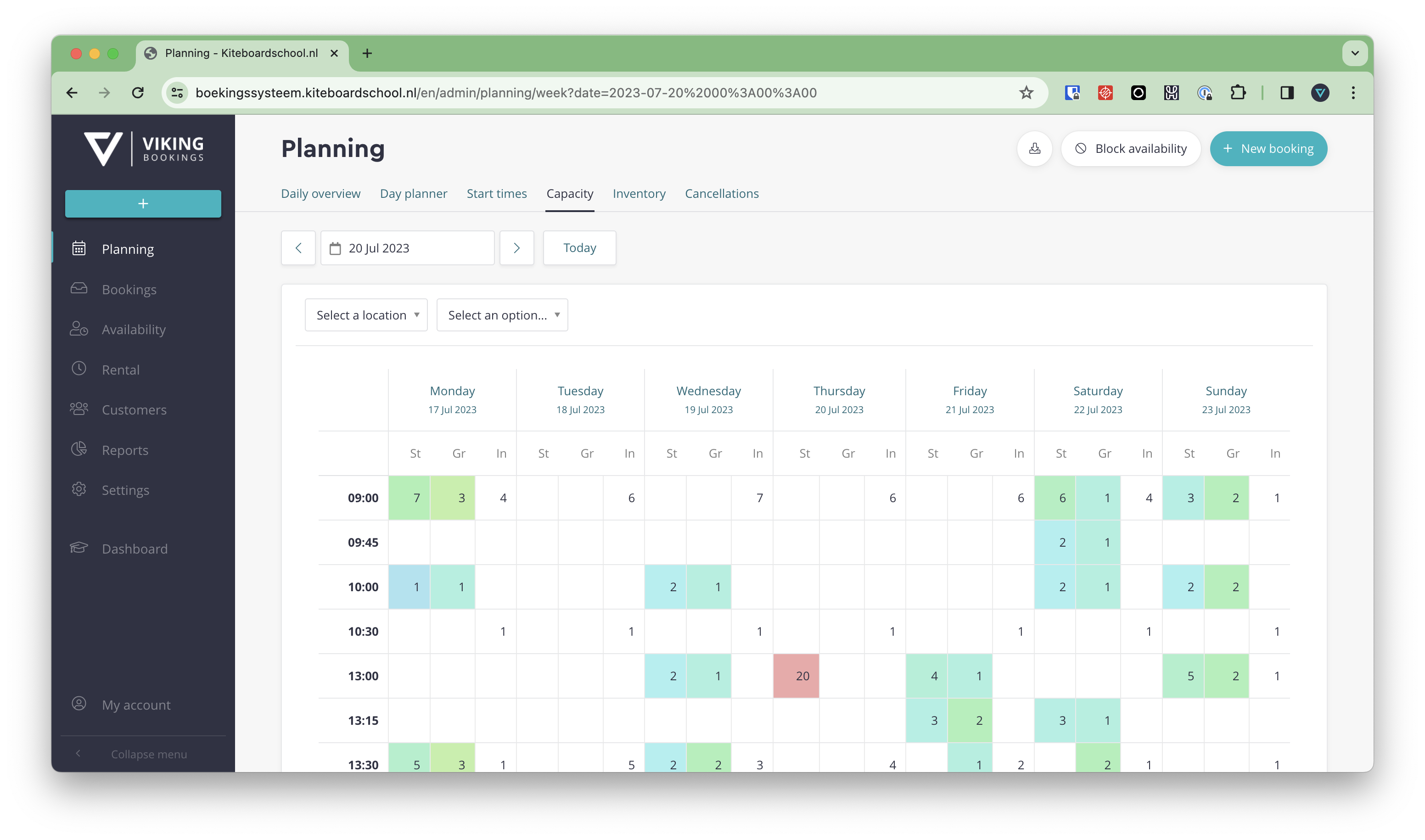
The colors of the weekly overview are related to the level of busyness.
The blocks represent the following:
- St: Number of students (corresponds to the maximum number of students with 100% opacity)
- Gr: Number of booked instructors (corresponds to the maximum number of slots with 100% opacity)
- In: Number of instructors with open availability
As the color becomes more red, it indicates a higher level of busyness.