This article will explain all the conditions that are required before a customer can actually book a lesson/product from your site.
Because VIKING is such a versatile platform, the first impressions can be a bit overwhelming. But no worries, most of these settings have already been made for you in the initial setup. Still, it is important to understand all of them, and double check if everything is set correctly for your school.
For every product, before a date and time becomes available in the booking form, the following settings need to be correct:
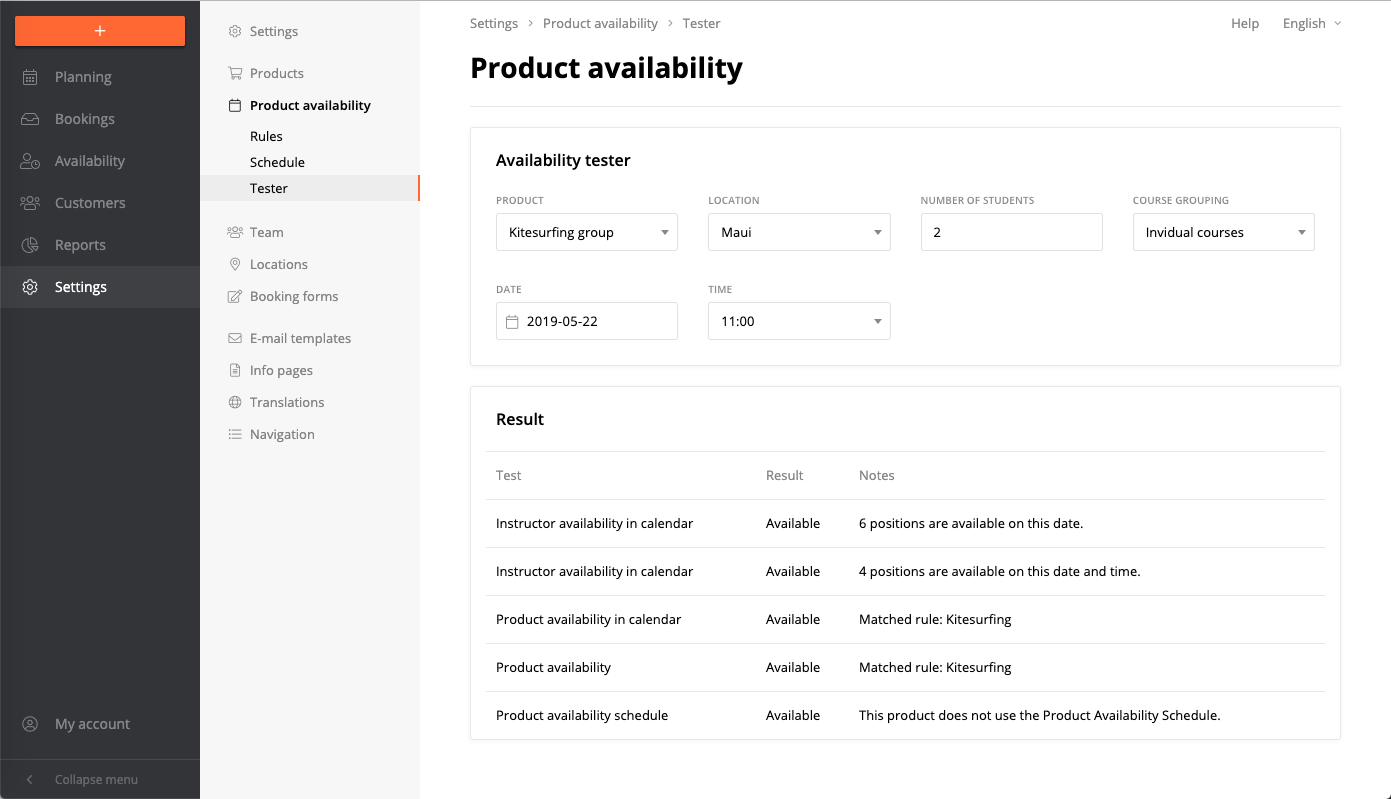
*You can always check if these settings are correct with the Availability Checker
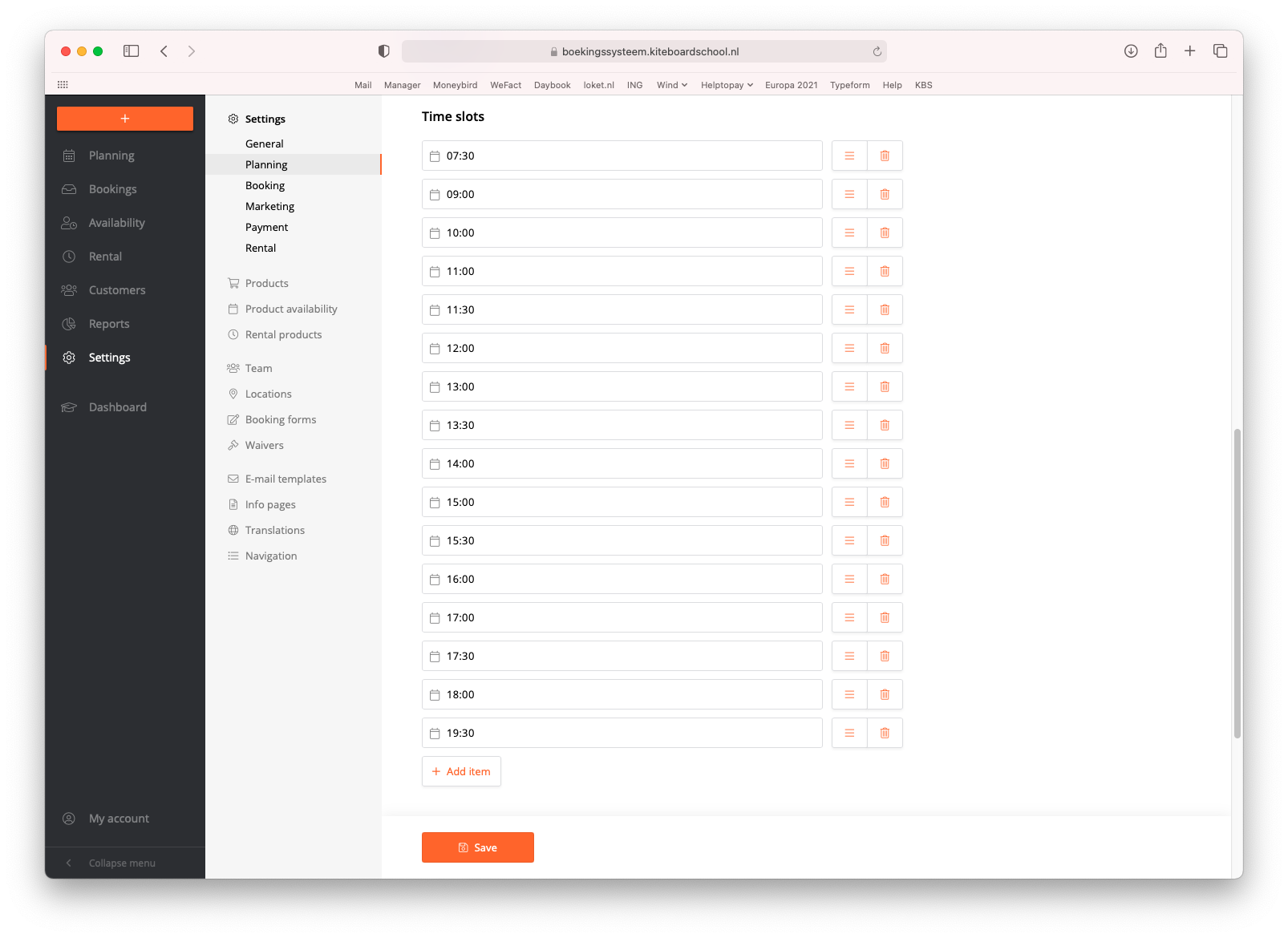
1. Timeslots
These are defined under 'Settings > Planning' and reflect all the possible times at which a lesson can start. We always recommend to use the least amount of timeslots possible, for clarity and more efficient grouping of students.
Note that the duration of a lesson can be different for every product and is already set in the product settings.
2. Availability rules
Navigate to 'Settings > Product Availability'. Your Availability Rules define the dates and times at which you want to start a certain product. Usually, this means creating one or more Availability Rules for every product or product category.
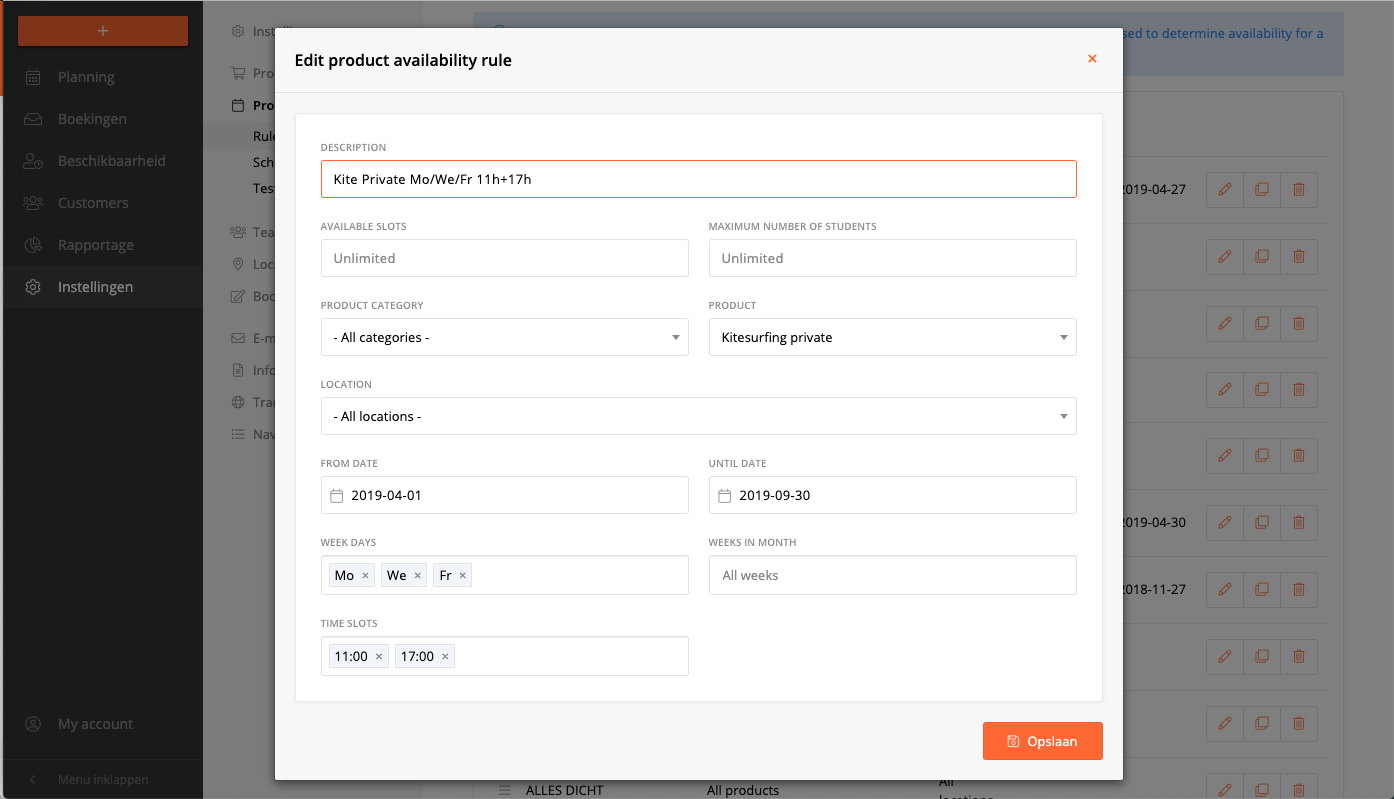
- Give a CLEAR description of your rule in the title that includes days/times (for instance use 'Sa+Su 14.00'). You don't need to use the product/category name in the description, because it will show in the list automatically.
- You do not have to use ALL the fields in an availability rule. For instance, it's possible to only select certain 'timeslots' but no 'days in the week' (then the system will use all days of the week). Or select only a date range (then the system uses all the days and all the possible timeslots).
- It is possible - and often necessary - to create multiple rules for 1 product. For instance, if you want Kitesurfing Private lessons (only) on Saturday at 15.00 and Wednesday at 11.00, this would require 2 rules.
- You can duplicate an Availability Rule with the duplicate icon. This makes it easier to create multiple different rules for the same product(s), especially once you have set specific date ranges, etc.
IMPORTANT: Be aware that if you (unintentionally) save a rule without any restrictions to product or category, this opens up availability for all your products and might render some other rules ineffective.
For instance, if you create 1 rule for the 'category' kitesurfing, this will apply to all the products in this category.
3. Instructor for product and location
For a product to be available, the system needs to know which instructors are allowed to teach which products on which locations.
- Navigate to 'Settings > Team' and click '+ New User'. In the settings, add the products and locations for this instructor.
Make sure that for every product there is an instructor that is allowed to teach this product and location.
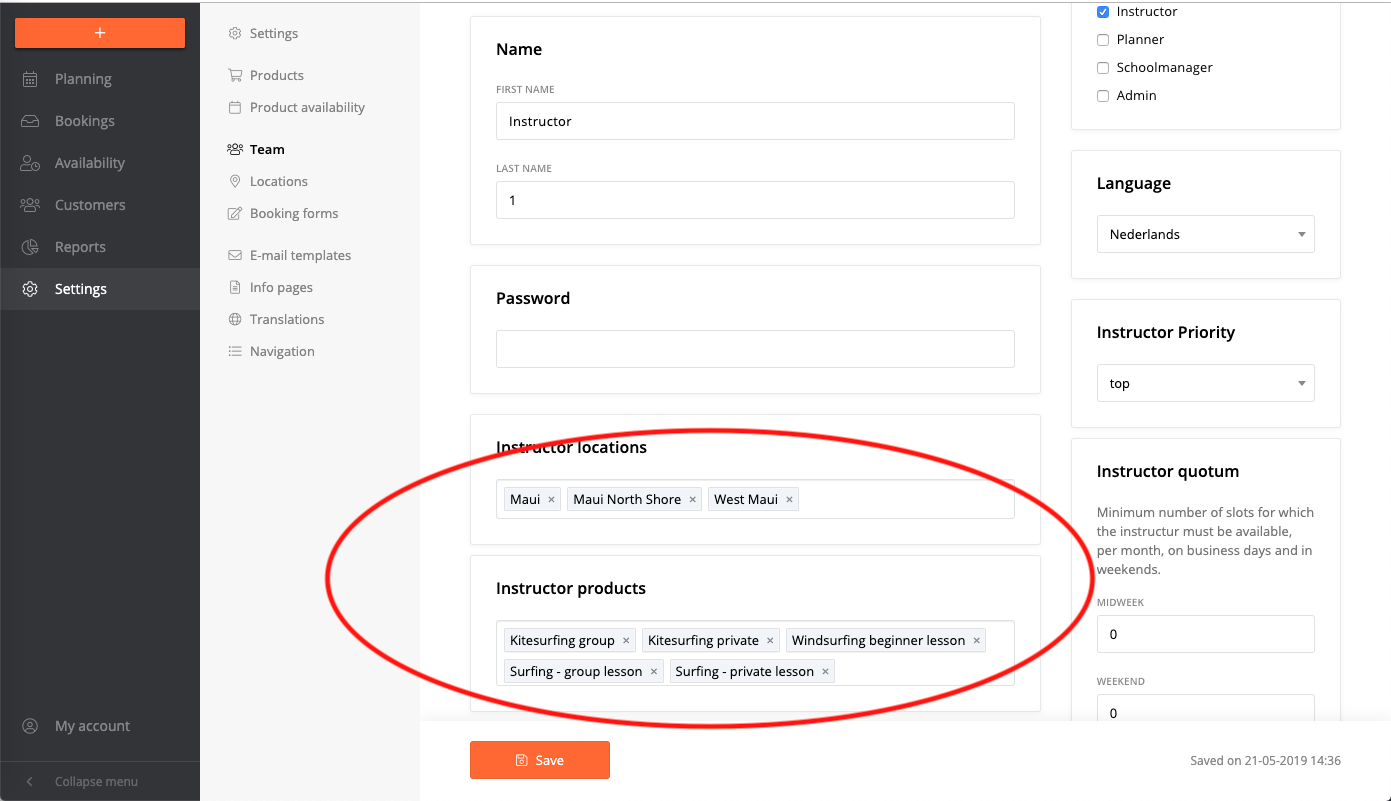
- Be aware that if you create a new product later on, you will also have to add this in your 'instructor products' (!).
- Products that are 'camp' or 'rental' type, do not require an instructor and also no instructor settings to be bookable.
4. Instructor availability
Finally the system needs to know when your instructors are available. Normally this is set by the instructors themselves, from their instructor dashboard. As a system administrator, you can also manage the availability for all your instructors under the 'Availability' in the main menu.
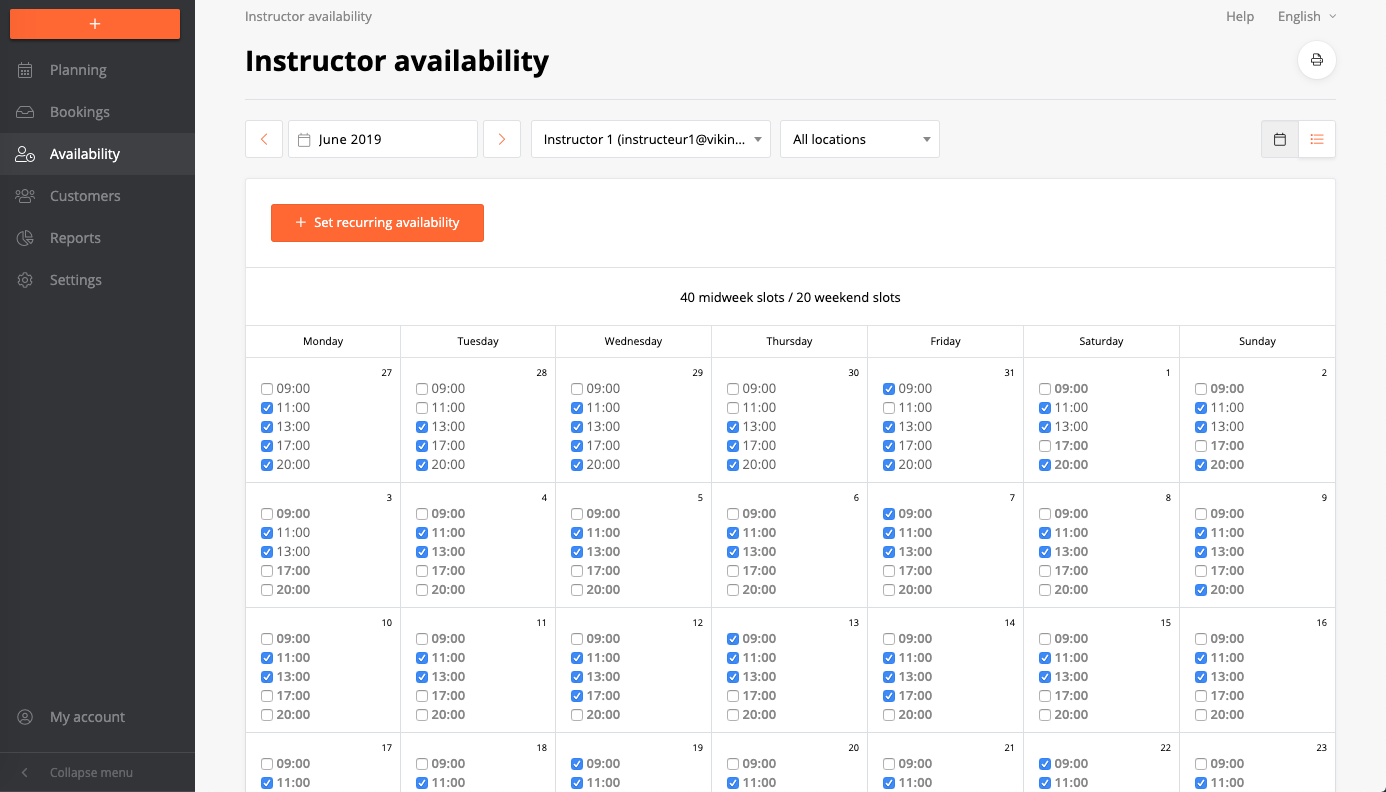
- The instructor can only select timeslots for products that he is allowed to teach.
- In 'Settings > Planning' you can allow if/when instructors can also unset their availability.
- From the 'Availability' menu, you can always view, add and remove any availability for your instructors.
4.1 Important! Allowing bookings regardless of instructor availability.
Very often your instructors will not know their schedule too far ahead in the future. But you want customers to be able to make a booking. This is why we created a setting to 'allow bookings regardless of instructor availability'. Navigate to 'Settings > Planning' and select the timeframe from which you want customers to be able to book, even if there is no instructor availability. This is often set to '2 weeks' or '1 month', but it really varies per school if you want to make use of it.
- You can change this setting on a per-product basis in the product settings.
- 'Rental' and 'Camp' type products never require any instructor availability to be bookable.
5. [Optional] Inventory tracking
If you're running a SUP school, you might also want to set up Inventory Tracking for your rental products and lessons. This adds another layer of availability: checking if there are enough boards available.
Check your settings in the booking form or the Availability Tester
Of course you can always check your booking form to see if all the availability is working as you would like it. But if you don't see available slots in the booking form even though you think they should be there, you can diagnose why this is the case, with the 'Availability Tester'.
Navigate to 'Settings > Availability Rules > Tester' and now select the conditions where you would expect availability. In the 'Result' the system shows if all the conditions are met. If not, you can see why and further diagnose and solve the problem!