We know how you feel. After a hectic season you packed up in september, and the last thing on your mind was to clean up your bookings administration. Now things are starting to roll again and you find yourself in a maze of 'availability rules' of which you're not exactly sure if you still need them.
This is why we've created an overview of things to check, to make sure the new season will run itself!
- Prices
- New lessons/products
- Lesson times and availability
- Instructor pool
- Discount codes
- Email templates
- Make a test booking!
Prices
The easiest way to see if your prices are still correct, is to just check the booking forms on your website.
If anything needs to be updated, go to 'Settings > Product' and click the product. The pricing is determined in the 'Variants' (there might be a few), so expand them and check the settings and pricing. The detailed variant settings are explained in our general products article.
New lessons/products
If you are offering new lessons this year, you will have to add these as a new product. From our reference article 'How to make products bookable', you might remember that a few things are required, before customers can actually see and book a lesson:
- A new product with at least 1 variant.
(Settings > Products > + Add product) - An availability rule (determines at which times this product can be taught)
(Settings > Product Availability) - Instructor that can teach this product and location (!) This is often overlooked. The system needs to know which instructor can teach which products. So if you add a new product, also add this lesson to 'teachable products' in all the relevant instructor profiles.
(Settings > Team) - An available instructor
(Availability > Select Instructor > Set availability) - Add the new product to your existing booking form(s) (!) Also often overlooked, bookings forms don't always display all your products. Add every new product to the relevant booking form.
(Settings > Booking forms)
• You can why a certain product is/isn't bookable by using the 'Availability Tester'
Check your lesson times and availability
The default starting times are found in 'Settings > Planning > Time slots'. If you decide to use different/extra times this year, you can add (or remove) time slots here.
Now the 'Product Availability Rules' determine at which specific times a product can be booked. Some schools require more complex setups here than others. It's very important that you understand how and why your availability rules are set up the way they are!
• Products have been deleted but not their availability rule(s). This might cause a rule that opens up time slots for an entire category or for all products. Always make sure a rule is limited to the correct product (selection)!
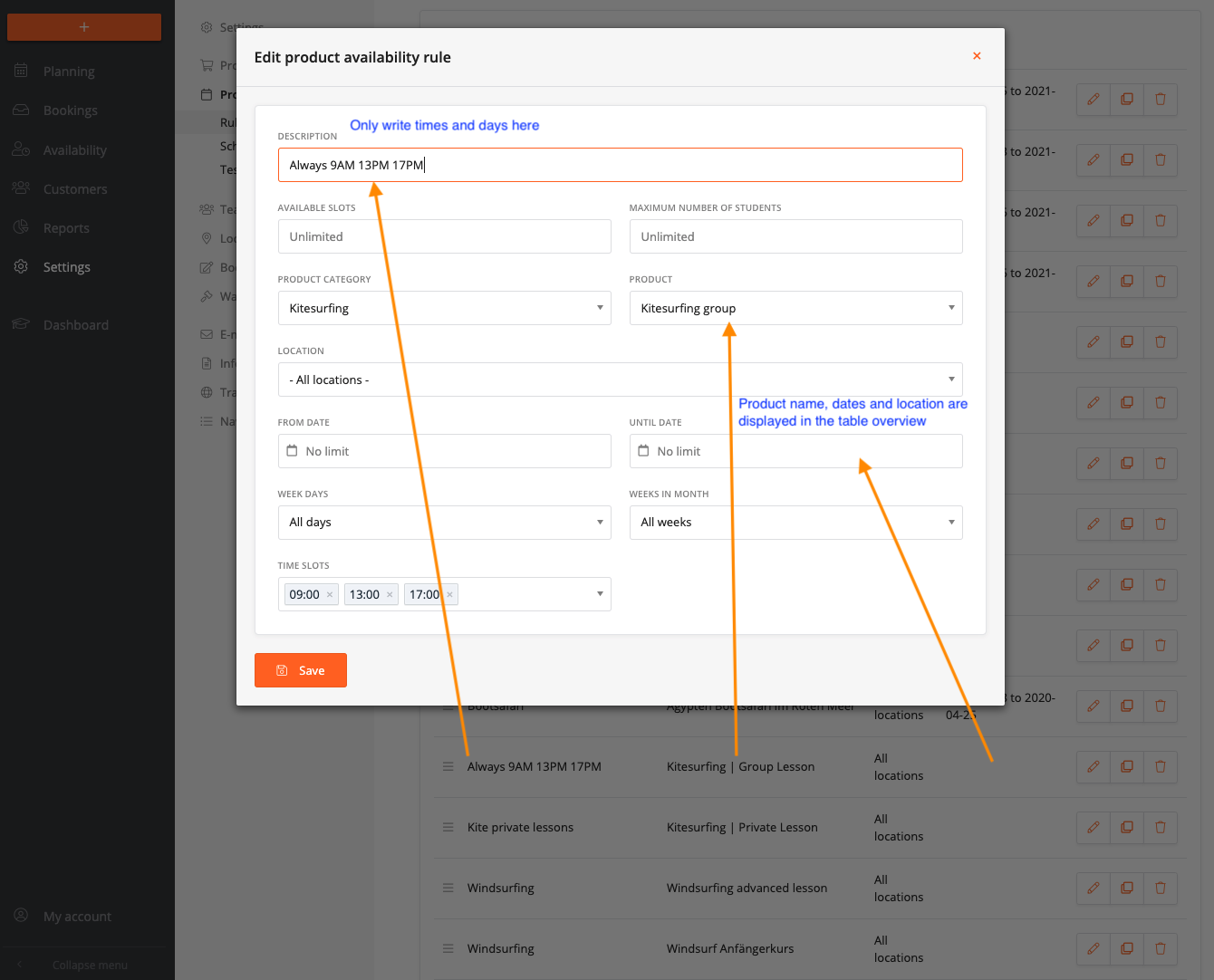
• In 'Description name' only write the times and days! All other info like Product Name, Date range and Locations are displayed in the table!
Instructor pool
If you have new instructors working with you, make sure to add their profiles and assign which products and locations they can teach. Also be mindful of the 'Instructor Priority' setting, which determines which instructor will be picked first if the system has to choose between multiple available instructors.
For instructors that have never worked with Viking, we have created a 'Getting Started' document that explains how the instructor dashboard works and what's expected from the instructors!
At this time in Dutch only.
PDF if you just need to send it out
Word Document (docx) if you want to make some changes, like put the correct login URL if your platform and user/pass for instructors.
Discount codes
To avoid any unintended discounts, check if all your discount codes are still up to date!
They are found in 'Settings > Products > Discount codes'. We refer to our article on discounts for more detailed explanation of the settings.
Most important, is to click the codes and check the 'Valid from' and Valid until' settings!
E-mail templates
Just check for the most important email templates ('new booking confirmation 'and 'course approval notification', if the information is still up to date.
(Settings > Email templates)
Make a test booking!
Now that everything should be fine-tuned for the new season, it's always a good idea to make some test bookings!