This guide explains how to set up product categories, products, and variants in Viking, along with advanced configurations for pricing, scheduling, and permissions.
1. Product Categories
How to Add a Product Category
- Navigate to Products → Product Categories → New.
- Add a category to represent the different sports or activities you offer (e.g., Sailing).
Key Note:
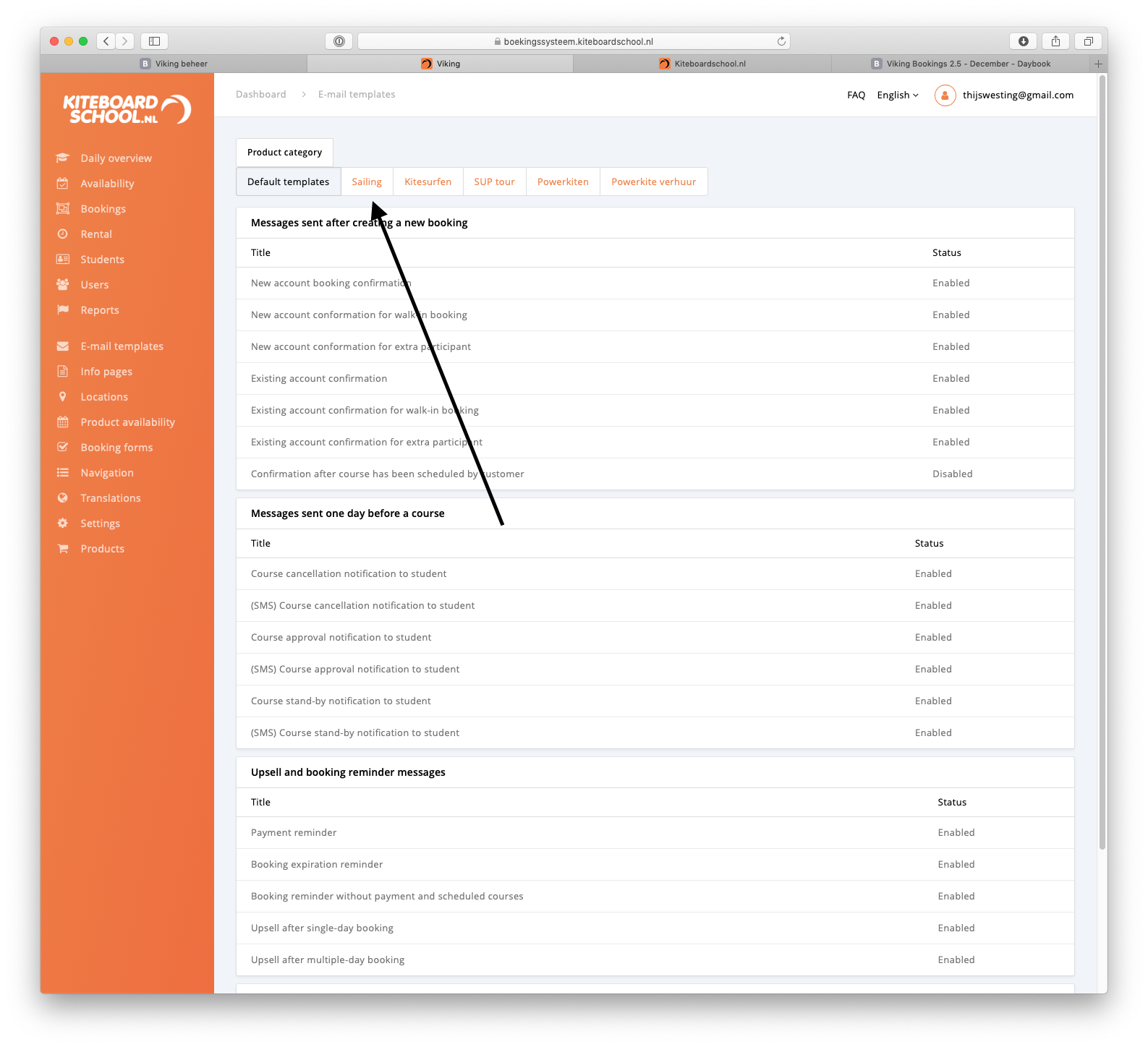
When you add a new category, a corresponding tab for that specific category will appear in your email templates.
2. Product
Products are activities or services within a category, such as group lessons or private sessions. They are the basis for creating structured offerings.
2.1 Product type 'COURSE'
Navigate to products --> add product
Configure the following settings:
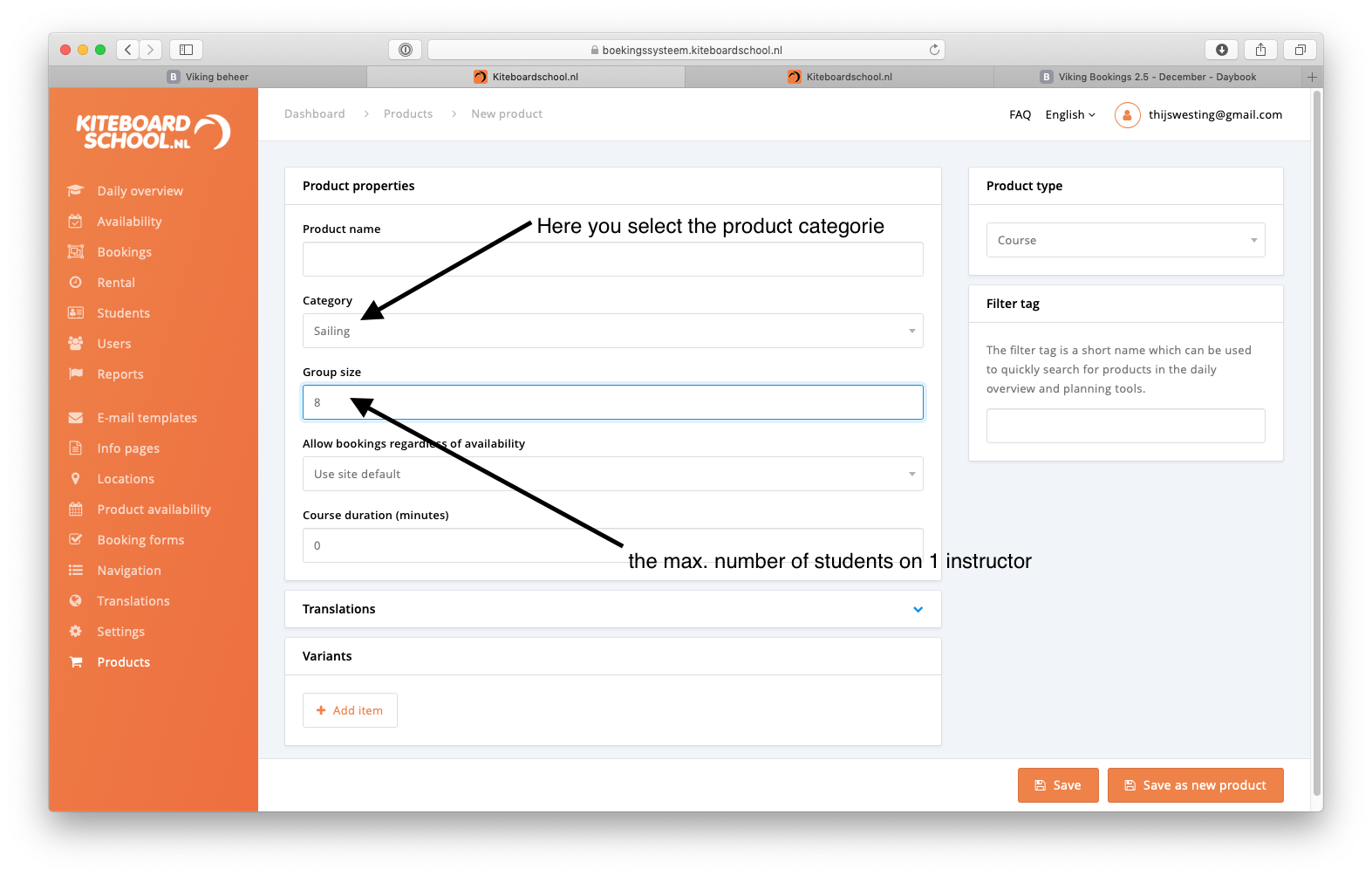
- Product Name: The name displayed in the booking form and bookings.
- Category: Select the appropriate product category.
- Deposit Percentage: Set a deposit percentage; the system rounds amounts to the nearest multiple of 10.
- Allow Rescheduling: Specify how many days prior to the start of the product students can reschedule.
- Allow Bookings Regardless of Availability: Use product availability only and disregard instructor availability after a certain period.
- Course Duration: Used for scheduling tools, iCal integration, and instructor payment calculations.
- Translations: Add translations for the booking form.
- Filter Tag: Assign tags to quickly find products in daily overviews.
Building a new product:
2.2 Product type: RENTAL
- Excludes instructor availability.
- Group size is set in product availability rather than the product itself.
- Course duration is defined per start time in product availability.
2.3 Product type: CAMP
- Instructor availability is not considered.
- Automatically schedules daily repetitions in the variant.
- Group size and course duration are set in product availability.
- Product availability is only required for the first day of the camp.
2.4 Product Type: BUNDLE
- Allows combining products from Course and Rental categories.
- Use the Included Products screen to specify which products are bundled.
3.Variants
Variants define the detailed options for a product, such as group sizes, durations, or specific pricing structures.
How to add or edit a variant
1. Navigate to Products → Select Product → Click on Variant (or Add New).
2. Keep a Booking Form Open to preview changes as you work.
3. Configure the following:
- Name: Internal name visible in user accounts and daily schedules.
- Category Name: Display name visible in the booking form for double variants.
- Minimum number of students
The minimum number of students that can book this variant (has nothing to do with the group size of the product) - Maximum number of students
The maximum number of students that can book this variant (has nothing to do with the group size of the product) - Minimum number of courses
The minimum number of courses for this variant. (see examples) - Maximum number of courses
The maximum number of courses for this variant. (see examples) - Price: Configures pricing for the specified combination.
- Advanced settings: Adjust detailed behaviors (point 3.2 of this article)
- Category name translations: Add translations for category names visible in the booking form.
3.1 Pricing examples for variants
Automatically Calculated Prices
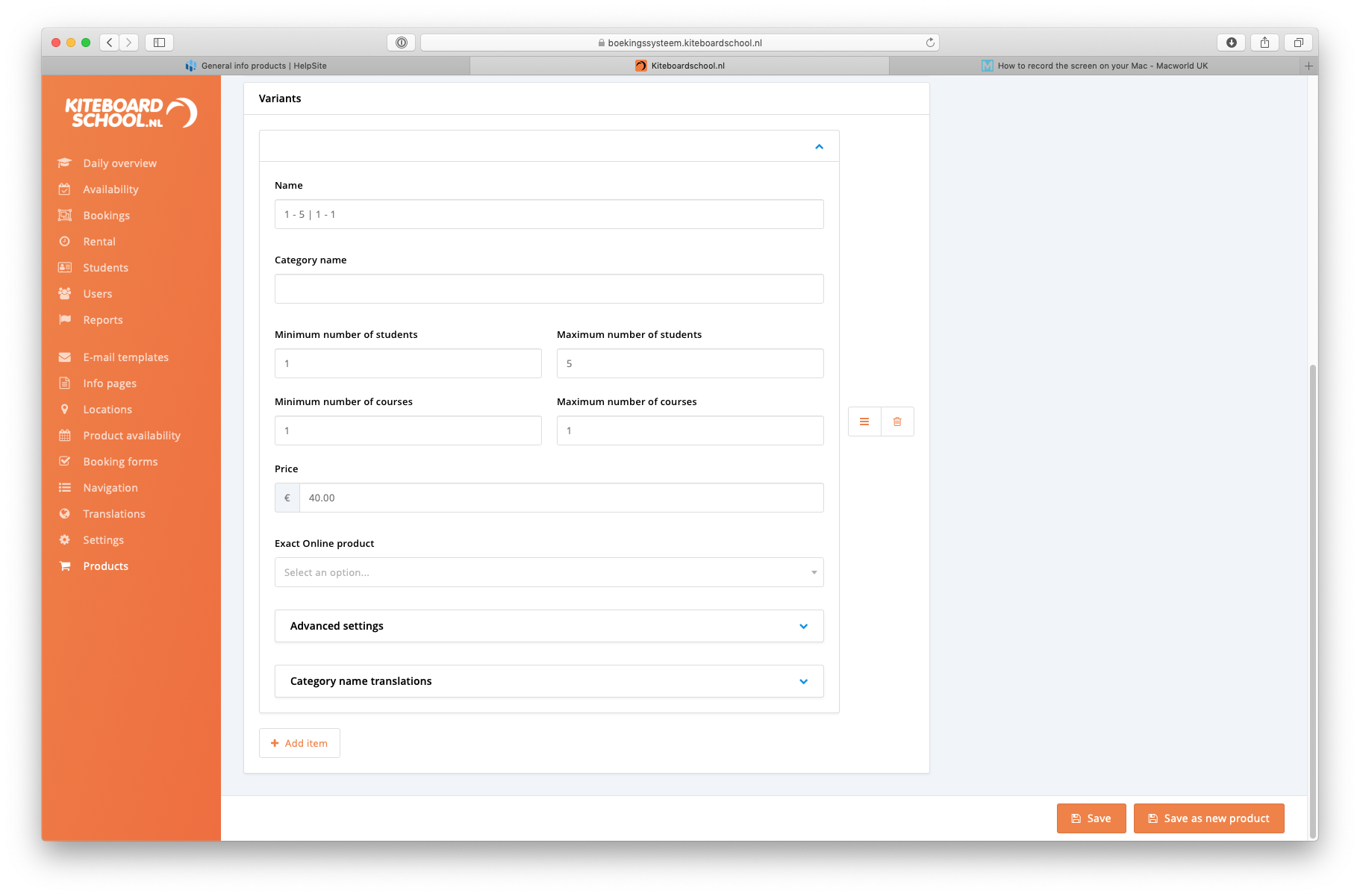
1 - 5 | 1 - 1: Price = €40.
- For 1 student, 1 lesson costs €40.
- For 2 students, it’s €80, and so on.
- Note: Students cannot book multiple lessons in this example.
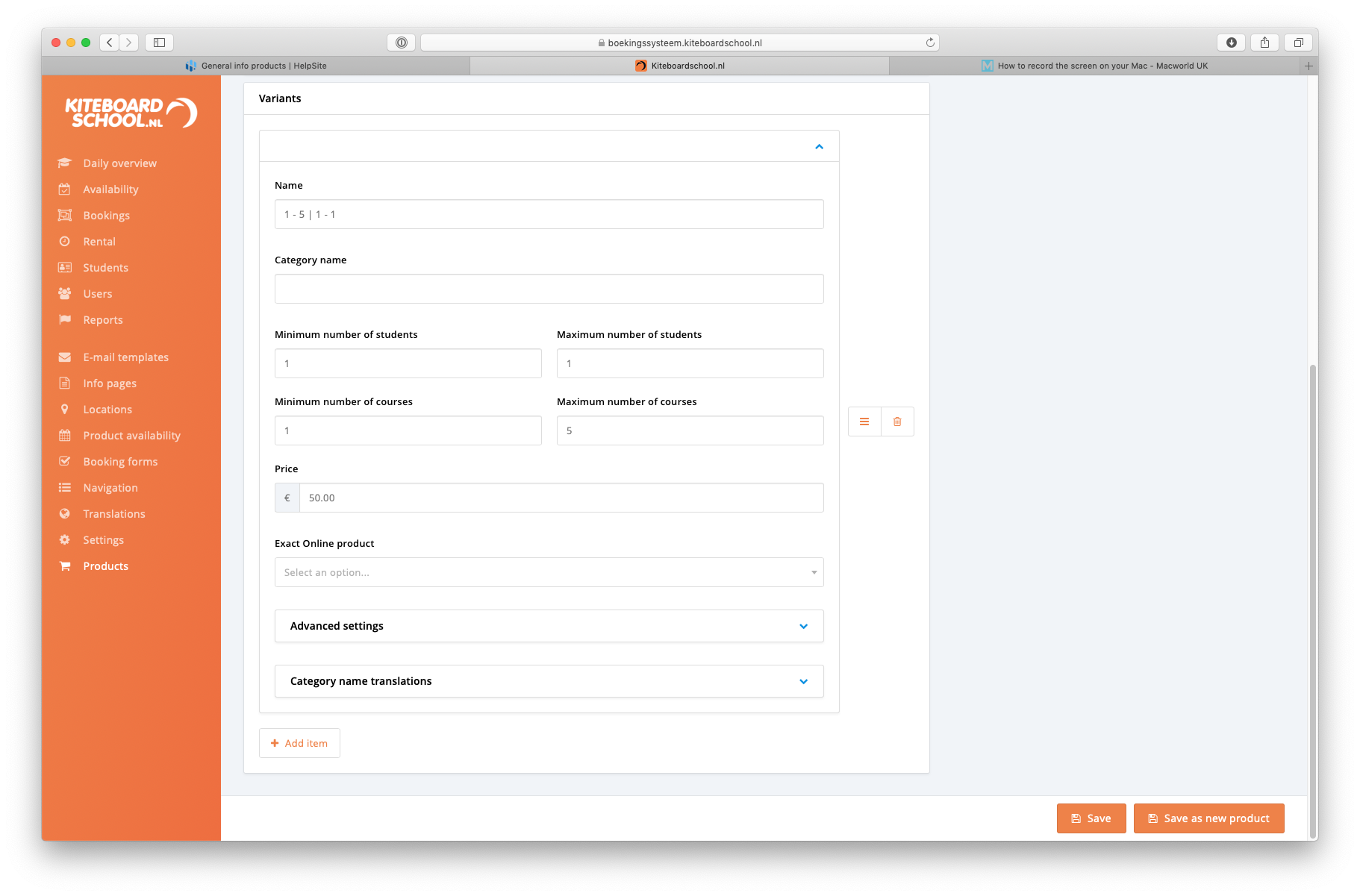
1 - 1 | 1 - 5: Price = €50.
- For 1 student, 1 lesson costs €50.
- For 1 student, 2 lessons cost €100, and for 3 lessons, it’s €150, and so on.
- Note: It is not possible to book for multiple students at once in this example.
3.1.2 Group discounts
Group Discounts
5 - 5 | 1 - 10: Price = €130.
- For 5 students, 1 lesson costs €130.
- For 5 students, 2 lessons costs €260, and so on.
- Note: it is not possible to book for more or fewer than 5 students.
3.1.3 Course discounts
Course Discounts
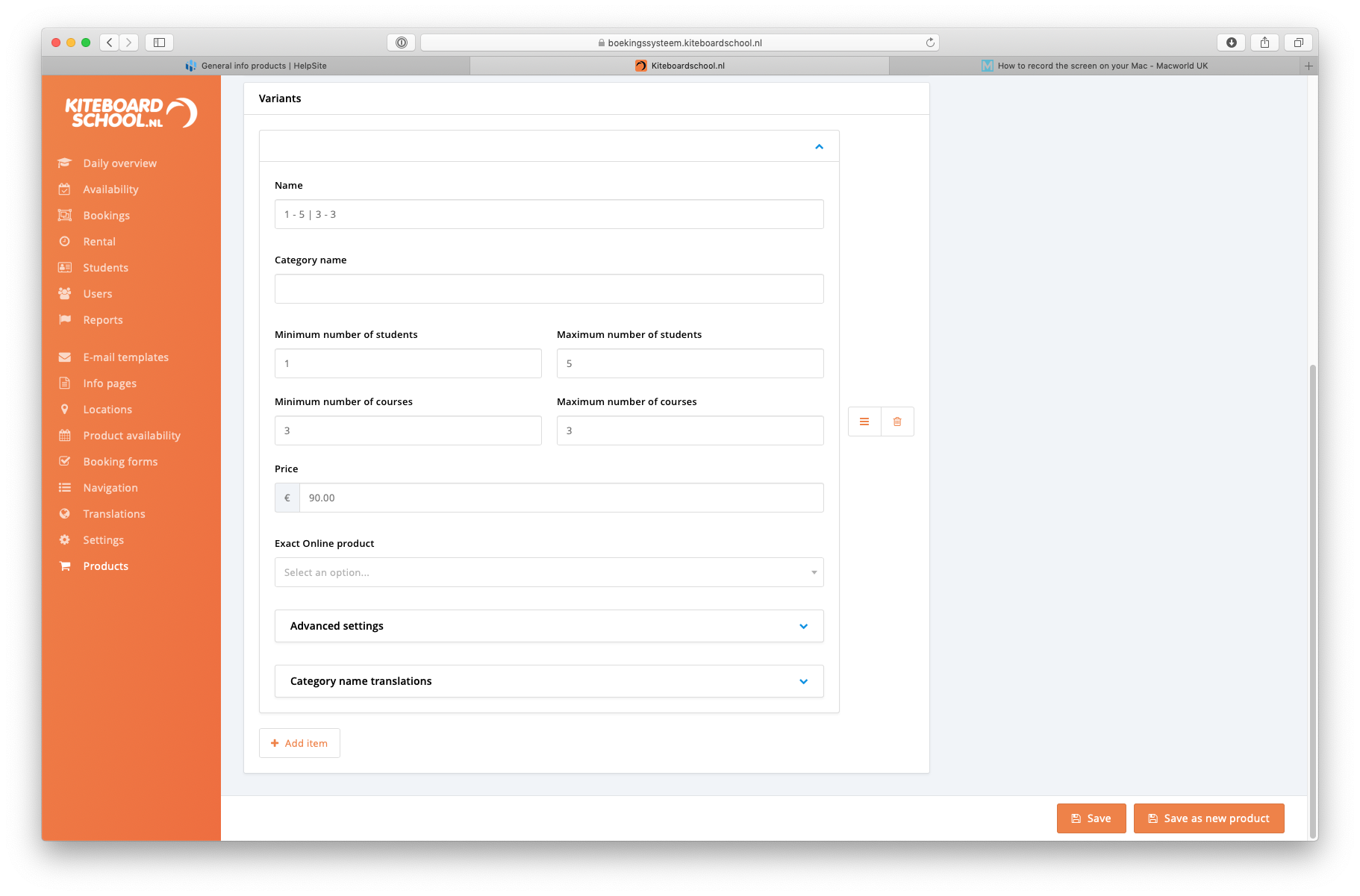
1 - 5 | 3 - 3: Price = €90 for a 3-lesson discounted course.
- For 1 student, 3 lessons cost €90.
- For 2 students, the cost for 3 lessons is €180, and so on.
- Note: it is not possible to book more or fewer than 3 lessons.
3.1.4 Same settings, different price
adds options to booking form, will still schedule people together on the product
Example:
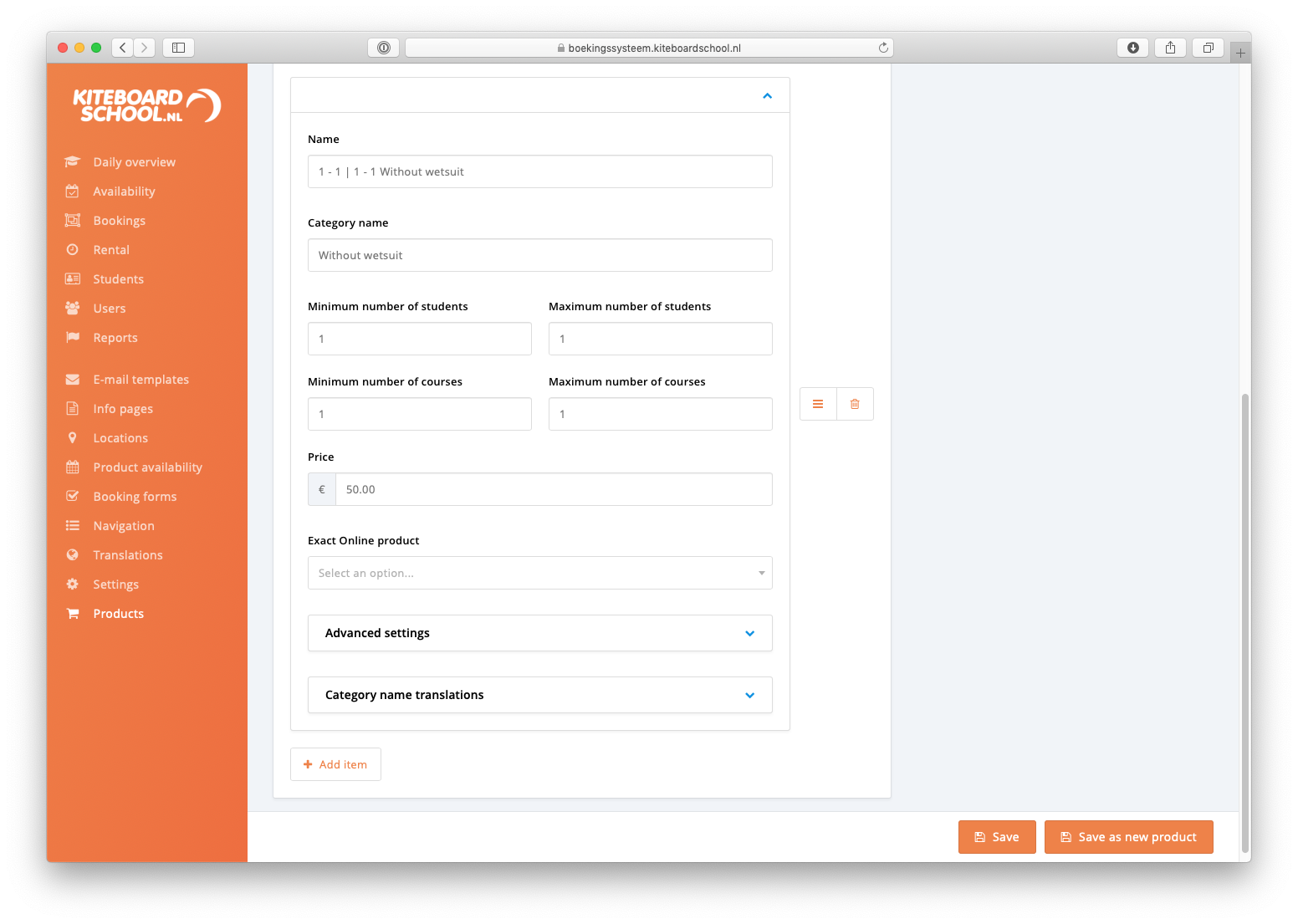
- 1 - 1 | 1 - 1 Category name = Without wetsuit Price = 50 euros
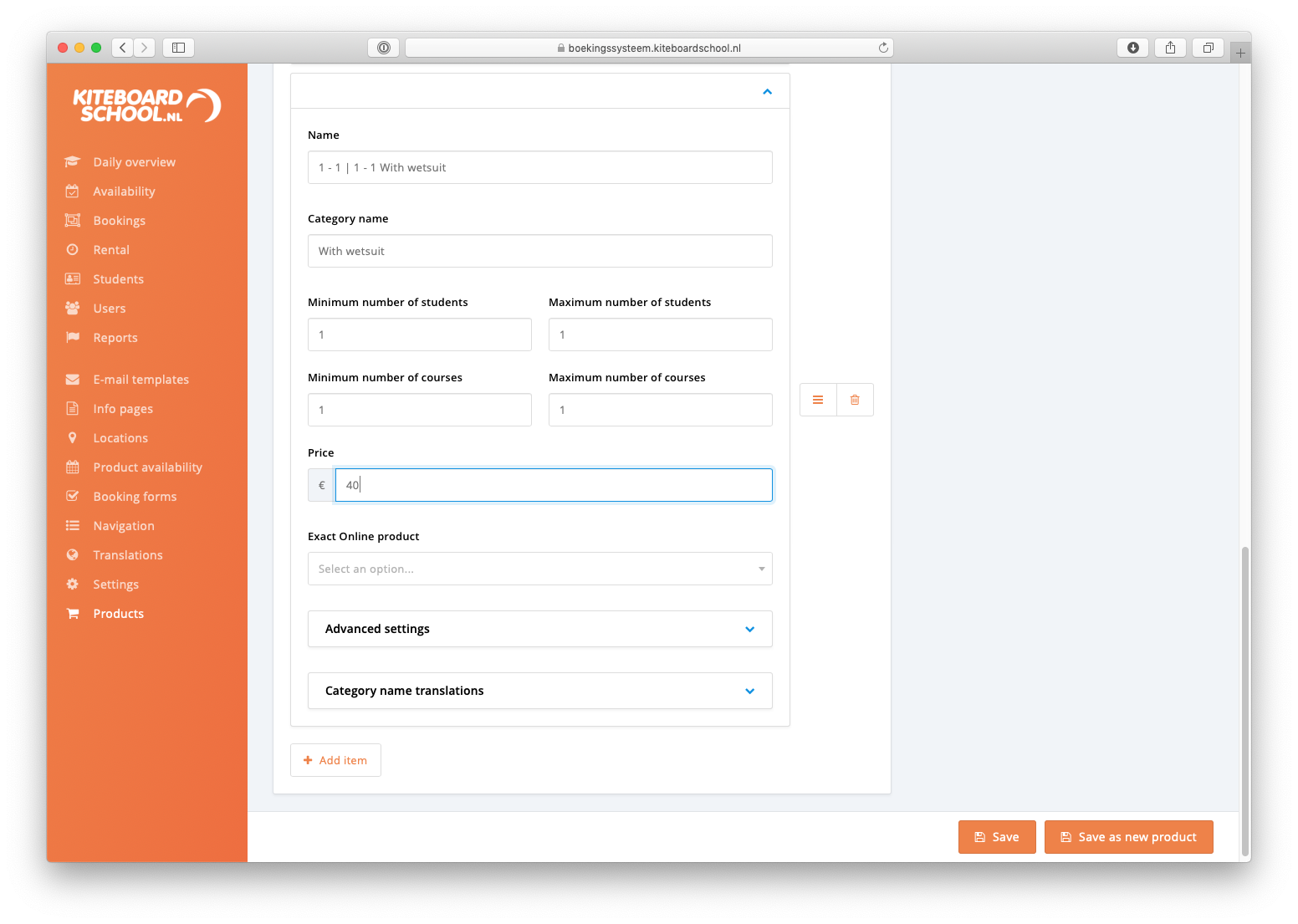
- 1 - 1 | 1 - 1 Category name = With wetsuit Price = 40 euros
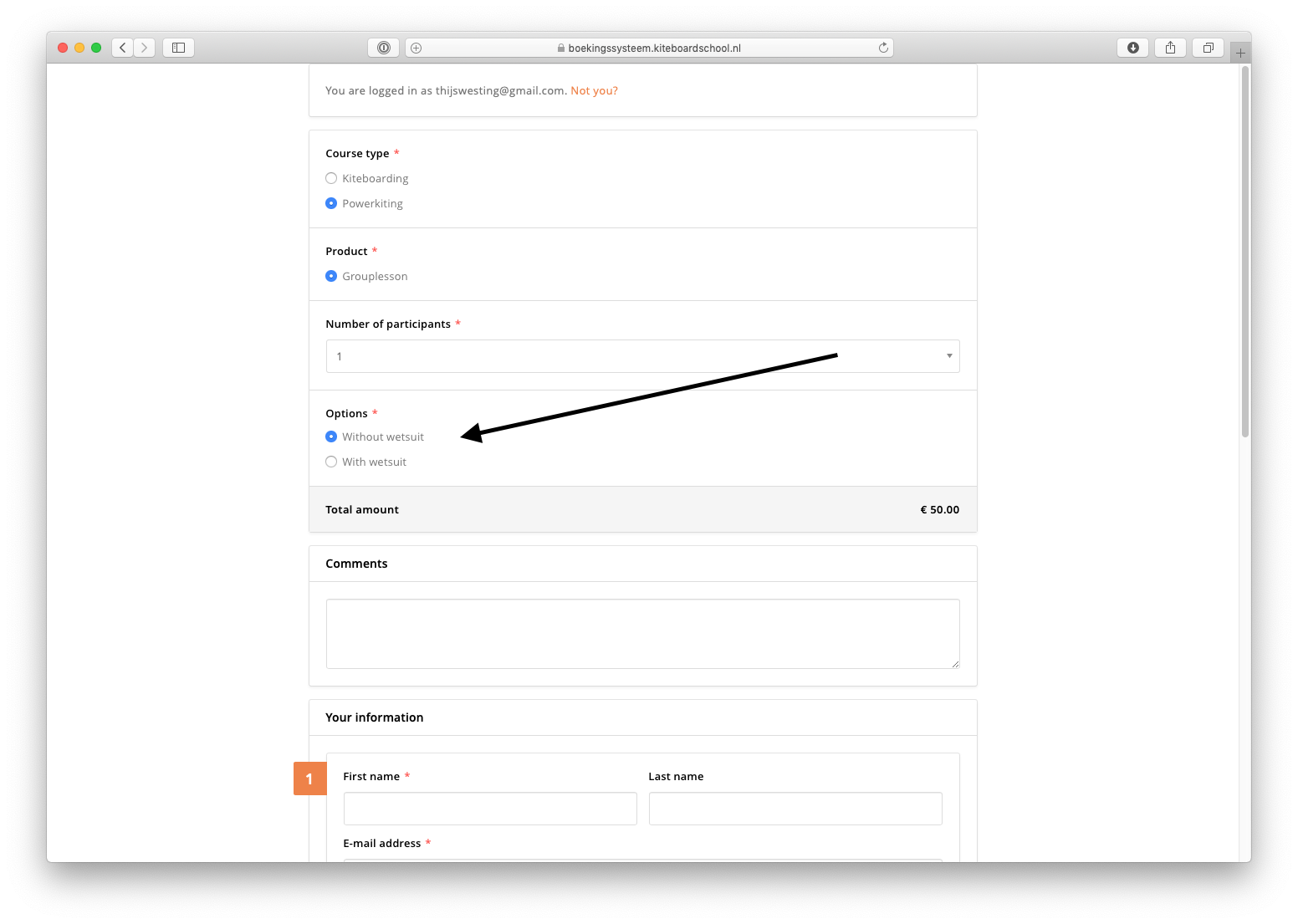
Now in the booking form both options will appear.
Screenshot 1 - 1 | 1 - 1 Category name = Without wetsuit Price = 50 euros
Screenshot 1 - 1 | 1 - 1 Category name = With wetsuit Price = 40 euros
Screenshot of booking form with both options:
3.2 Advanced settings
Navigate to the product - select variant - click on advanced settings.
With these settings you can build your pricing more specific:
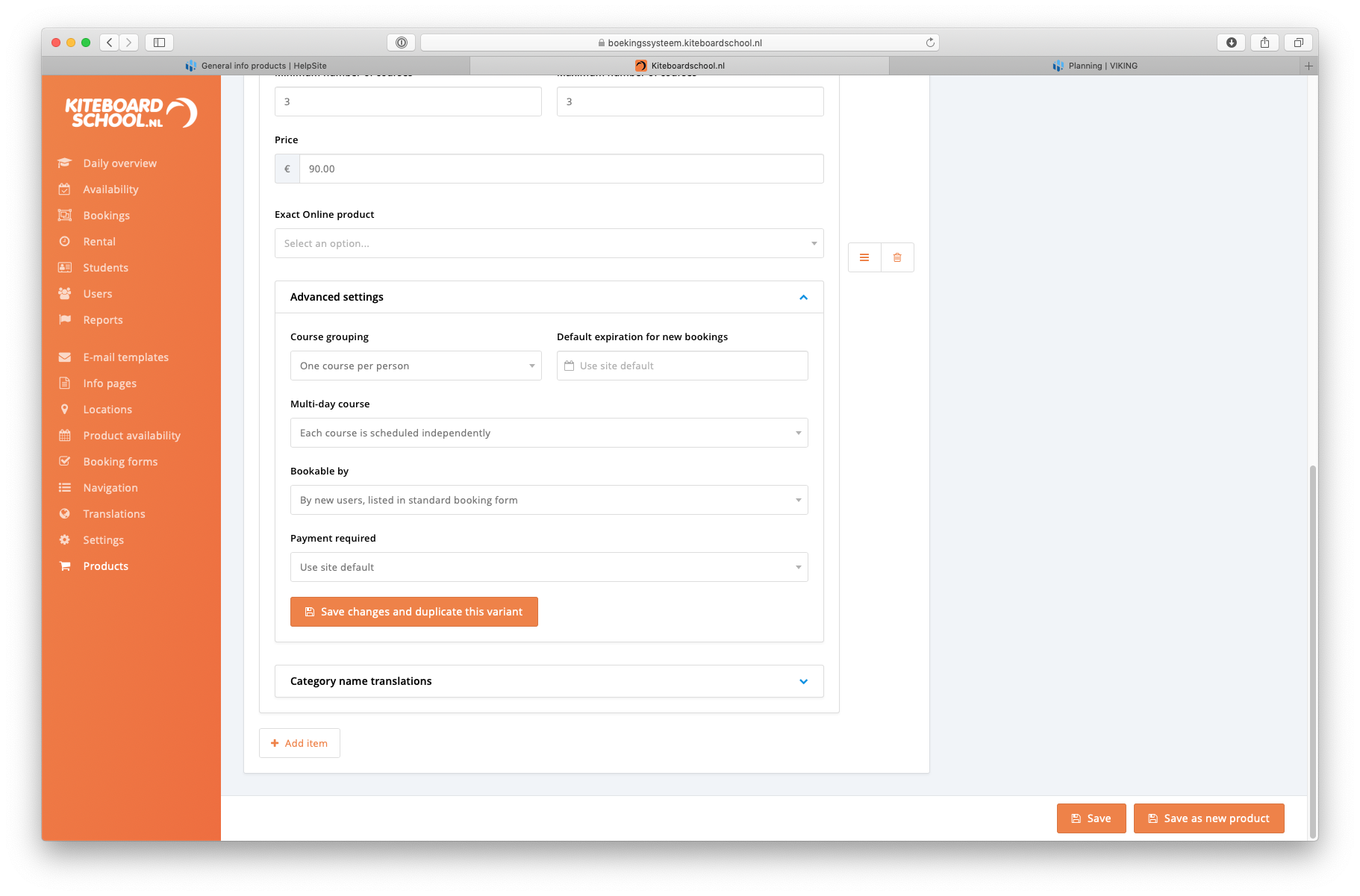
Course grouping
- One Course Per Person: Each student fills out their details.
- One Course Per Group: Only the head booker fills out details.
- One Slot Per Group: For exclusive bookings (e.g., family outings).
Default expiration for new bookings
Set expiration dates for for example early bird specials.
Multi-day course
1. Each Course is Scheduled Independently
- Customers can select individual dates and times for each lesson.
- Ideal for courses where flexibility in scheduling is essential.
2. Daily Repetition
- When customers choose the first date and time, the software automatically schedules the remaining lessons with daily repetition.
- Use this option for courses that occur on consecutive days.
3. Weekly Repetition
- When customers choose the first date and time, the software automatically schedules the remaining lessons with weekly repetition.
- Suitable for courses that run on the same day each week.
4. Daily Repetition, Only Use Product Availability for the First Day
- When customers choose the first date and time, the software schedules the remaining lessons daily.
Availability Settings:
- Product availability only needs to be set for the first day.
- Instructor availability is checked only for the start day.
5. Weekly Repetition, Only Use Product Availability for the First Day
- Similar to daily repetition, but schedules lessons on a weekly basis.
Availability Settings:
- Product availability only needs to be set for the first day.
- Instructor availability is checked only for the start day.
Bookable by
- Only by Admin and Planner: For upsold products not visible to customers.
- Only by Existing Users: For special discounts.
- By New Users: Available to everyone.
Payment required
- Use Site Default: Follows global payment settings.
- Yes: Requires payment before scheduling.
- No: Payment is optional.