You can receive the data that is pushed from Viking. This is possible because it falls within the same main domain. It is therefore essential that the form is placed on a subdomain of the customer where the container of the tag manager can be placed on the main domain.
- One has to install the Google tag manager on the main domain. The code fragments of this must be placed in the right place. See here the quick start guide to the google tag manager and how to place its container: https://developers.google.com/tag-manager/quickstart
- Tracking from Google Analytics must be active and can be placed using the tag manager. This works as follows:
- Go to analytics and get the relevant UA code
- Go to the tag manager and create a constant variable here with the UA code in it:
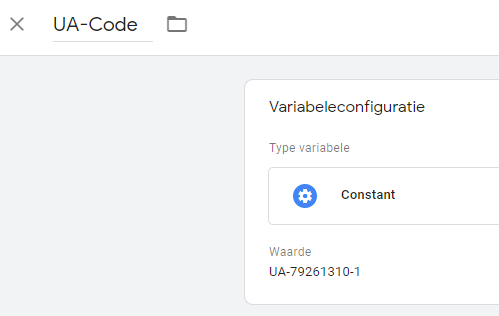
- Create a tag in the tag manager with the variable created above and the trigger on all pages.
With the above we have created a Google tag manager account, placed its container in the right place on the website (main domain) and enabled the universal analytics tracking of page views. Now we will use the tag manager to capture the variable sent by the form. We do this as follows:
1. We already create the first new variable in the tag manager (the variable that sends the form):
- price - data layer variable
- product_id - data layer variable
- product_type - data layer variable
- product_variant_id - data layer variable
2. We create a trigger in the tag manager that corresponds to the event that is fired by the form:
- trigger type - custom event
- choose some custom events and choose 'event' equals 'viking_conversion' (case sensitive!)
3. We now create the tag in the tag manager with the above variables and trigger, as follows:
- Create new tag, tag configuration -> 'Google analytics - universal analytics'
- We choose tracking type for 'event'
- We fill in the created variable as parameters:
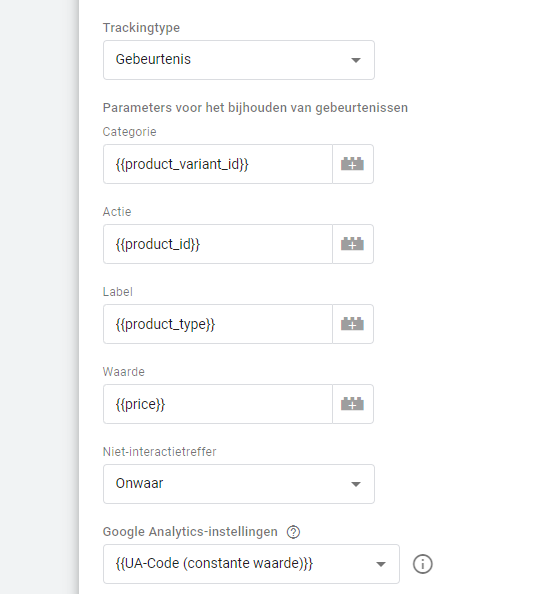
- Add the created trigger ... and voila! (don't forget to publish)
Now you see that the data is returned in analytics