Want to learn more about the integration first? Read how SurfSignal works with Viking Bookings.
You will need your SurfSignal Partner ID before you start.
1. Create the information page
-
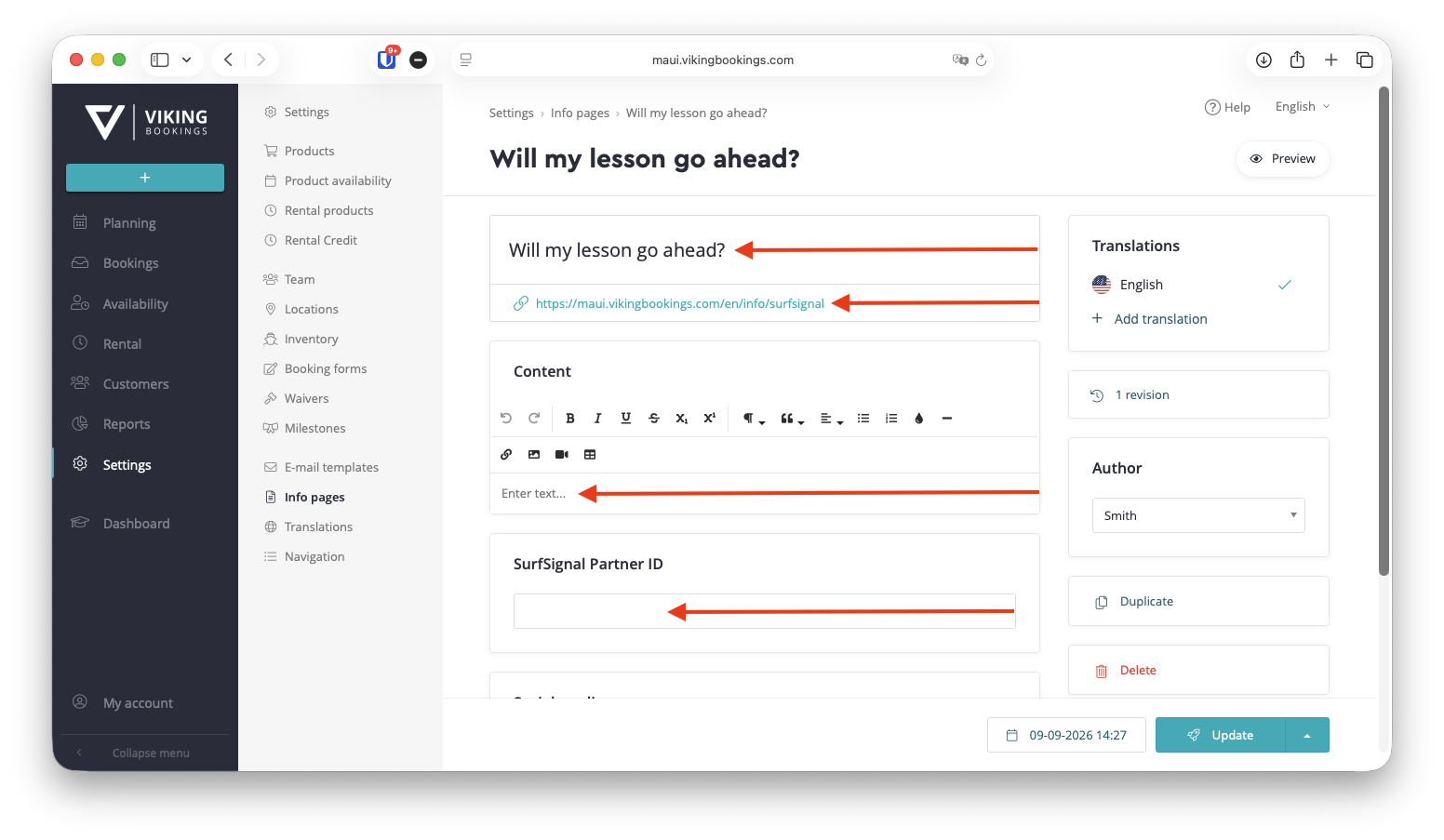
Go to Settings → Info pages.
-
Click New page.
-
Enter Will my lesson go ahead? as the title.
-
Change the final part of the page URL to Surfsignal.
-
Add an explanation for your students in the Content field
(see example content below). -
Enter your SurfSignal Partner ID in the SurfSignal Partner ID field.
This will make your SurfSignal widget display at the bottom of the page. -
Click Update.
Your English page URL should now end with:
/en/info/Surfsignal
Example content:
You can copy/paste the text below into the Content section of your info page. Feel free to adjust where needed!
Our spot-specific forecast tells you the times when lessons are most likely to go ahead!
It's 90% accurate because the conditions are set by our school.
- ✅ Green check — Likely to go ahead
The forecast is within the conditions set by our school. - 🟠 Orange dot — Borderline conditions
The forecast is close to the limits of our conditions. Your lesson may or may not go ahead. - ❌ Red cross — Unlikely to go ahead
The forecast falls outside the conditions set by our school.
The school makes the final call
Weather conditions can change quickly, so this forecast is only an indication. A green check may still result in a cancellation, while conditions shown with a red cross may improve. Our school always makes the final decision and will let you know whether your lesson is going ahead.
Get a daily update
Download the SurfSignal app to receive a daily push notification with the latest forecast for this location.
Live example
View a live example of this page in a student dashboard.
Add other languages
To create the page in another language, click Add translation on the right.
Translate the title and content and save the page. Each translation will have its own language-specific URL.
2. Add the page to the student dashboard
-
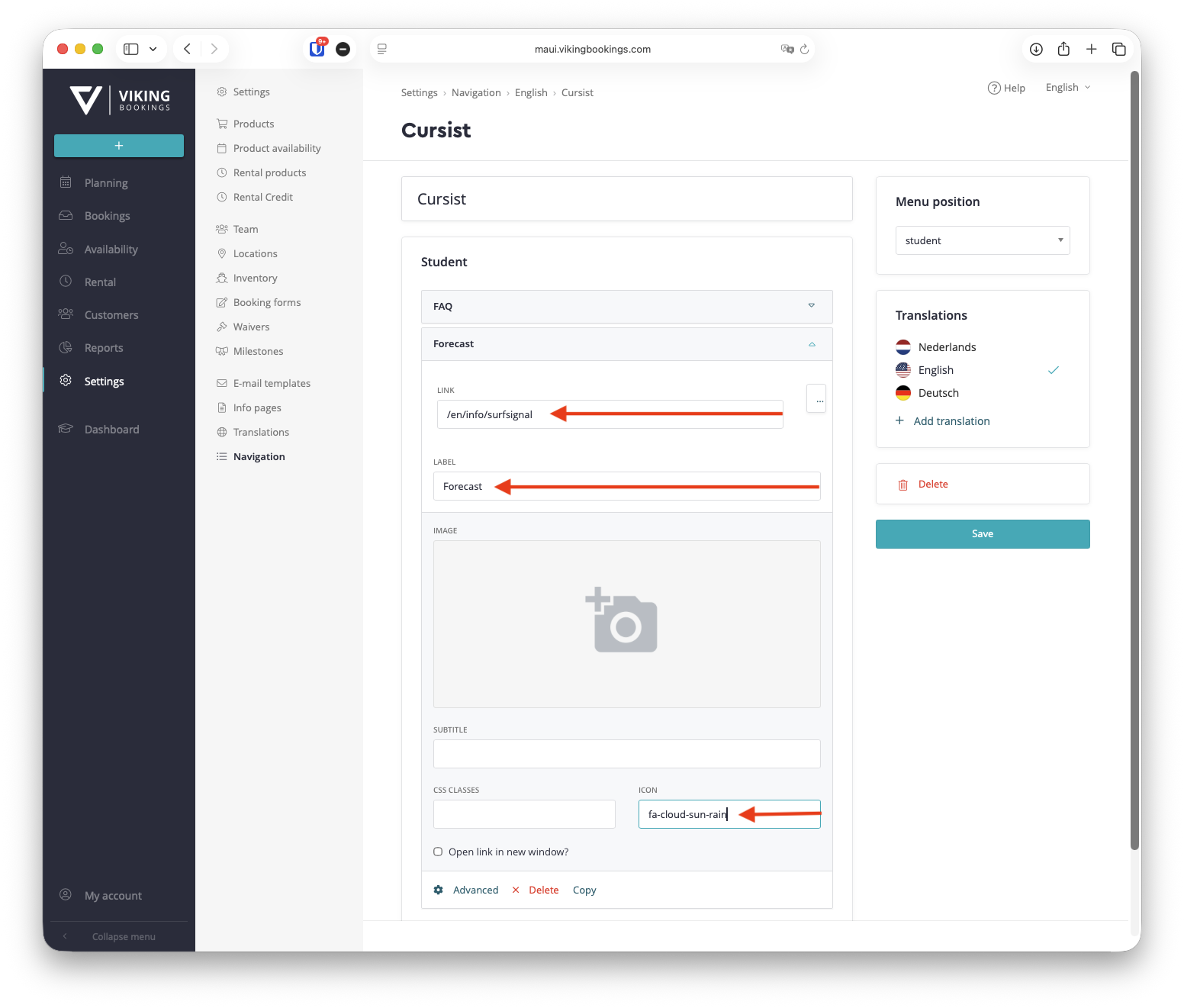
Go to Settings → Navigation.
-
Open the navigation menu with the Student position and the required language.
-
Click Add item.
-
Complete the following fields:
-
Link: /en/info/Surfsignal
-
Label: Forecast
-
-
Open Advanced.
-
Enter
fa-cloud-sun-rainin the Icon field. -
Click Save.
The Forecast item will now appear in the student dashboard.
Add the navigation item in other languages
Use Add translation on the right to configure the navigation menu in another language.
For every translation, use the URL of the corresponding translated information page. For example, the English navigation must link to the English information page.