Email templates play a crucial role in the operations of Viking. They facilitate most of the standard communication with customers, making it essential to optimize them according to your school's specific requirements. Once configured and designed effectively, these templates will continue to function indefinitely.
The key email templates
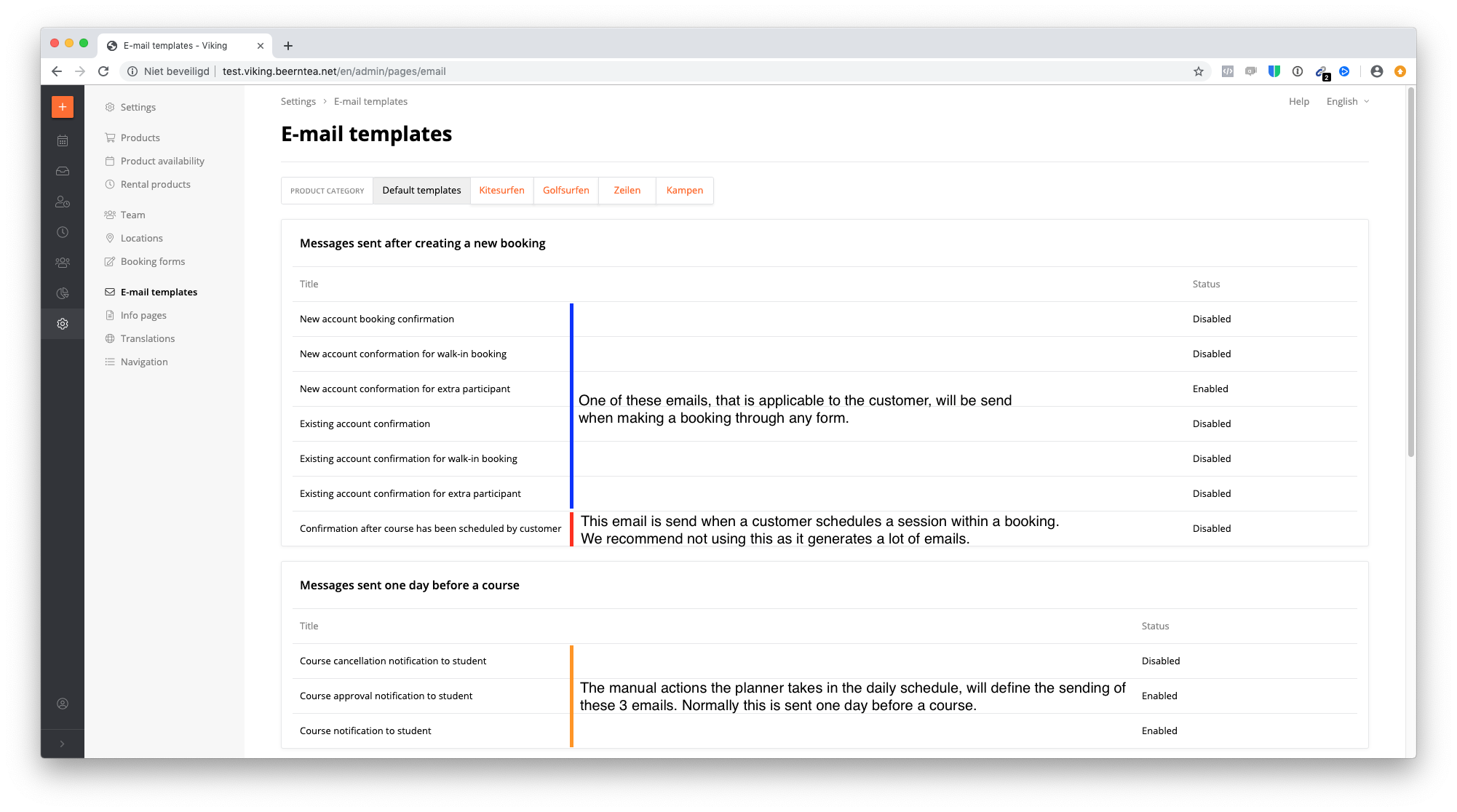
While it's important to review and edit every email template, focusing on the most critical ones initially can expedite the process. The highlighted templates in the screenshot below are a good place to start:
- All New booking confirmation mails
- Approval Notification
- Cancellation Notification
- Stand-by Notification
Tips for editing the templates
- Example templates are already pre-loaded into your system, serving as a foundation for customization based on your needs and information. If there are 'variables' (blue buttons), they are included for specific reasons, so careful consideration is required before removing them.
- In the Booking Confirmation email(s), it is strongly recommended that the subject contains the word 'password'. This is also reflected in our example emails, as many customers will need this information to log in and manage their lessons.
- Utilize the 'variables' (the magic wand button) to incorporate dynamic information about your school, lessons, or customers wherever necessary.
- Note that all enabled emails will be sent for every booking from now on, so it's crucial to ensure that no test content is left in these emails.
- Always remember to save your changes.
Timing of email template sending
By clicking on the name of the email template, the first sentence provides a clear description of when the template will be sent.
Translation & multi-language support
Viking supports multiple languages, with each customer being assigned a 'language.' Typically, this is determined by the language of the booking form used by the customer. For example, if a customer books through a German form, German will be set as their main language by default.
When using multiple languages, it is necessary to translate all email templates. It is advised to create all the email templates for one language first, test them, and then proceed with the translations.
To add a translation:
- Open a template and copy the default language text.
- In the top right corner, switch to the desired language.
- Paste the text from the original language and begin translating.
Note - ensure the correct translation of your product names, refer to this article (2.1 and 3).
Different activity types
It is possible to have different email templates for each product category, such as kitesurfing and SUP. Normally, the default templates are used for every category.
Create email per category
If you need to make changes for a specific sport, select the product category you want to edit and choose a template. Then, enable this template and tailor the content to your preferences.
Disabling emails
Access the product category in email templates, click on the email you want to disable, and then disable the email from the top right corner.