Introduction
The VIKING booking form operates as a cross-domain pop-up, meaning it runs on a separate domain from your website. Despite this setup, you can still track booking form conversions using Google Tag Manager (GTM) and Google Analytics 4 (GA4).
How the tracking works
The VIKING booking form is a pop-up embedded on your website, but it actually operates as a separate domain. When a customer completes the booking process and clicks the "Book Now" or "Continue to Payment" button within the pop-up, a GTM event is triggered. This event is then sent from the separate domain to your website.
To track this cross-domain event, your website must use GTM to capture the event from the VIKING widget (that runs on a separate domain). You’ll then configure GA4 to recognize and record these events as conversions in Analytics.
Prerequisites
- Basic knowledge of Google Tag Manager, Google Analytics, and the Viking Bookings system.
- Administrative access to your website.
- The Viking Booking forms must be loaded within your website via the WordPress plugin or manual script installation.
- Tracking works only for bookings made directly from your website—not for standalone forms or forms embedded on other websites.
- Be aware that GTM Debugger is incompatible with cross-domain setups, and events may take up to 24 hours to appear in GA4.
- Please note that GA4 captures only the conversion event and does not include additional product details such as price or variant.
Configuration steps
Here are the steps you can follow:
Step 1: Install Google Tag Manager and GA4 on Your Website
Before you can create a Tag to capture the conversion event, you need to install GTM and GA4 on your website. Here's how to do it:
Google Tag manager (GTM) setup
- Visit Google Tag Manager.
- Log in or create an account and set up a container for your website.
- Copy the GTM container code provided and paste it into your website’s HTML, just after the opening <body> tag.
Google Analytics 4 (GA4) setup
- Visit Google Analytics.
- Log in or create a GA4 property for your website.
- Set up a data stream. For manual configuration, copy the GA4 tracking code.
- Add this code to your website’s HTML, just before the closing </head> tag.
Note: GA4 may take up to 48 hours to recognize the tracking code.
Step 2: Create a New Tag in Google Tag Manager
Add variables
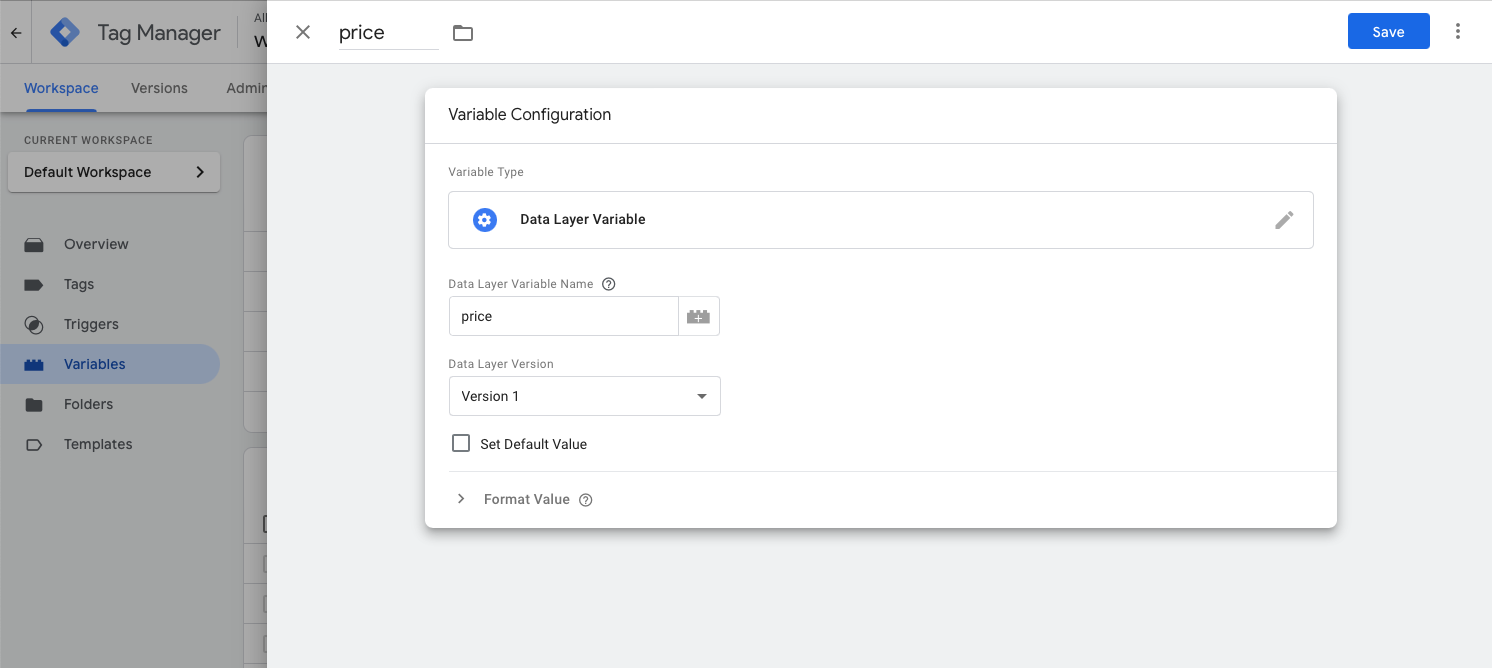
- In GTM, navigate to Variables and click New.
- Select Data Layer Variable as the configuration type.
- Name the variable price in both the "Data Layer Variable Name" and top-left corner, then save.
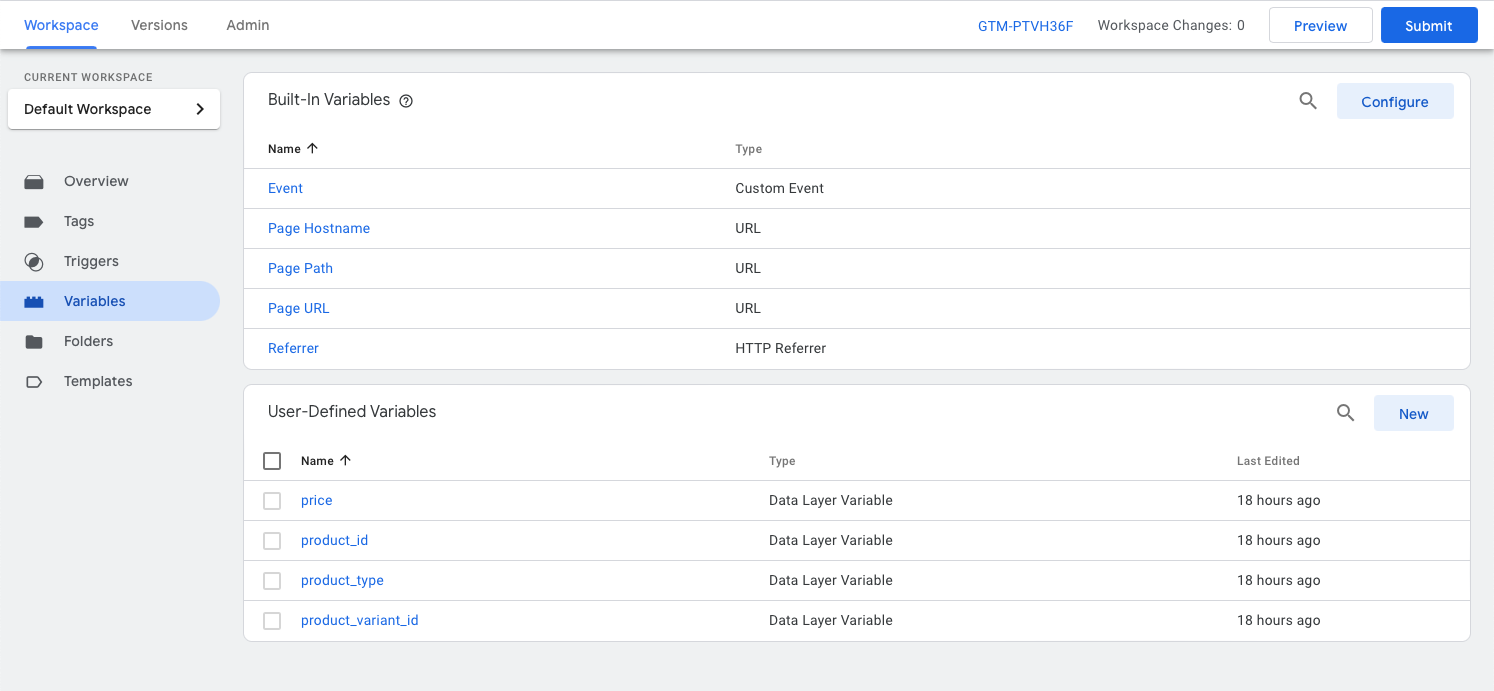
- Repeat these steps to create the following variables:
priceproduct_idproduct_typeproduct_variant_id
Note: GA4 will capture only the conversion event, not the additional product details like price or variant.
Create a new tag
- Go to the Tag section in GTM and click Create New Tag.
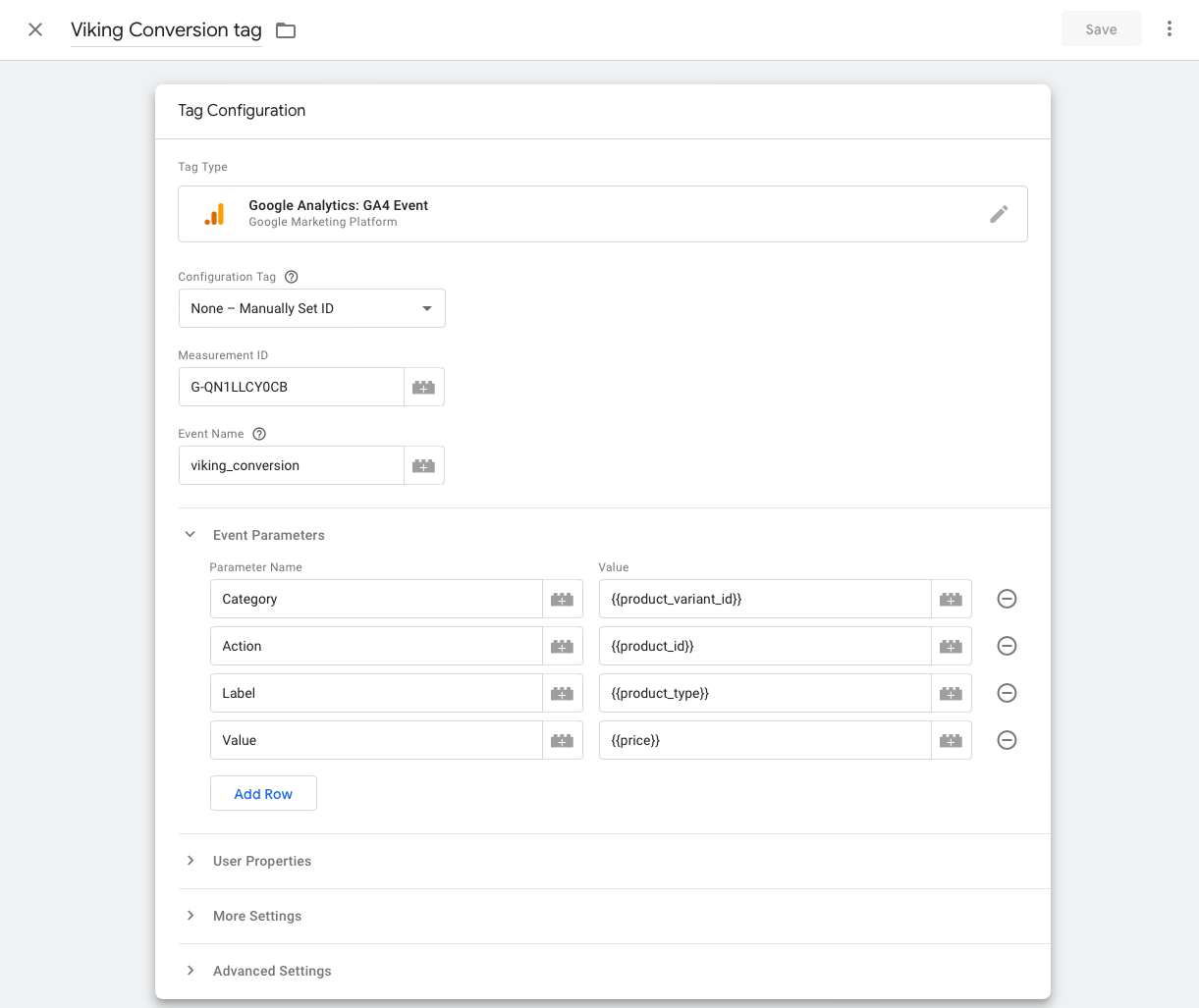
- Name the tag (e.g., "Viking Conversion").
- Click Tag Configuration and select Google Analytics: GA4 Event.
- Under Configuration Tag, choose None - Set ID Manually and enter your GA4 Measurement ID (e.g., G-XXXXXXXXX).
- In the Event Name field, enter viking_conversion.
- Expand Event Parameters and configure the following:
Category: {{product_variant_id}}Action: {{product_id}}Label: {{product_type}}Value: {{price}}
Set the trigger
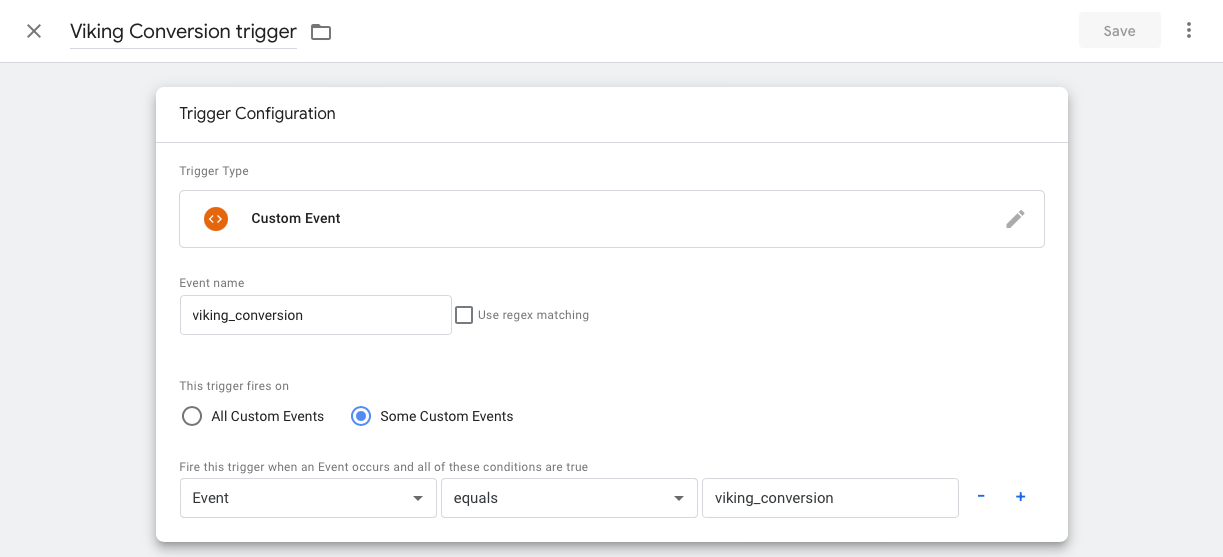
- Add a new firing trigger and select Custom Event as the trigger type.
- In the Event Name field, enter viking_conversion.
- Configure the trigger to fire under these conditions:
Event equals viking_conversion. - Save the trigger and the tag.
Click Submit in GTM to publish and activate the workspace changes on your website.

Step 3: Set the conversion in Google Analytics.
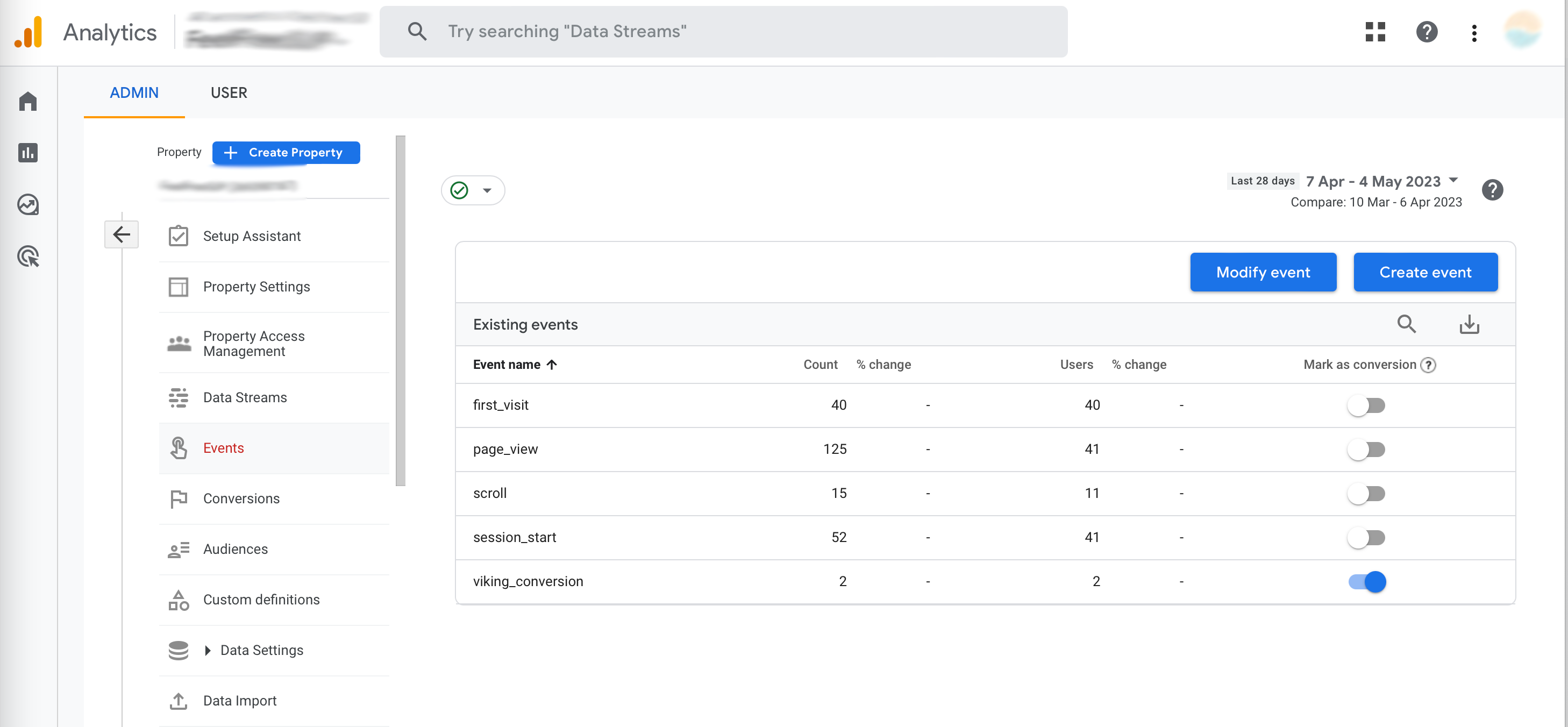
- Log into Google Analytics and navigate to Admin > Events under the "Property" section.
- Check if the viking_conversion event appears in the list.
If not visible, try completing a booking on your website and allow up to 24 hours for the event to appear. The GTM debugger does not work as this is a cross domain setup. - Mark the viking_conversion event as a conversion by toggling the setting.
Key Considerations
- Data Accuracy: Tracking measures completed bookings, not payments. This ensures compatibility across different payment settings, such as deposits or full online payments.
- HTTPS Requirement: Your website must use HTTPS for tracking to work.
- Ad Blockers: Certain browsers or extensions may block tracking events, affecting conversion data.
FAQ
1. What can be tracked?
This setup tracks conversion events (completed bookings) but does not sync revenue data across platforms.
2. Why are payments not tracked?
Viking supports various payment settings, and tracking bookings (instead of payments) ensures inclusivity for all configurations.
3. Support limitations
Viking Bookings does not provide individualized support for tracking setups. For assistance, consult your SEO specialist or a digital marketing agency.
Common reasons tracking may not work
1. Not waiting 24 hours for conversion data
GA4 may take up to 24 hours to display conversion events. Be sure to allow this time before verifying tracking results.
2. Using direct measurement methods
Tools like the GTM debugger do not support cross-domain tracking and thus don't show conversions.
3. Unsupported Booking Form Sources
Tracking only applies to completed bookings made through the pop-up booking form on your website. Bookings from the admin, the customer dashboard, standalone forms or forms embedded on other websites are not tracked.
Disclaimer
Support is provided on the delivery and accuracy of data. However, Viking Bookings does not offer (individual) support on implementing events in Google Tag Manager. If assistance is required, we advise you to contact an online marketing agency.