Availability rules
Navigate to 'Settings > Product Availability'. Your Availability Rules define the dates and times at which you want to teach/give a certain product/lesson. Usually, this means creating one or more Availability Rules for every product or product category.
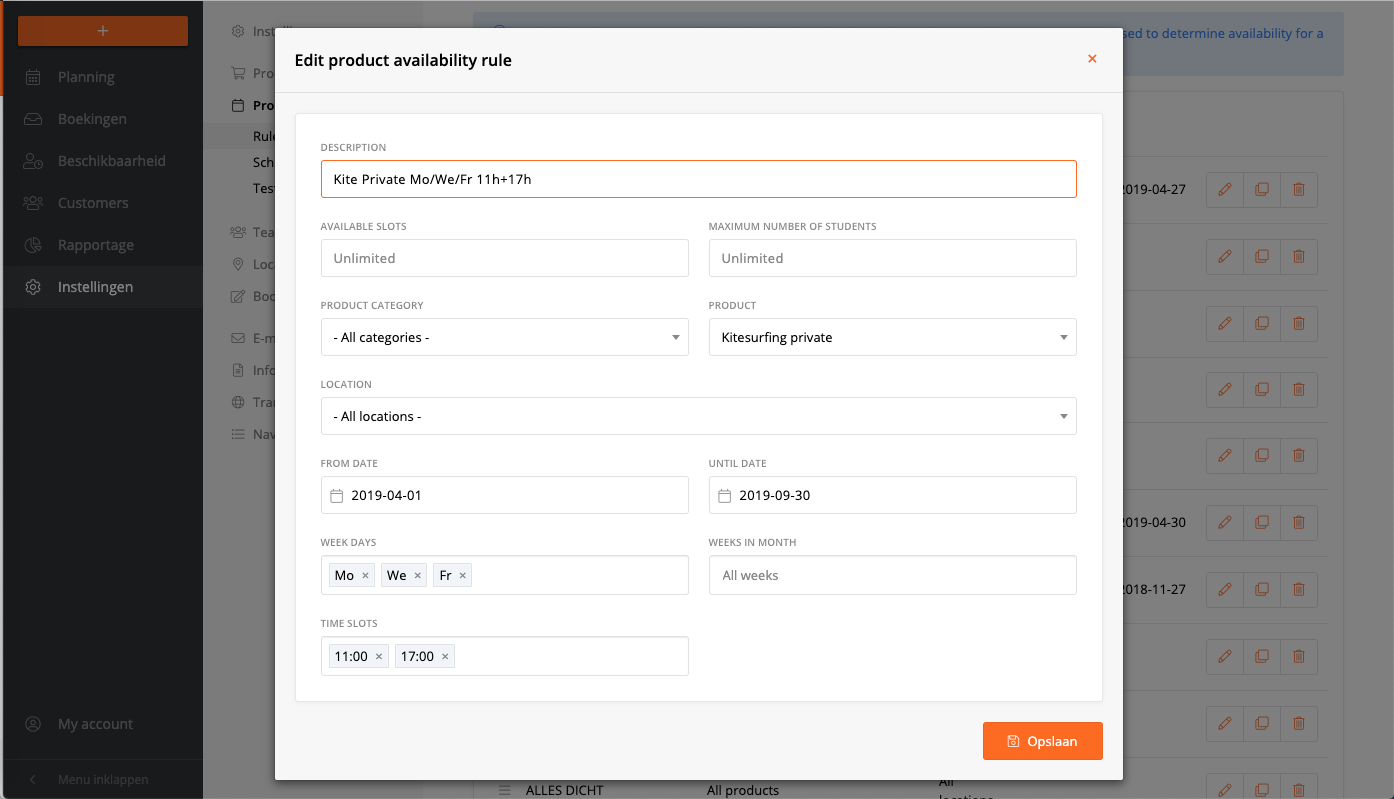
- Give a CLEAR description of your rule in the title that includes days/times (for instance use 'Intro lesson Sa/Su 14.00' and not just 'Intro Lesson')
- You do not have to use ALL the fields in an availability rule. For instance, it's possible to only select certain 'timeslots' but no 'days in the week' (then the system will use all days of the week). Or select only a date range (then the system uses all the days and all the possible timeslots).
- It is possible - and often necessary - to create multiple rules for 1 product. For instance, if you want Kitesurfing Private lessons (only) on Saturday at 15.00 and Wednesday at 11.00, this would require 2 rules.
- You can duplicate an Availability Rule with the duplicate icon. This makes it easier to create multiple different rules for the same product(s).
- Most of the settings speak for themselves, but you can have a look at some example rules for different use cases in this article.
For instance, if you create 1 rule for the 'category' kitesurfing and another rule for a specific product from this category, BOTH these rules will create availability for this specific product.
How do I test if the availability is set correct?
Check your booking form per product. Are the times / days correct for the product you chose?
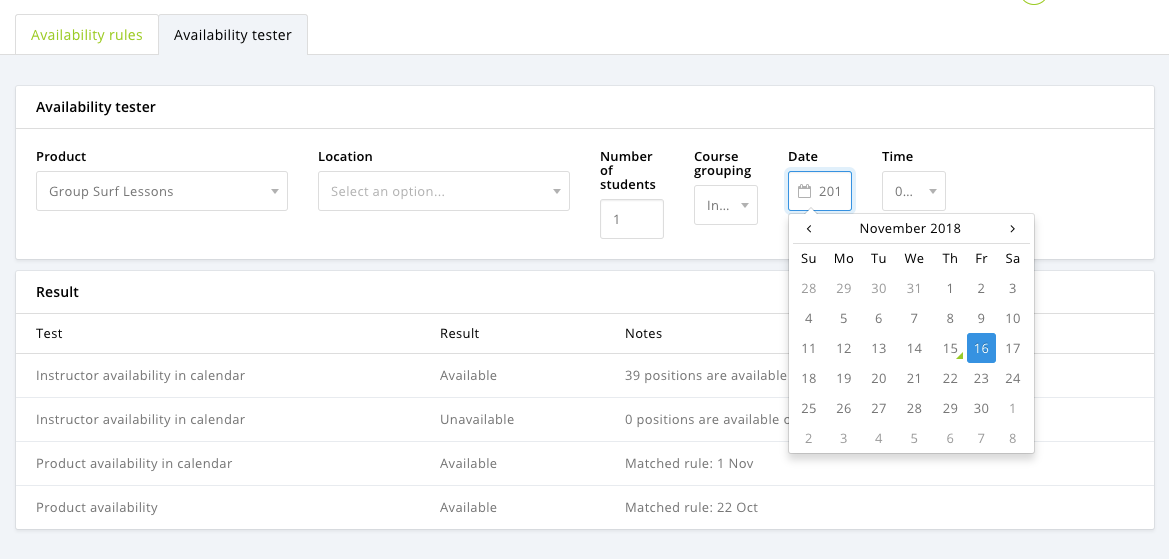
If it's not correct, go to settings --> product availability --> availability tester. Enter the product and time you tried in the booking form. Now it will show:
- If you have instructor availability
- What Availability rules are matching (this only works if you gave every rule in your availability a good description), if you have double rules, it will show double availability in the booking form.
Here is an example of the tester:
Why is there no availability showing on my product?
To have availability you need:
- An instructor who can teach the selected product at the selected location. In the instructor's account, you can add products and locations.
- Availability from that instructor on the selected time.
- A matching rule in 'product availability' NOTE - if you've selected the wrong product category for the product, it will not show availability.
You can test why there is no availability with the availability tester (go to product availability, then select the tab 'Availability tester').
Why do I get more availability than specified?
Availability rules work on matched items. So if you put in 'double availability' - for eg. 1 availability for 1 specific category and 1 availability for all categories, then the availability of that 1 specific category will show double.
You can test availability with the availability tester (go to product availability, then select the tab 'Availability tester').
Allow bookings regardless of availability after
You can find this option in the settings and per product in products.
You can choose the number of months / weeks where bookings can be made regardless of the availability of the instructor.