A booking form group combines multiple individual booking forms into one customer flow.
Use a group when you want customers to start from an overview page, choose between different activities or booking forms, and optionally add another booking before completing checkout.
Before creating a group, set up the individual booking forms you want to include.
On this page
- How booking form groups work
- Create a booking form group
- Choose which booking forms to include
- Configure how each booking form appears
- Use the group overview page
- Start directly from a specific booking form
- Let customers add another booking
- Use multiple booking form groups
- Test the complete booking flow
How booking form groups work
A booking form group adds an overview page before the individual booking form.
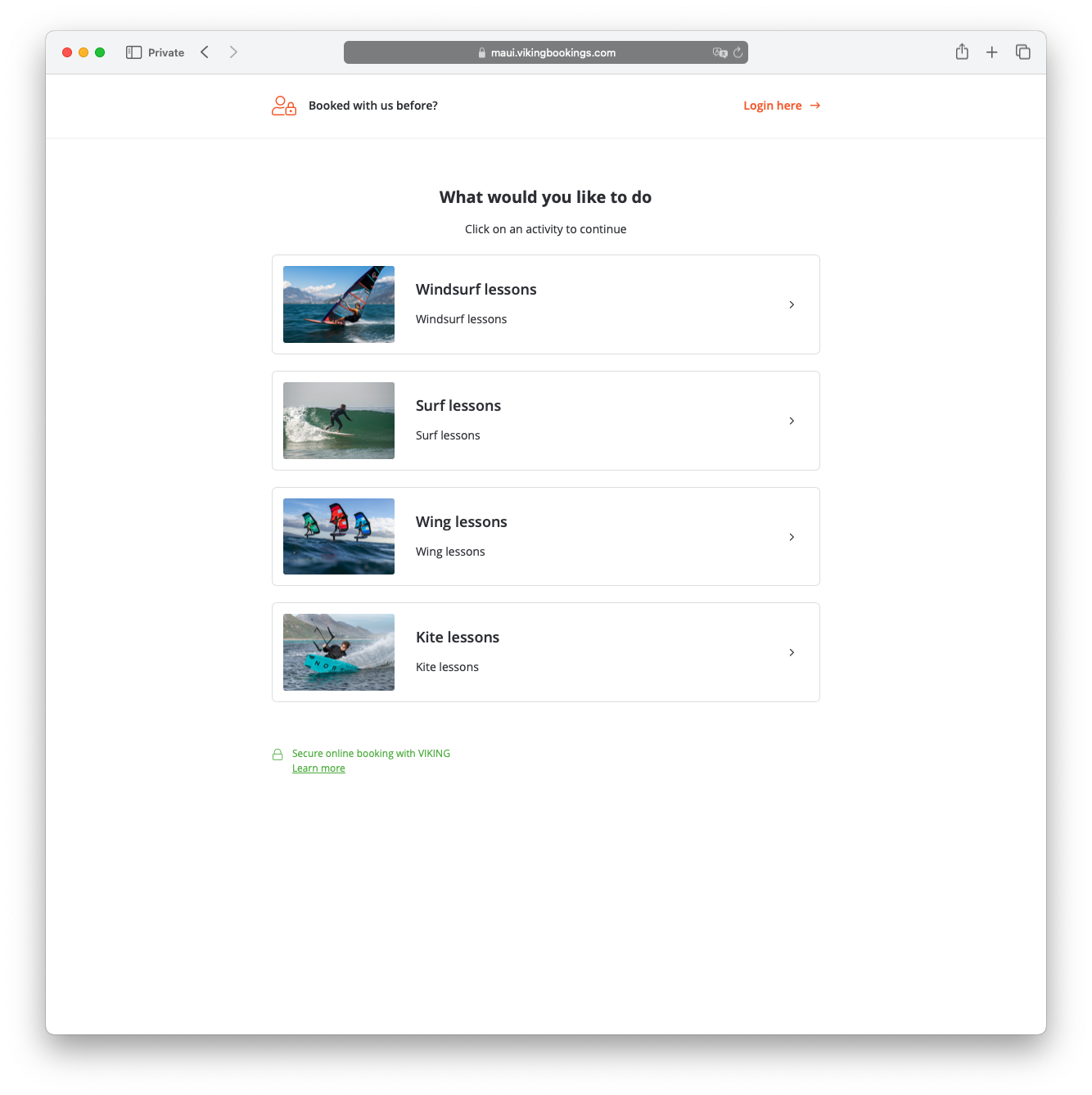
The customer flow is:
Overview page → Booking form → Summary page
On the overview page, customers choose which booking form they want to start with.
Each booking form keeps its own settings, including:
- products and variants;
- locations;
- date selection;
- system and custom fields;
- custom text;
- sidebar content and FAQs.
This means different activities in the same group can still have completely different booking requirements.
For example, a school could combine:
- Kitesurf lessons
- Surf lessons
- SUP lessons
- Camps
into one booking form group.
Create a booking form group
Go to:
Settings → Booking Forms → Groups
Click + Create booking form group.
Set:
- the group name;
- the language;
- the booking forms you want to include.
The booking forms should normally use the same language as the group.
Choose which booking forms to include
Add the individual booking forms that customers should be able to choose from on the overview page.
A group can contain multiple booking forms.
For example, you could create one group containing:
- Kite Lessons
- Wing Lessons
- Surf Lessons
- SUP Lessons
Each of these forms can still have its own fields and settings.
This is useful when one activity needs different questions or booking logic from another.
Configure how each booking form appears
The way an individual booking form appears on the group overview page is configured inside that booking form.
Under the booking form's Group page details, you can set:
- Form title
- Image
- Description
The image and description are only used on the group overview page. They are not shown inside the individual booking form itself.
For the full booking form settings, see Set up a booking form.
Use the group overview page
Each booking form group has its own URL.
Use this URL when you want customers to start from the overview page and choose between all booking forms included in that group.
This is often the best option for a general Book now button where the customer has not yet selected an activity.
For example, the main booking button on a school's homepage could open the group overview page.
Start directly from a specific booking form
A booking form group also provides links that let customers start directly from one of the individual booking forms in the group.
This is useful on activity-specific pages.
For example:
- the Book a kitesurf lesson button can open the Kite Lessons form directly;
- the Book a SUP lesson button can open the SUP Lessons form directly.
The customer starts at the relevant booking form instead of first seeing the overview page.
Because the form is still part of the group flow, the customer can later return to the group and add another booking.
Let customers add another booking
After completing a booking form, customers reach the summary page.
From there, they can click Add another booking.
Viking then takes them back to the group overview page, where they can choose another booking form.
Multiple bookings are kept together in the same cart and checkout flow.
This is useful when customers may want to combine different activities.
For example, a customer could book:
- a surf lesson;
- then add a SUP rental;
- then continue with checkout.
Use multiple booking form groups
You can create more than one booking form group.
This can be useful when different parts of your website need different combinations of booking forms.
For example, you could have:
- one general group containing all activities;
- one group for lessons and rentals for a specific sport;
- one group dedicated to camps.
Only include booking forms that make sense together for that customer journey.
For most schools, one main group covering the core activities is usually the simplest setup.
Test the complete booking flow
- Open the group URL.
- Check that all intended booking forms appear.
- Open each booking form and verify its products, fields, and availability.
- Complete a test booking until you reach the summary page.
- Click Add another booking.
- Confirm that Viking returns you to the correct group overview page.
- Test any direct links that start from a specific booking form.
This verifies both the individual booking forms and the group flow.